Import Tournament
Import competitions and players from CSV data to quickly set up your tournament
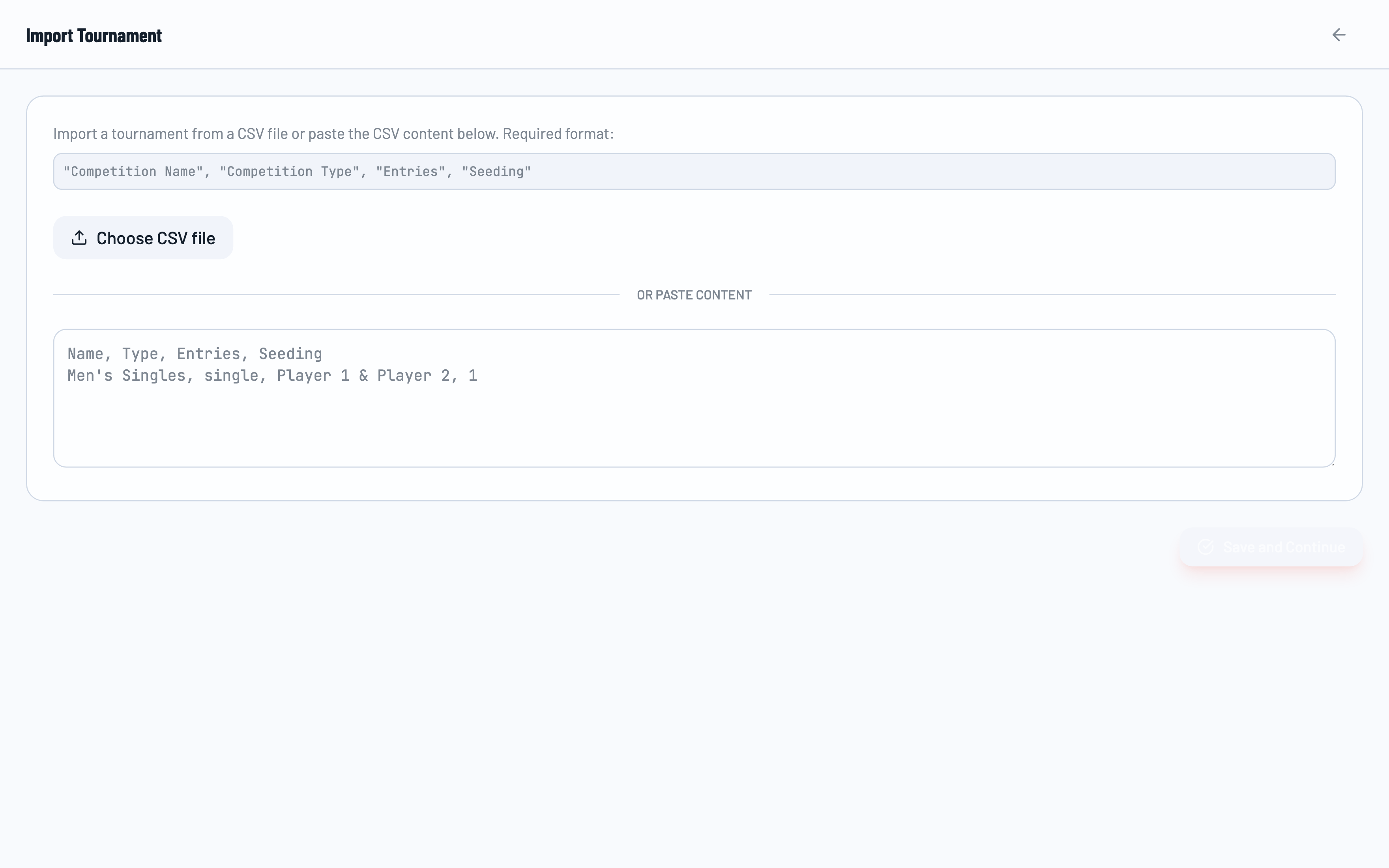
The Import feature lets you quickly set up multiple competitions and players by pasting CSV data. This is perfect for tournaments with many events or when migrating from spreadsheet-based planning.
Accessing Import
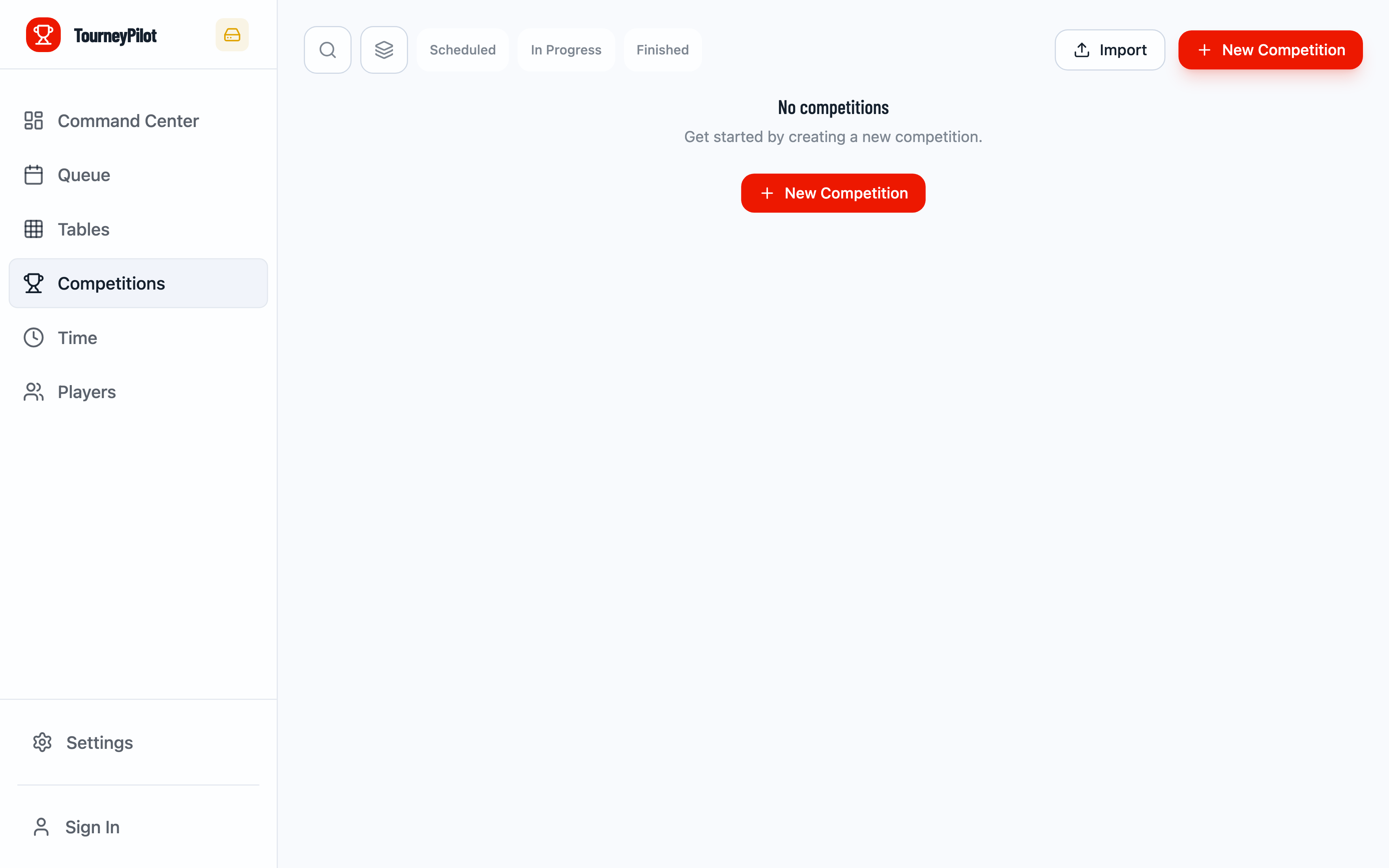
Navigate to the Competitions tab and click the Import button to open the import interface.
CSV Format
The import accepts CSV data with the following columns:
- Name - Competition name (e.g., "Men's Singles")
- Type - "single" or "doubles"
- Entries - Player names separated by " & " (e.g., "John & Jane & Mike")
- Seeding - Seed numbers separated by commas (e.g., "1,2,3")
Example CSV
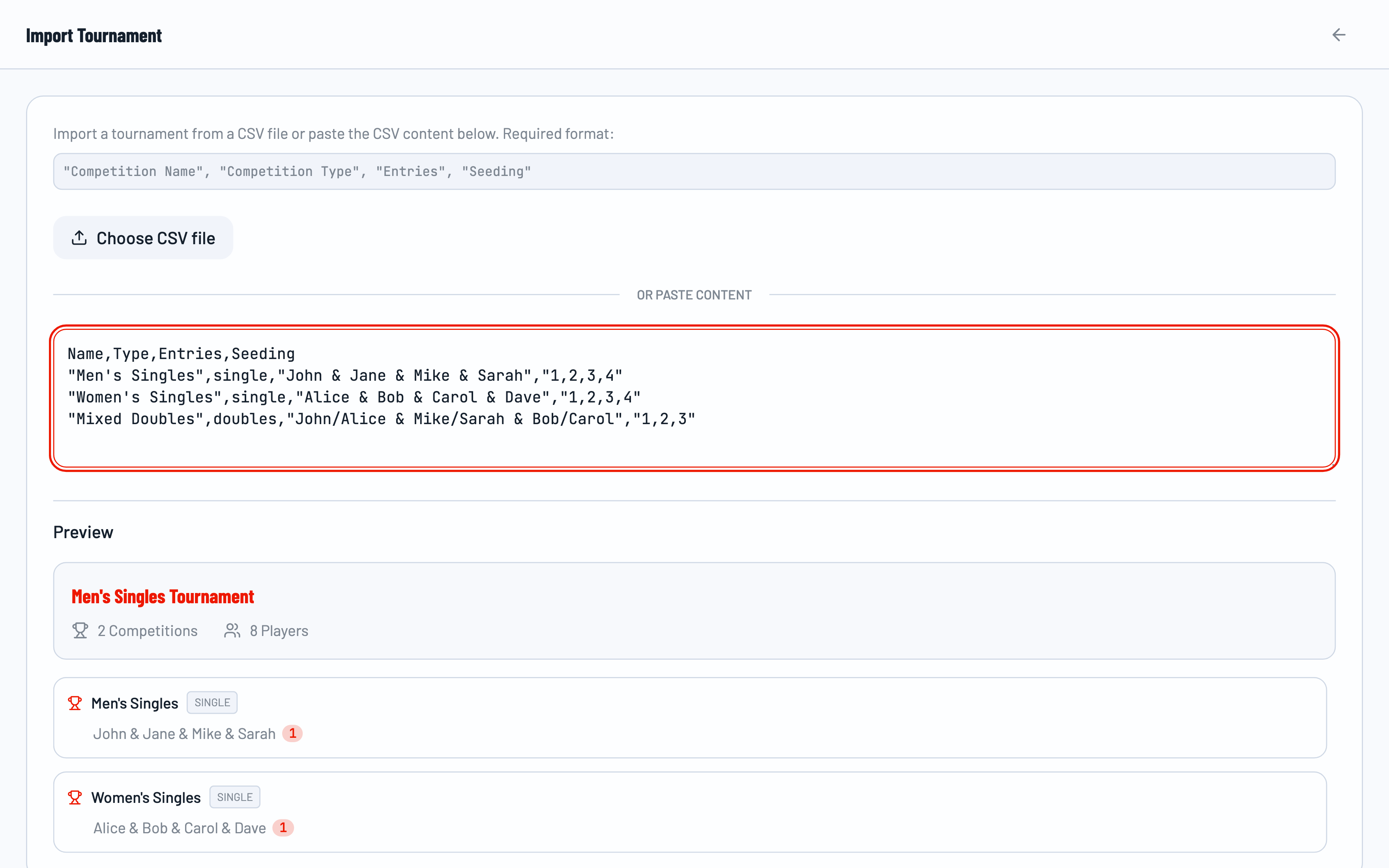
Name,Type,Entries,Seeding
"Men's Singles",single,"John & Jane & Mike & Sarah","1,2,3,4"
"Women's Singles",single,"Alice & Bob & Carol & Dave","1,2,3,4"
"Mixed Doubles",doubles,"John/Alice & Mike/Sarah & Bob/Carol","1,2,3"
Importing Data
Step 1: Paste CSV Content
Copy your CSV data and paste it into the text area. The system will automatically parse the content and prepare for preview.
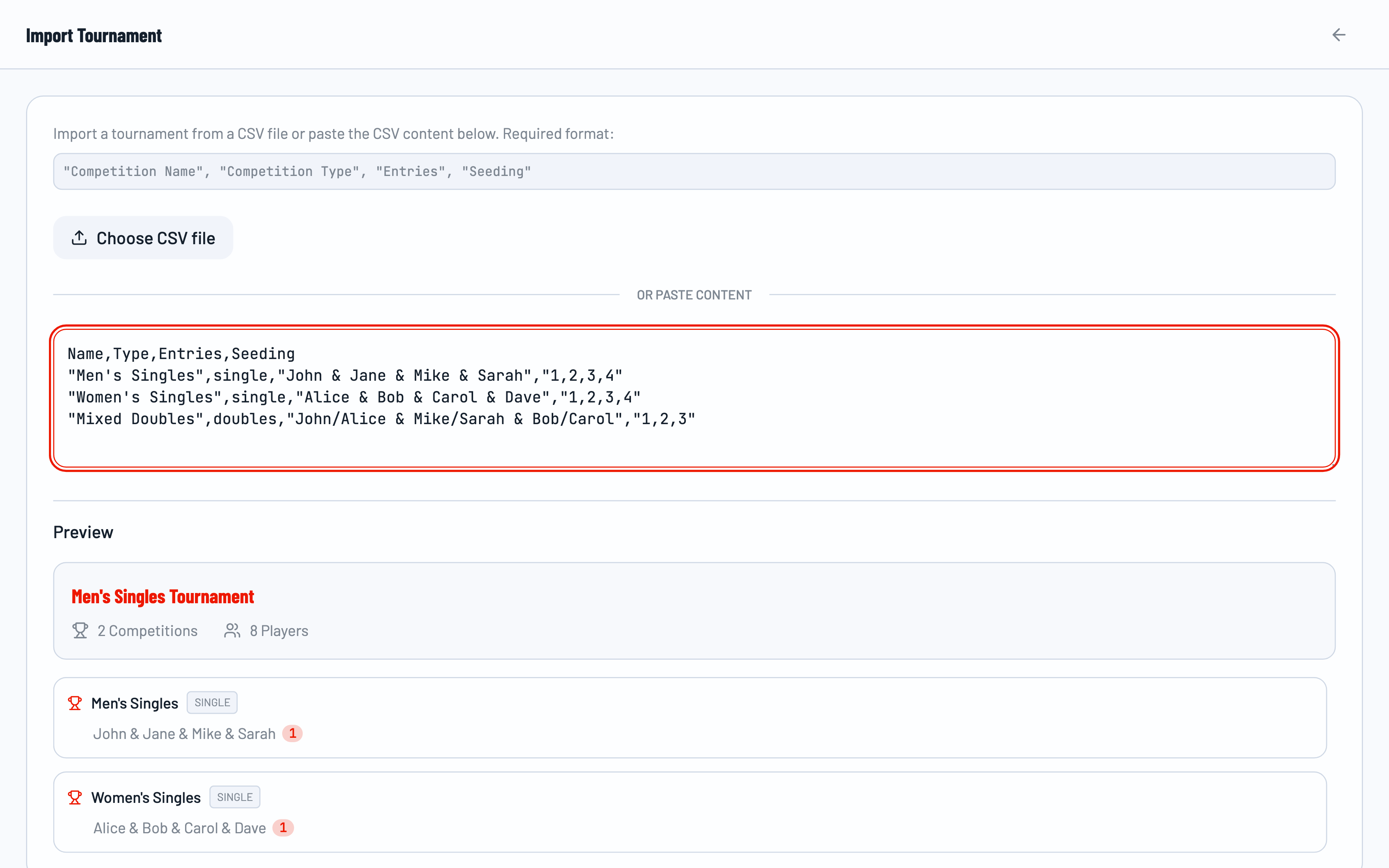
Step 2: Review Preview
The preview shows how many competitions and players will be created. Review the list to ensure everything is correct before saving.
Step 3: Save and Continue
Click Save and Continue to create the competitions. You'll be redirected to the competitions list where you can see your newly imported events.
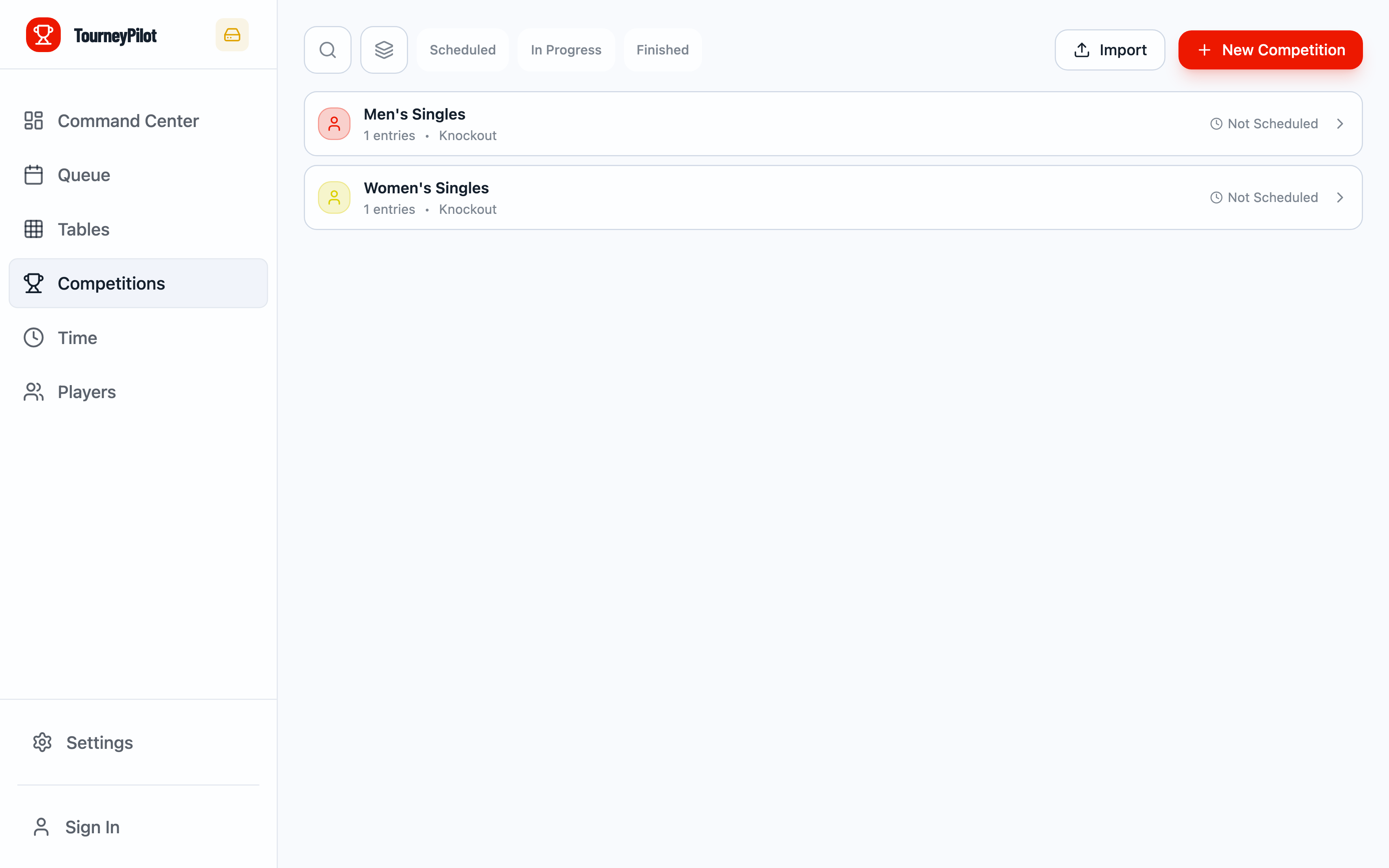
After Import
Imported competitions are created but not started. You still need to generate fixtures and start each competition manually. This gives you a chance to review and adjust entries before play begins.
Tips for Successful Imports
- Use quotes around values that contain commas or special characters
- Separate player names with " & " (space-ampersand-space)
- For doubles, pair partners with "/" (e.g., "John/Alice")
- Seeding is optional but helps create balanced draws
- Check the preview carefully before saving
Related Guides
- Getting Started - Basic tournament setup
- Player Management - Managing players manually