Scheduling & Queue
Master time planning, auto-scheduling, and queue management for optimal tournament flow
The Time and Queue tabs help you schedule matches efficiently and manage the flow of your tournament. Use time planning to set start times, and the queue to manage which matches are ready to be played.
Time Planning
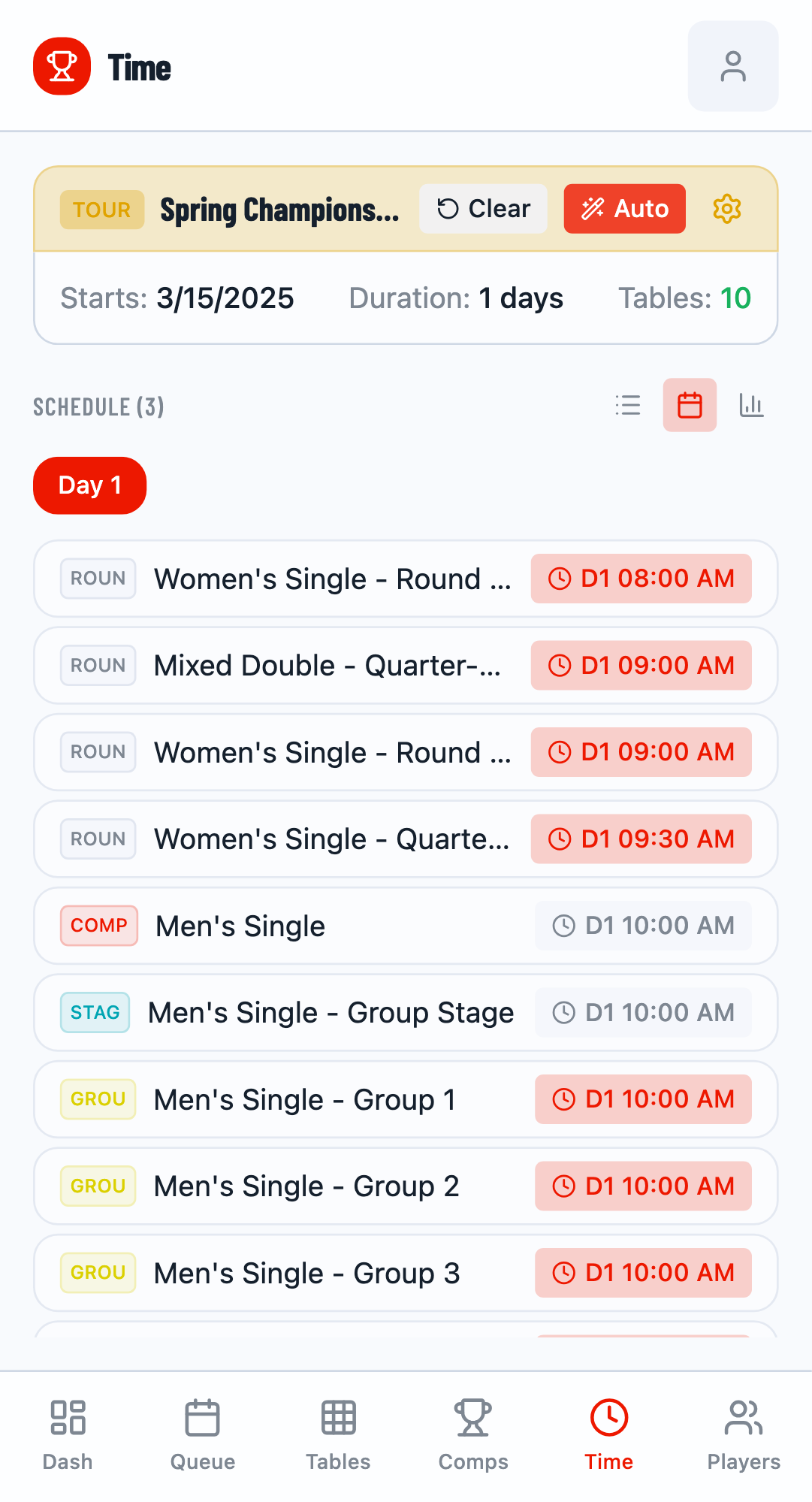
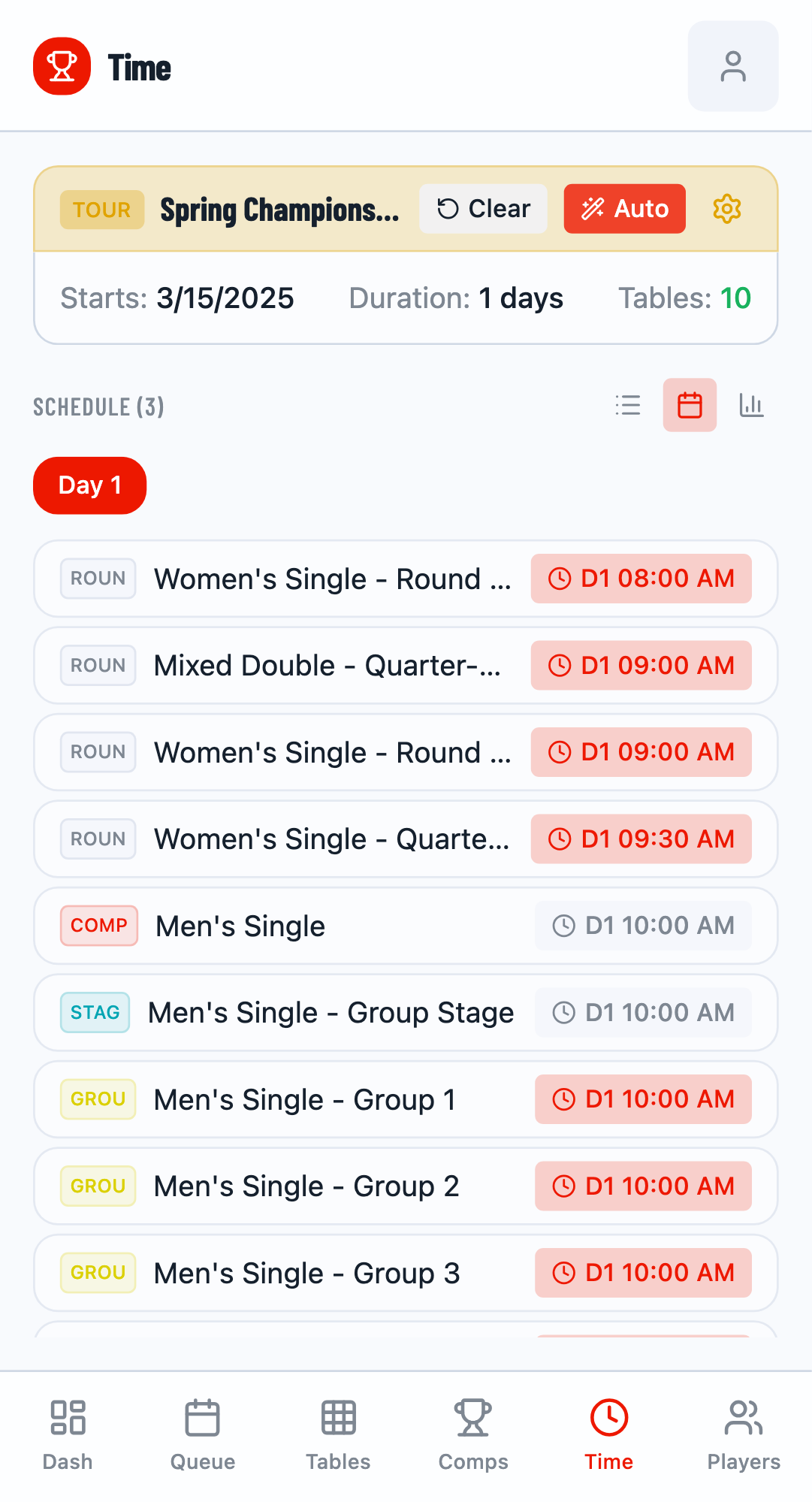
Navigate to the Time tab to schedule your competitions. Here you can set start times manually or use the auto-scheduler to generate a complete schedule.
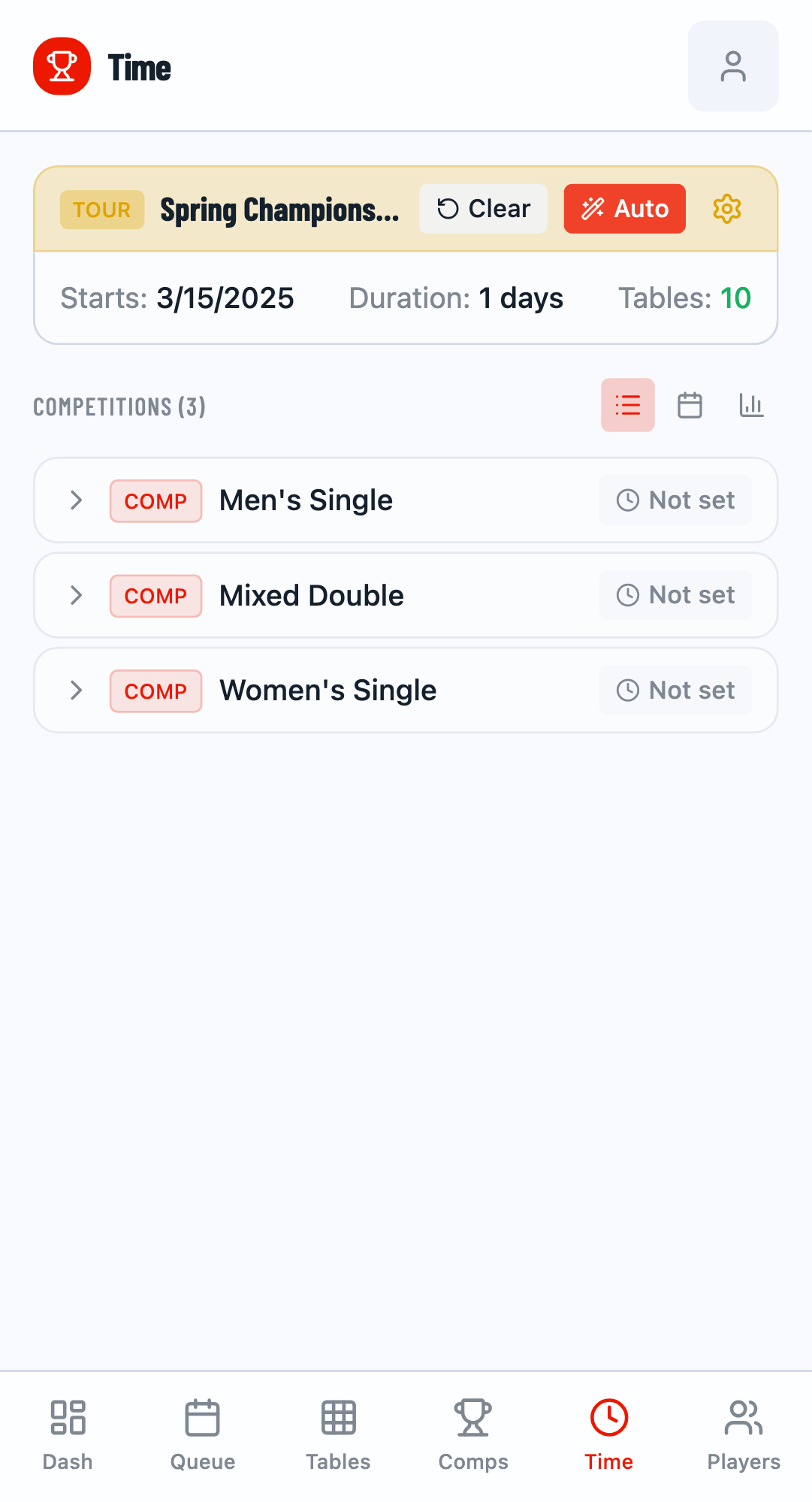
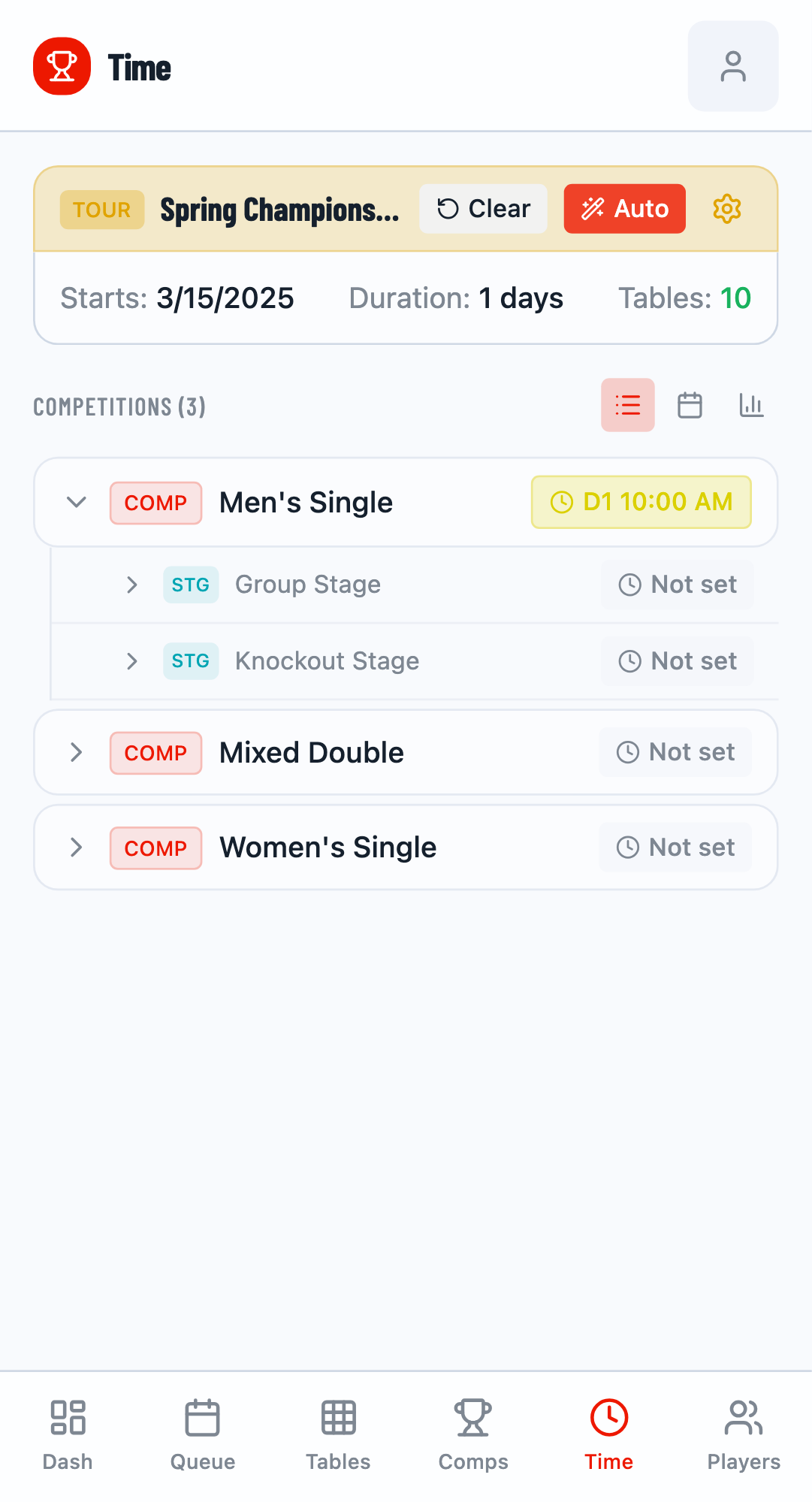
Competitions List
The competitions list shows all competitions and their stages. Click the expand button to see individual stages (Group Stage, Knockout, etc.).
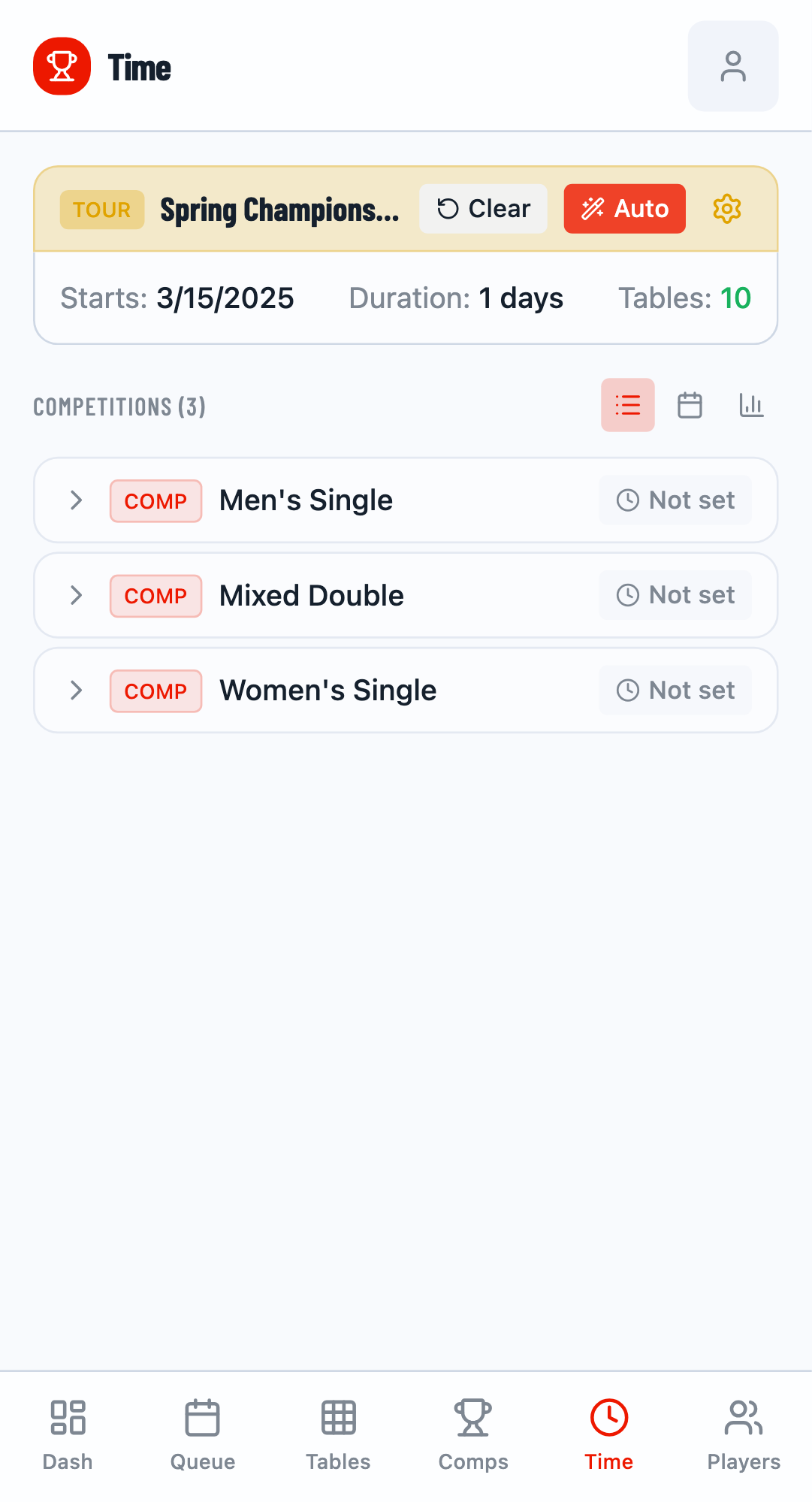
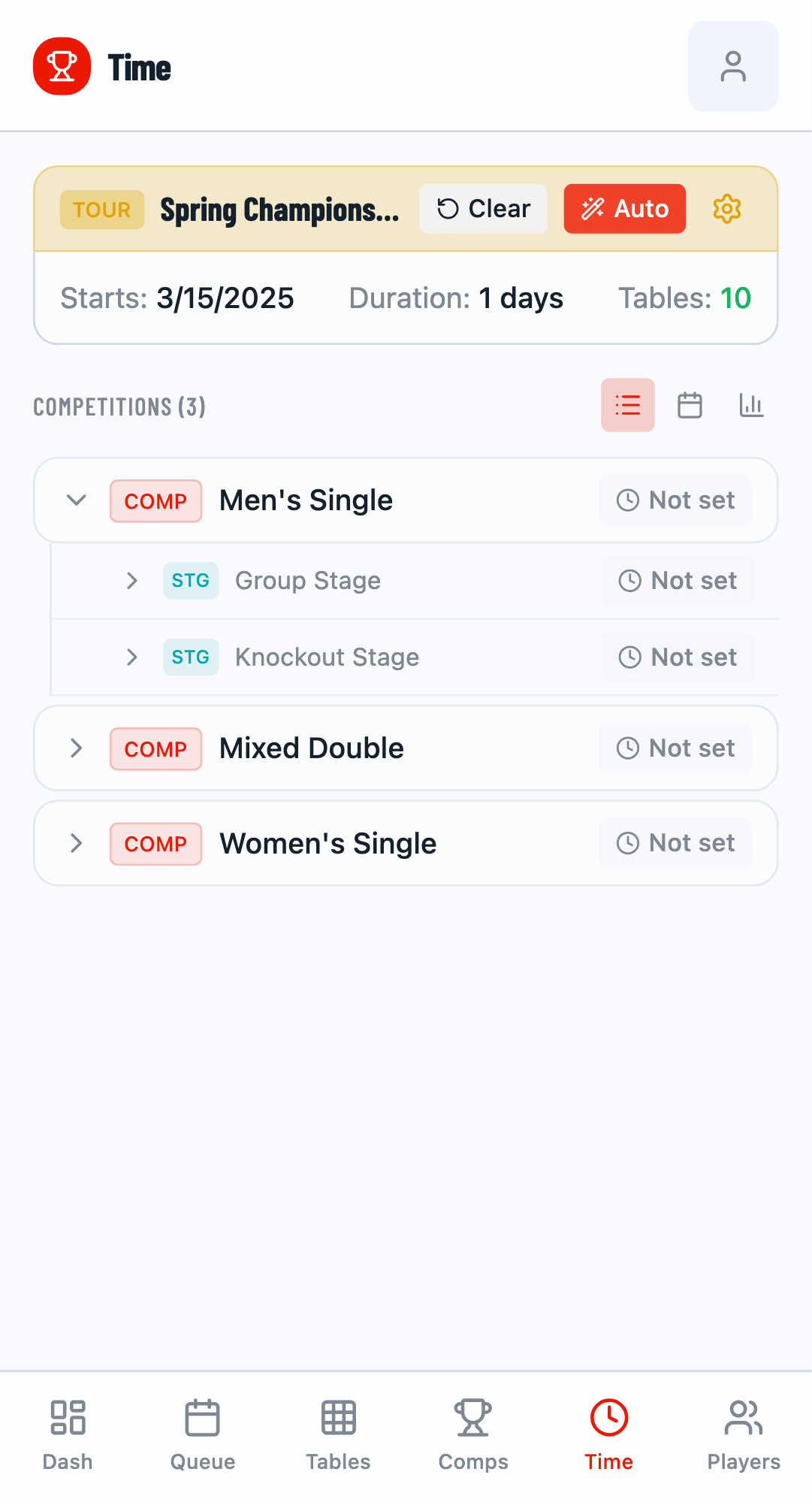
Setting Manual Times
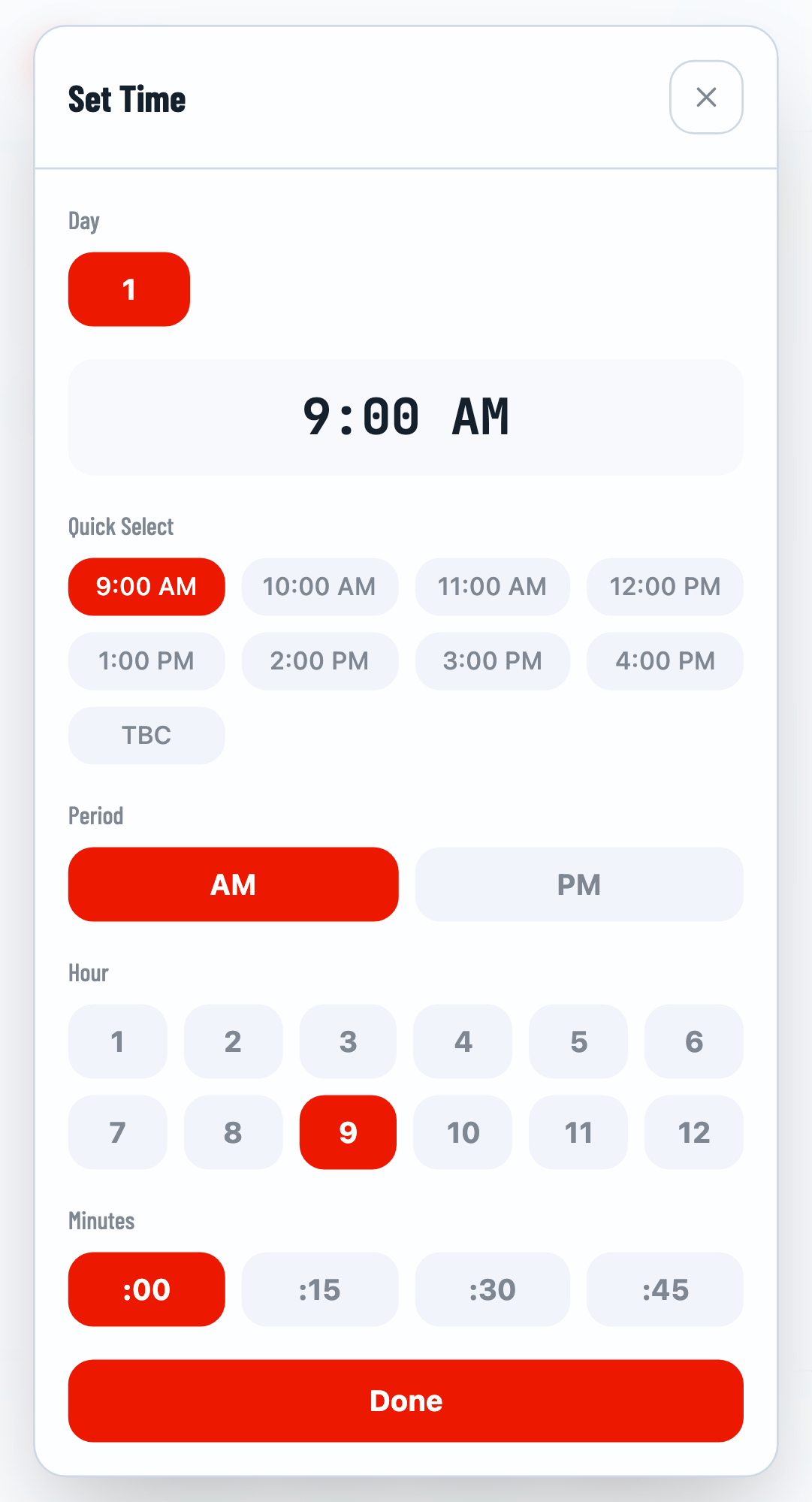
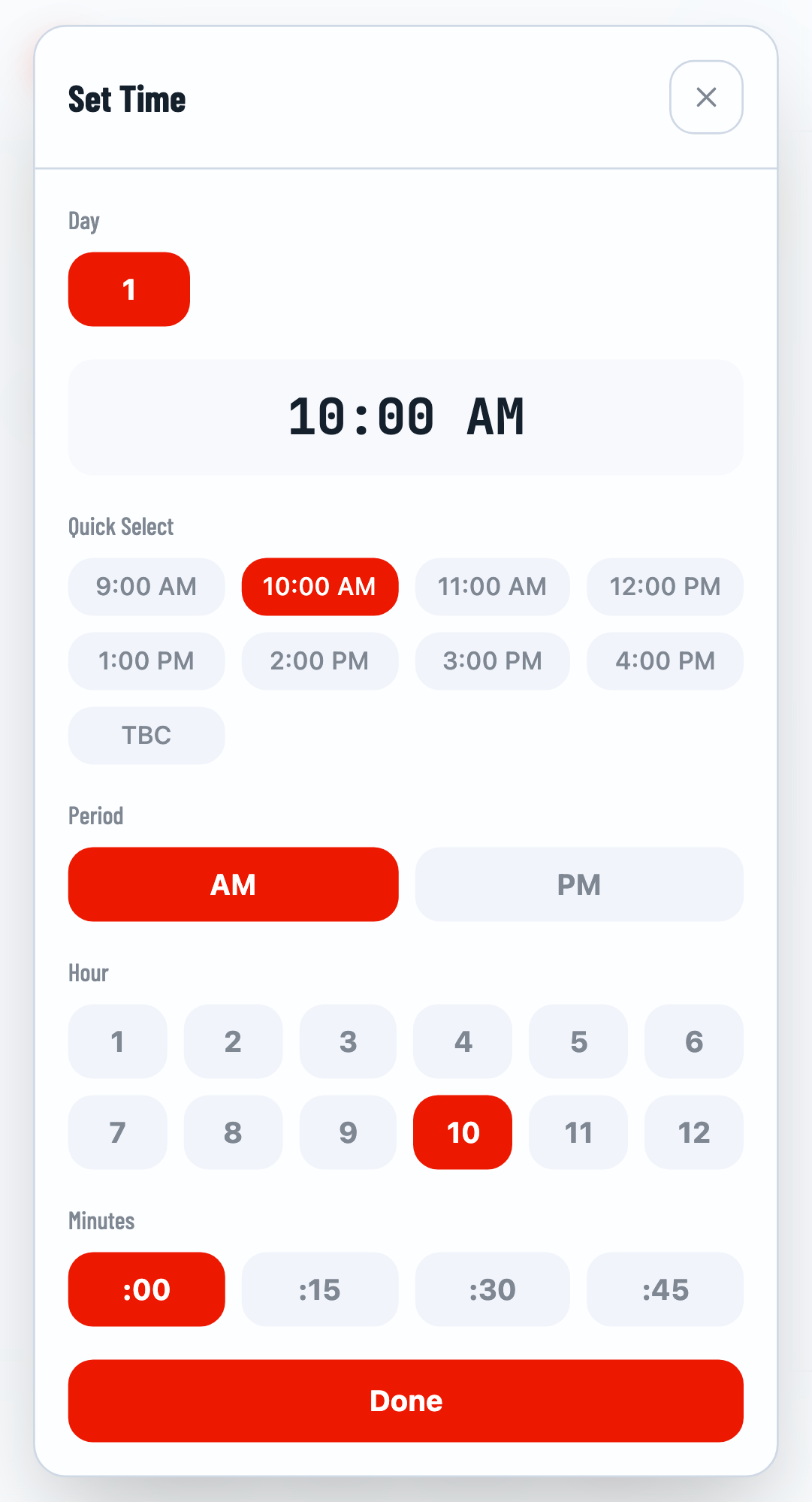
Click on a "Not set" badge to open the time picker and set a specific start time.
Time Picker
- Click the "Not set" badge on any competition or stage
- Select the day (Day 1, Day 2, etc.)
- Choose a time slot or enter a custom time
- Click "Done" to save
Auto-Scheduling
Click the Auto button to automatically generate a schedule for all competitions. The system considers table availability, match duration, and player rest time.
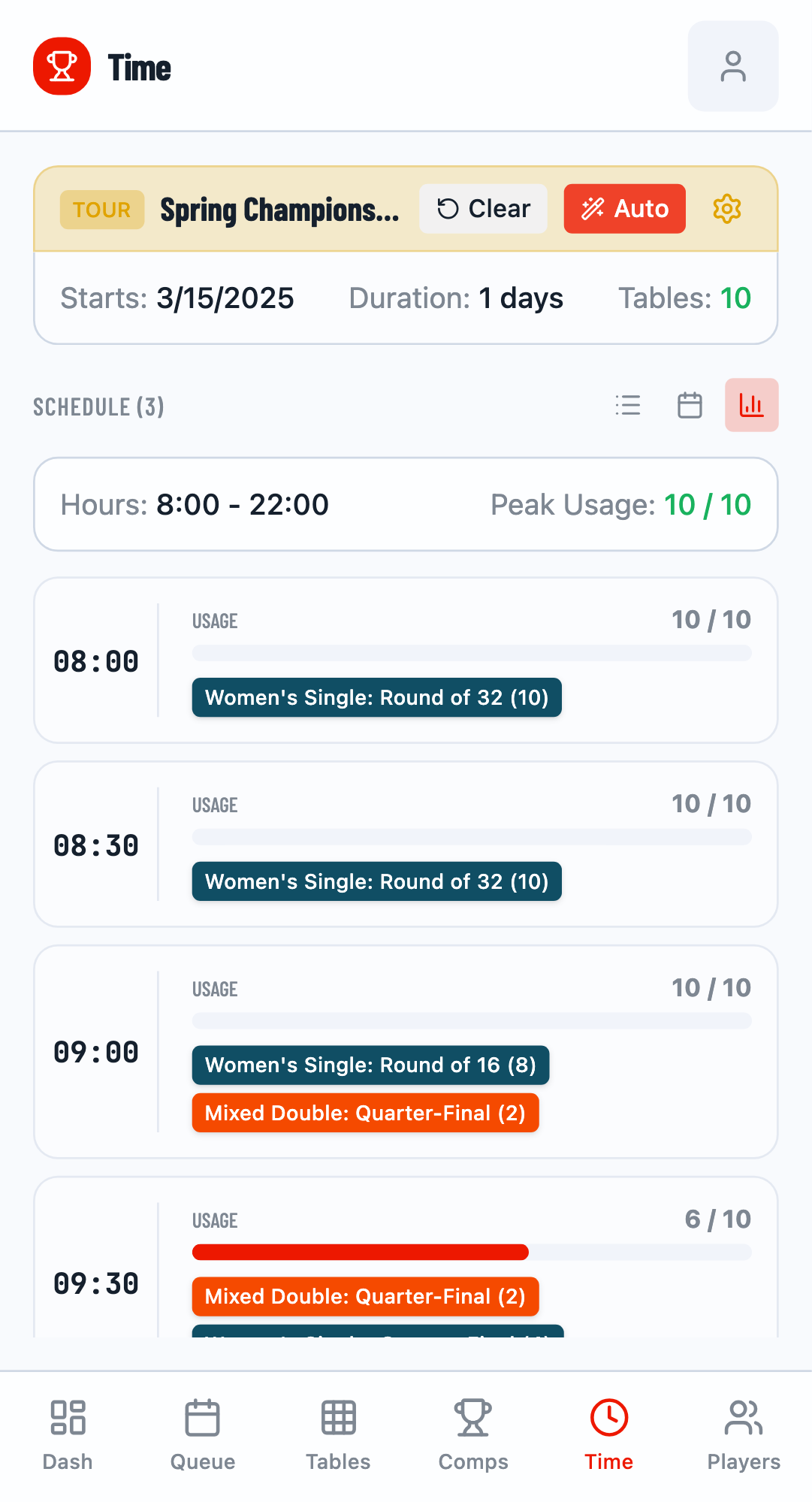
Resources View
Switch to Resources View to see how tables are utilized over time. This helps identify bottlenecks and optimize table usage.
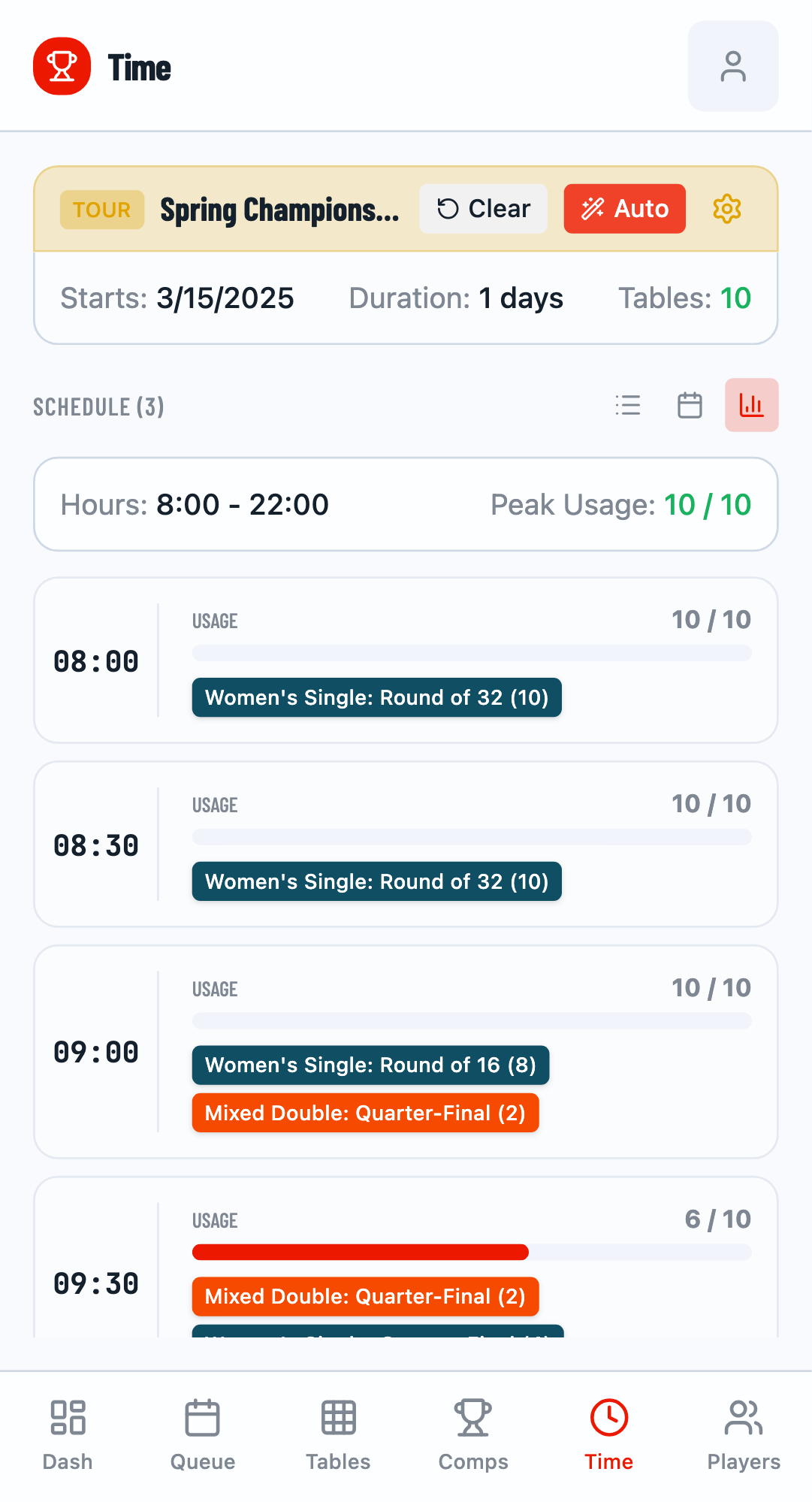
Daily View
Use Daily View to see all matches scheduled for a specific day, sorted by time.
Queue Management
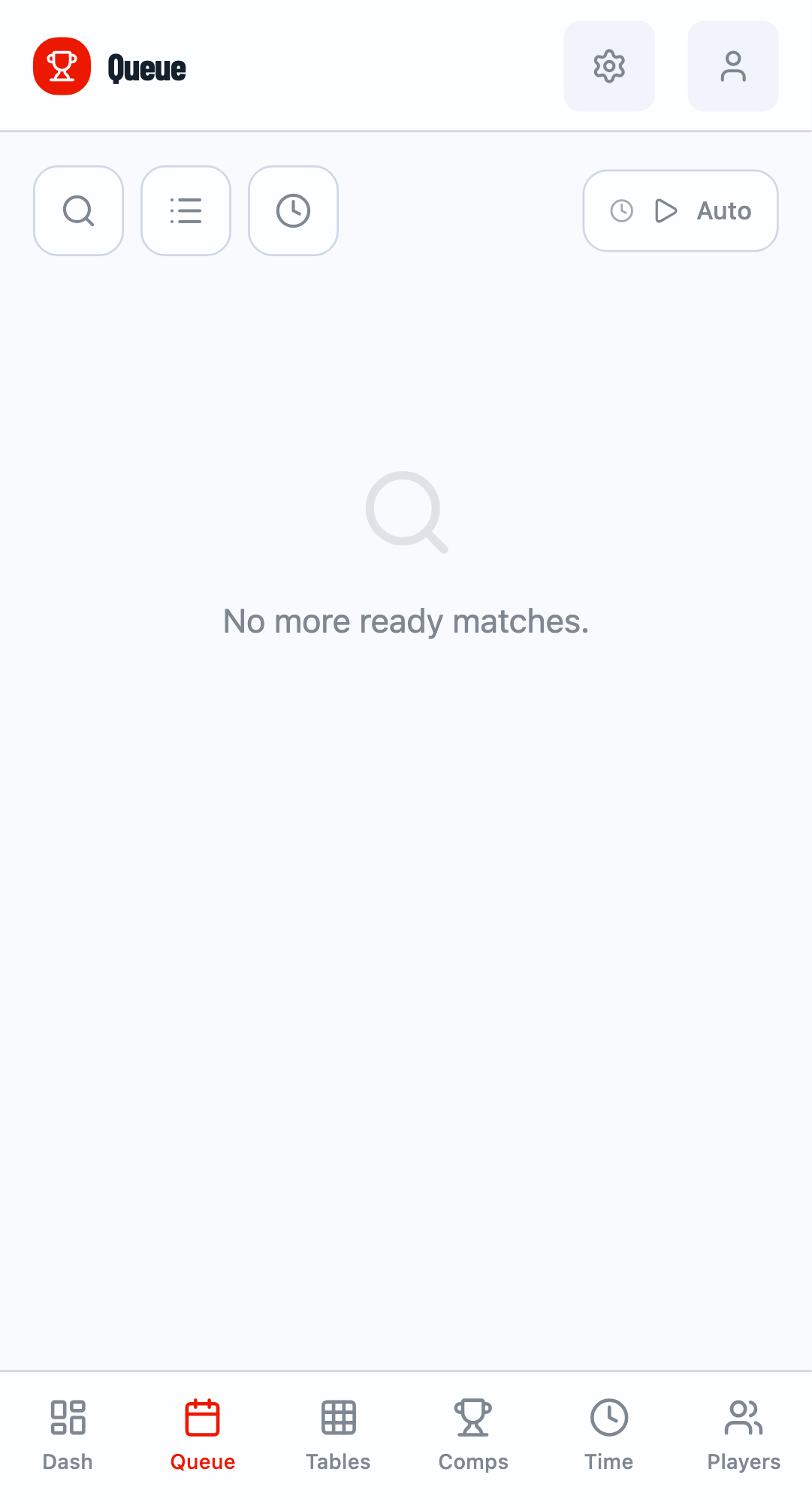
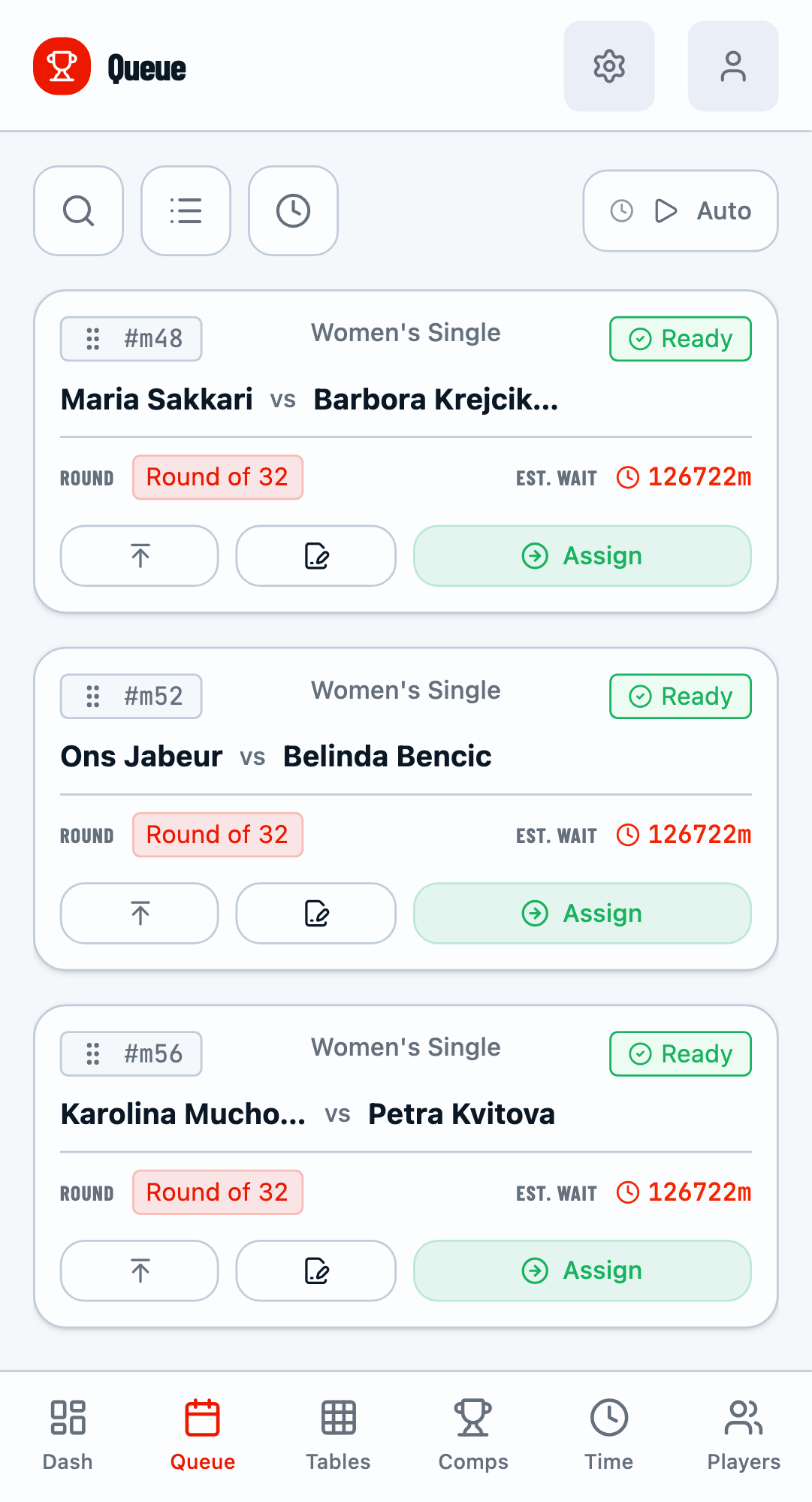
The Queue tab shows matches that are ready to be played. Matches appear here when their dependencies are satisfied (e.g., previous round completed).
Queue Features
- Priority Order - Matches sorted by player availability and time
- Assign to Table - Click Assign to send a match to a table
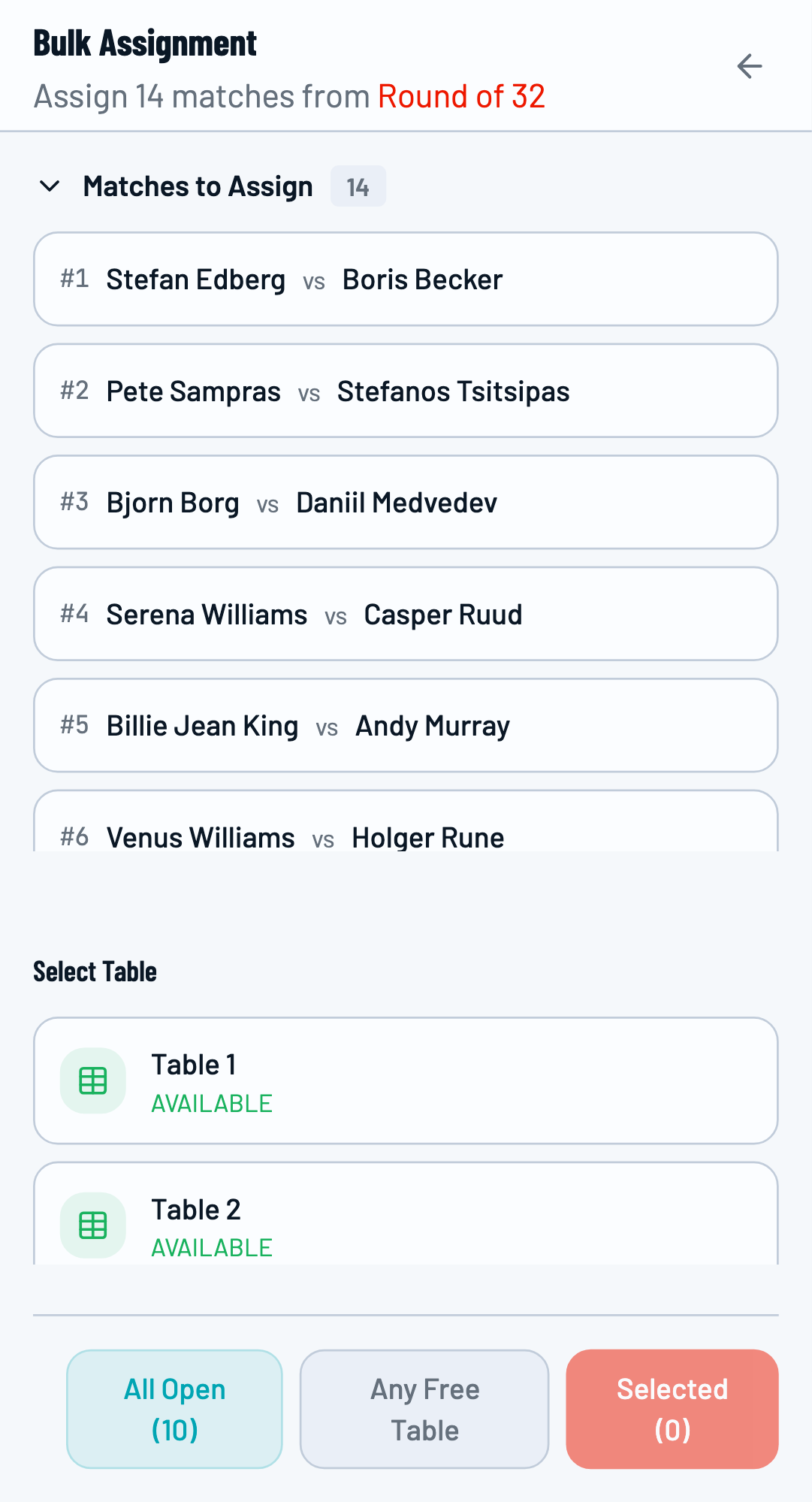
- Bulk Assignment - Assign multiple matches at once
Queue Configuration
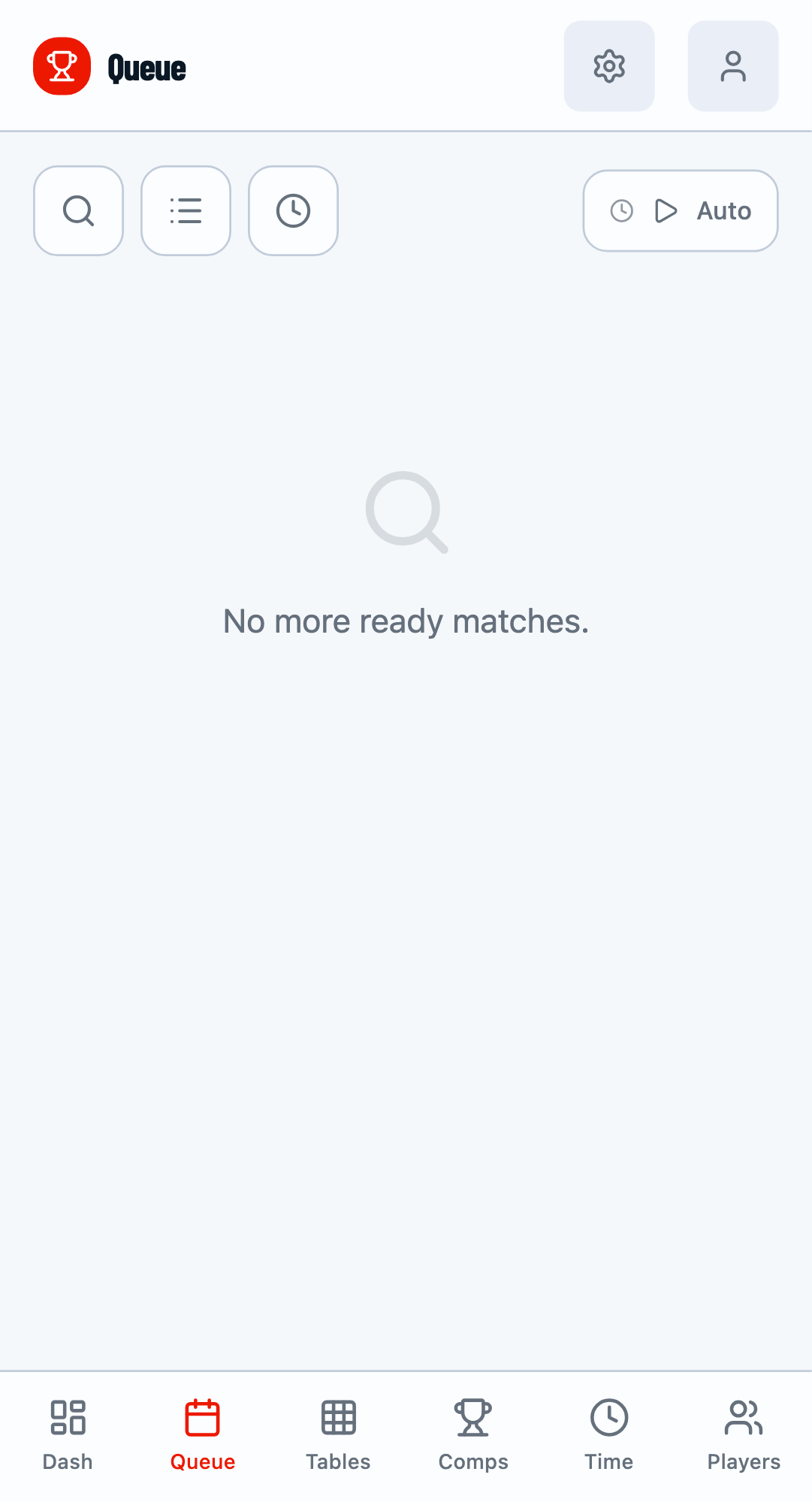
Click the Settings icon (gear) in the Queue header to open the Queue Configuration modal. Here you can control how the queue behaves.
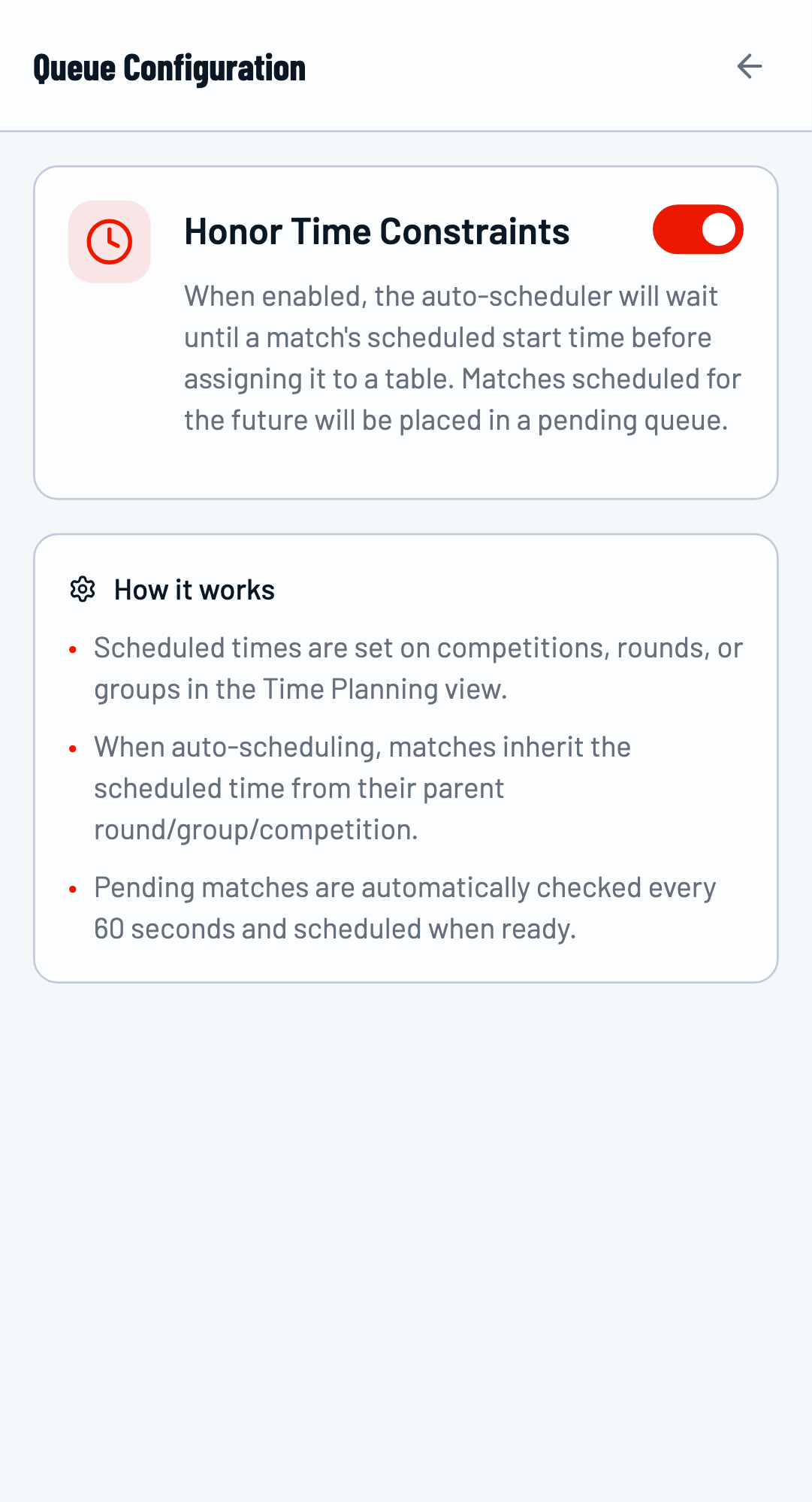
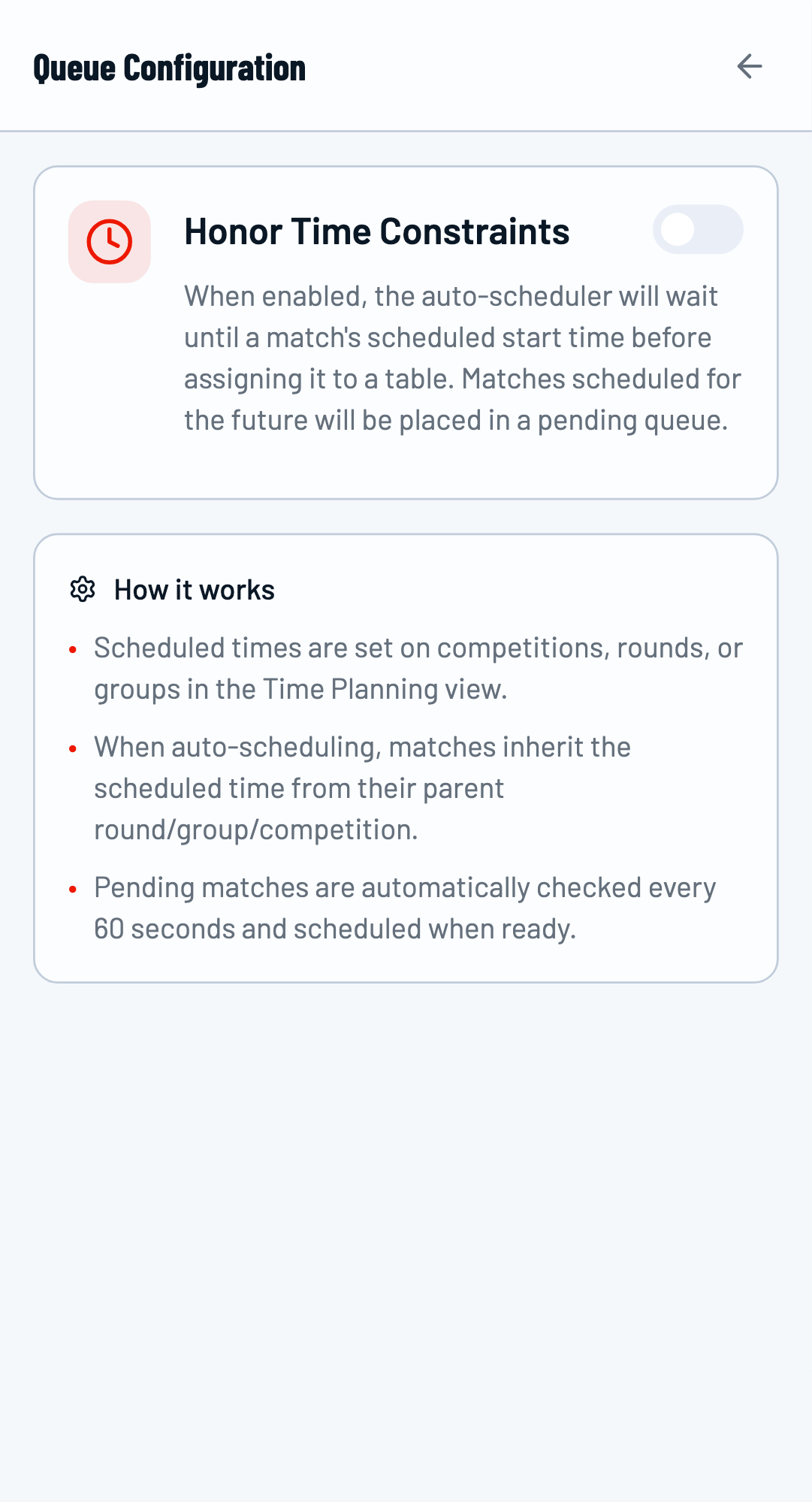
Honor Time Constraints
By default, the queue respects scheduled start times. When enabled:
- Matches won't be suggested before their scheduled time
- Auto-scheduling considers time constraints when assigning matches
Toggle this off if you want to assign matches regardless of scheduled times (useful when running behind schedule).
Auto-Assign Toggle
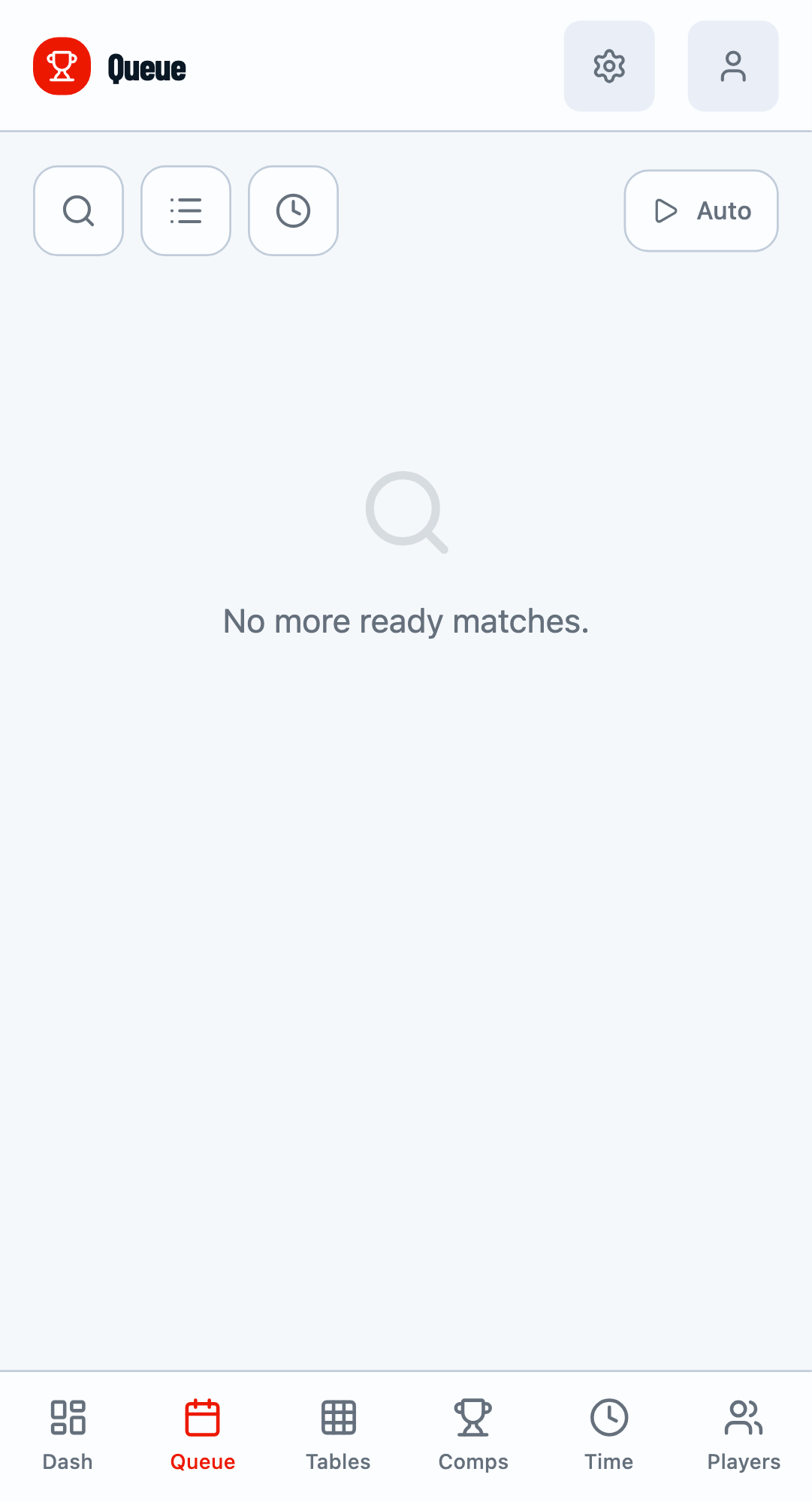
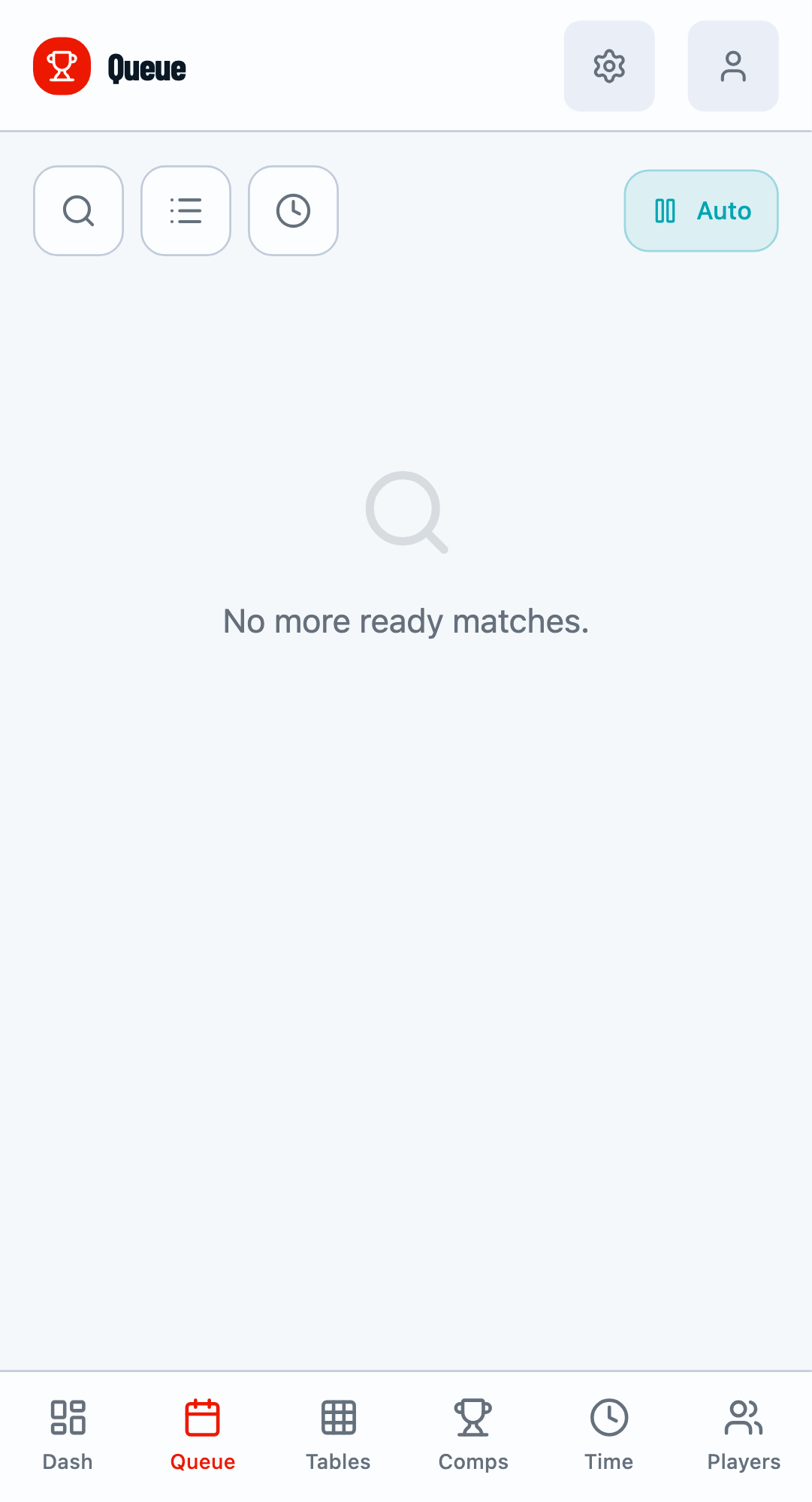
The Auto button in the Queue header enables automatic match assignment. When enabled, the system automatically assigns ready matches to available tables.
Bulk Assignment
For tournaments with many matches, use bulk assignment to assign multiple matches at once. This is especially useful at the start of a round when many matches become ready simultaneously.
Group by Competition
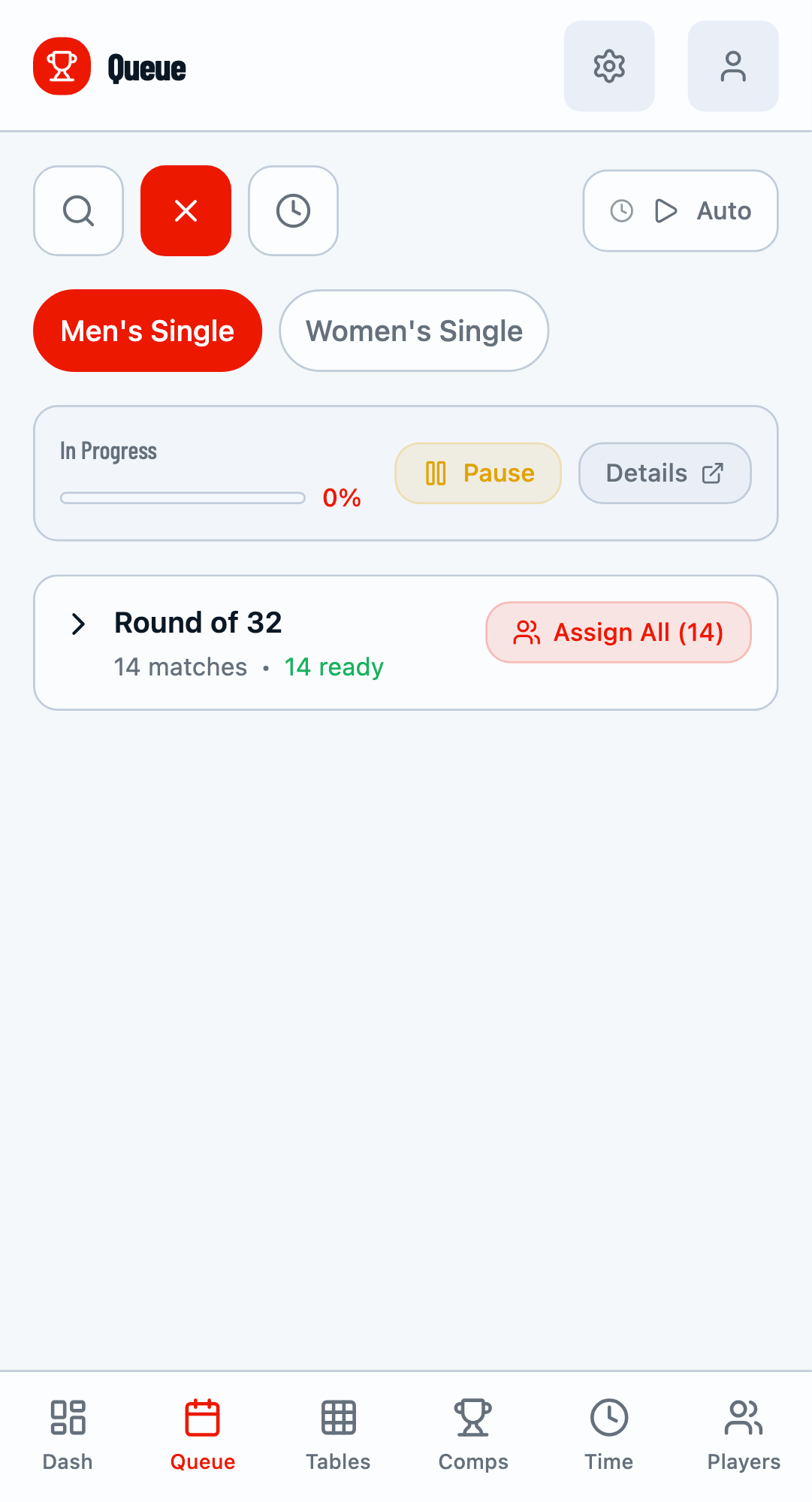
Use the grouped view to see matches organized by competition. Click on a competition group to see its ready matches.
Assign All
Click Assign All to assign all ready matches in a group to tables. You can choose to assign to all open tables or select specific tables.
After Assignment
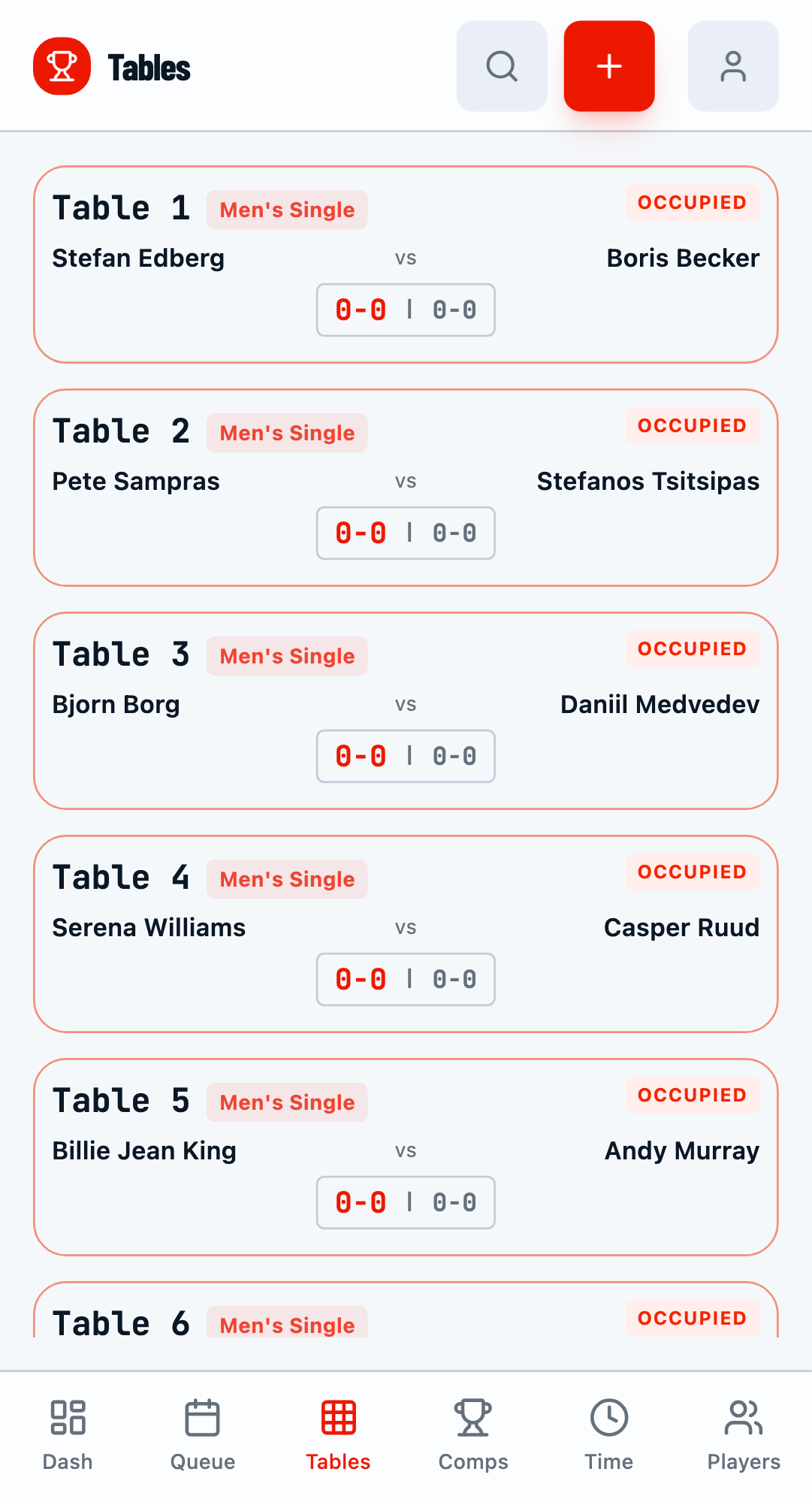
After bulk assignment, navigate to the Tables tab to see which tables are now occupied. Matches are automatically assigned to available tables in order.
Pro Tip
Use auto-scheduling first to get a baseline schedule, then manually adjust specific matches as needed. This saves time while maintaining flexibility.
Related Guides
- Getting Started - Basic tournament setup
- Match Scoring - How to score matches
- Table Management - Managing tables/courts