Match Scoring
Record match scores using Detailed or Quick scoring modes, and correct scores when needed
TourneyPilot offers two scoring modes to fit different tournament needs: Detailed for set-by-set tracking and Quick for fast result entry. You can also correct scores after a match is finished if mistakes were made.
Detailed Scoring Mode
Detailed mode tracks each set individually, perfect for when you need complete game records or want visual progression during matches.
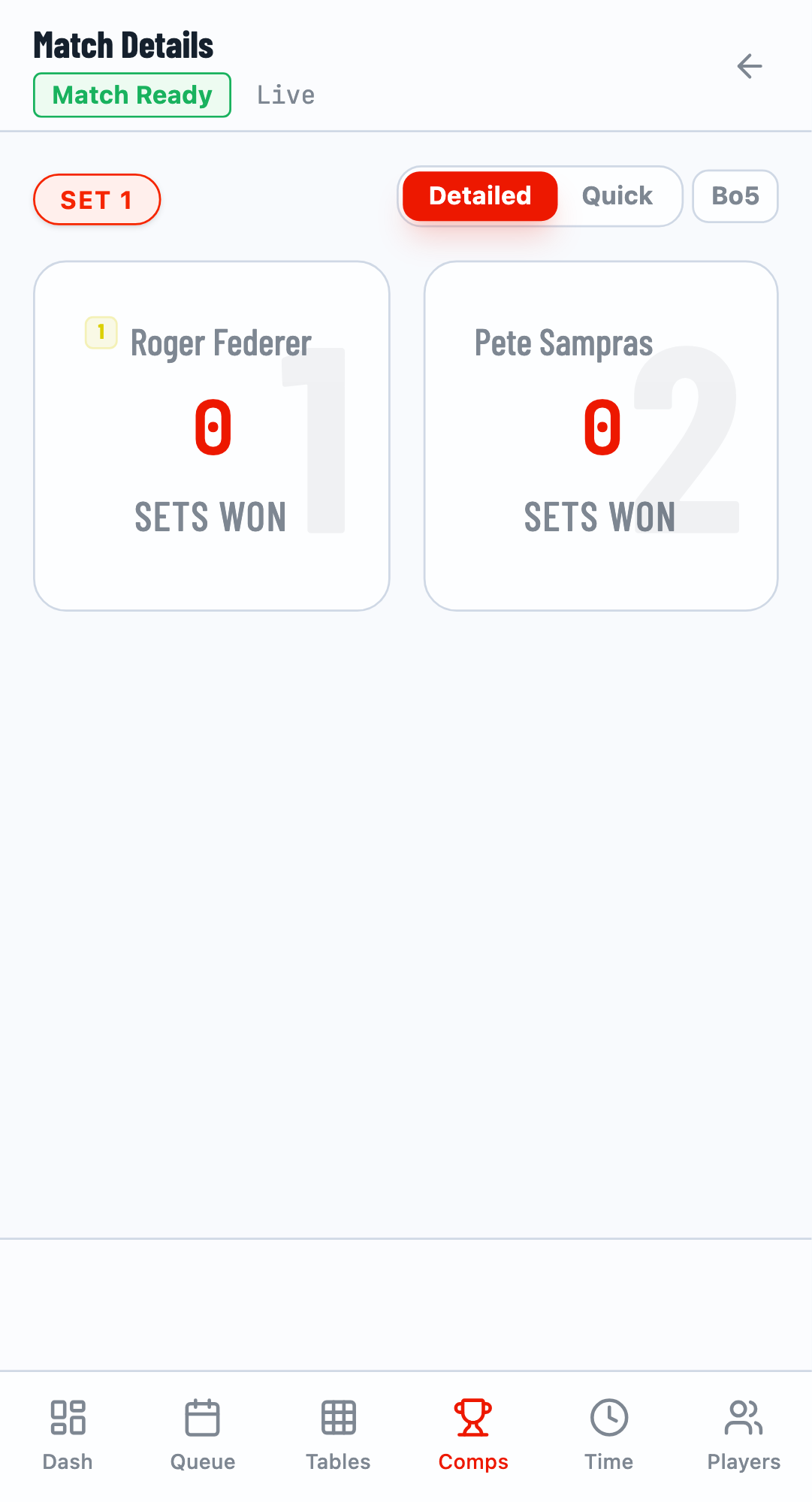
Step 1: Open the Scoring Panel
Navigate to a competition's Matches tab and click on an unstarted match to open the scoring panel. The panel opens in Detailed mode by default.
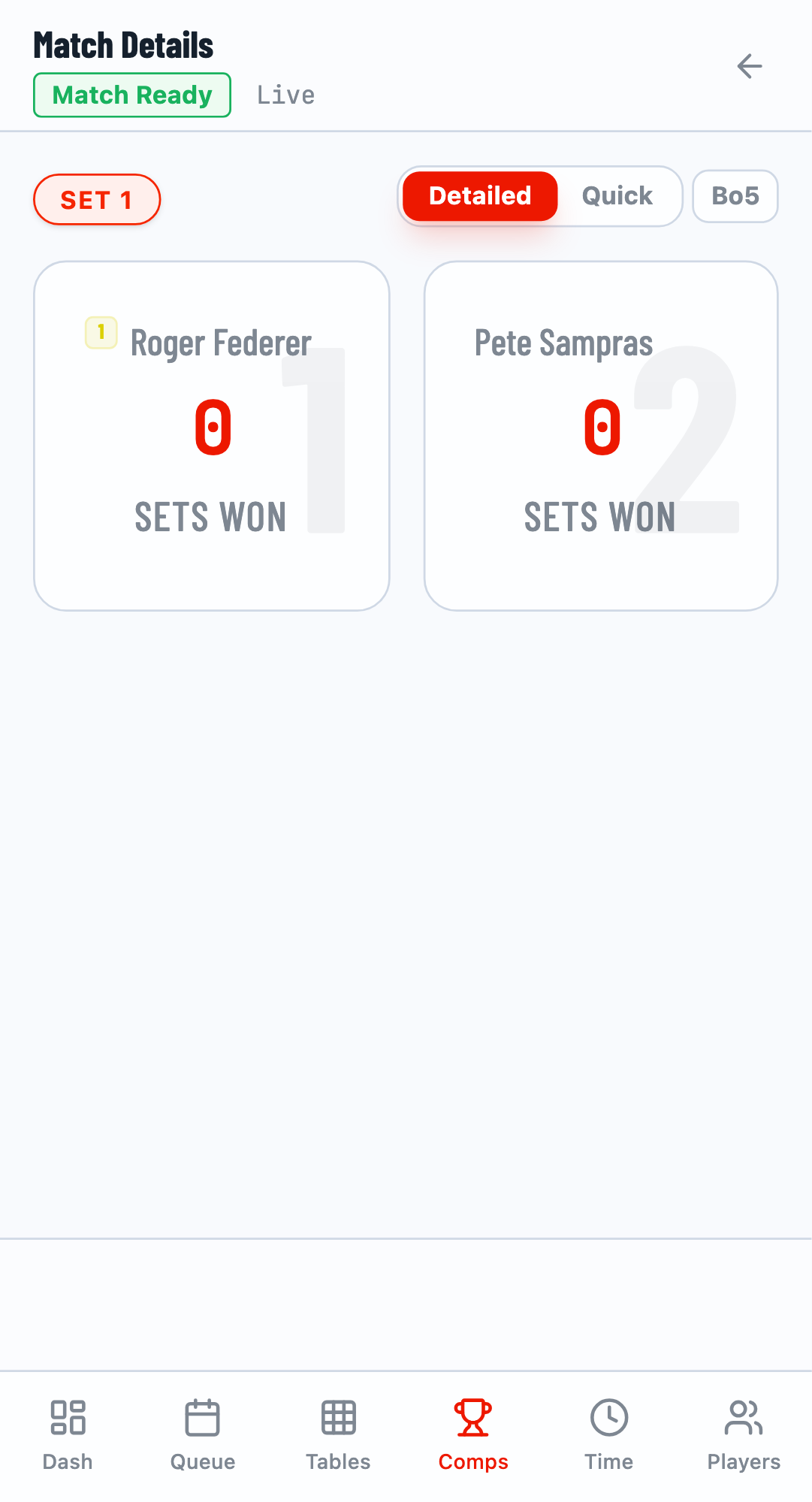
Step 2: Select the Set Winner
Tap on the player who won the set. Their card will highlight with "Selected as Winner" displayed at the bottom.
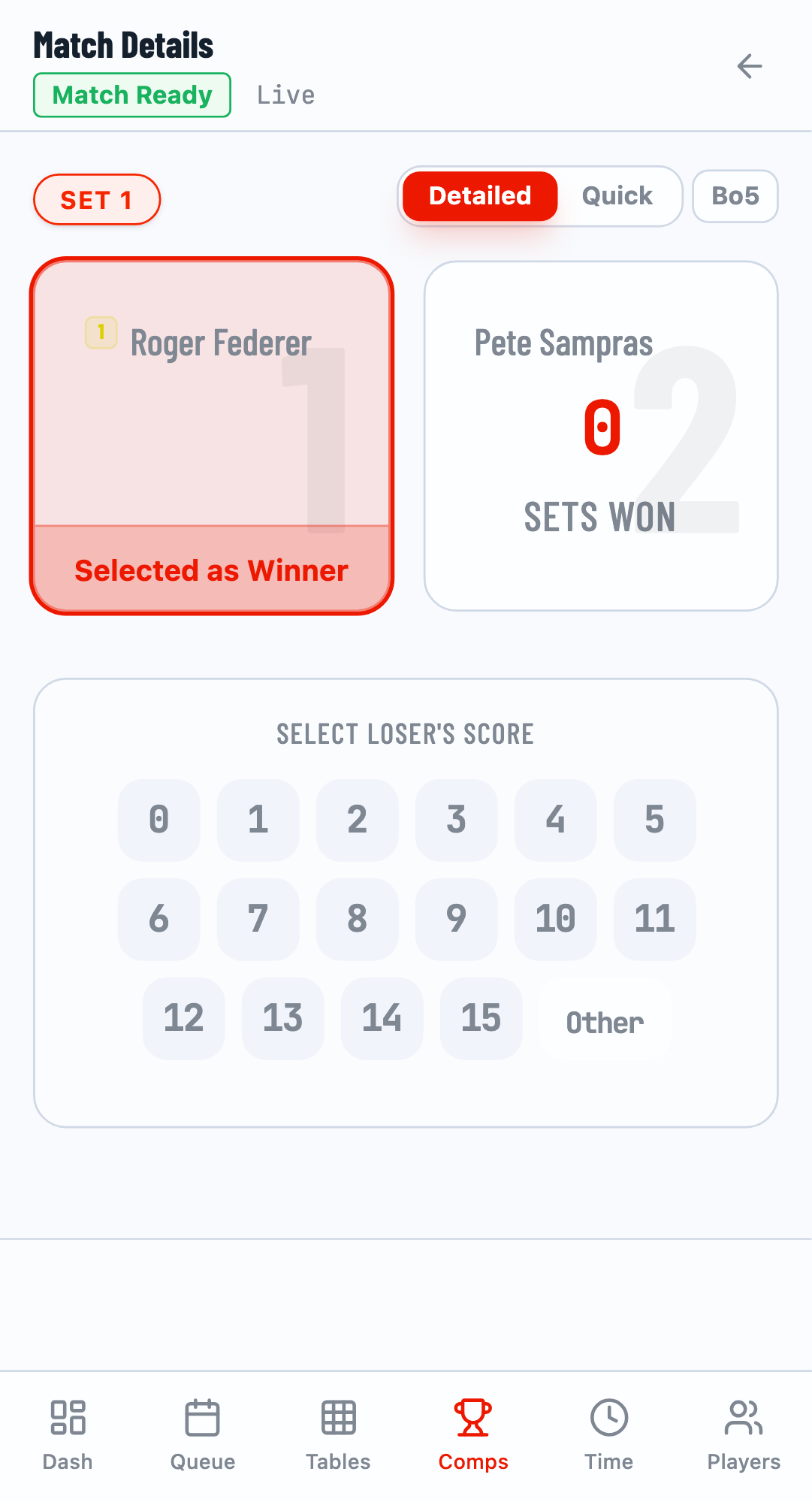
Step 3: Enter the Loser's Score
Select the losing player's score for that set. The system automatically calculates the winner's score based on table tennis rules (typically 11 points, or 21 for longer games). A preview shows the final set score before submission.
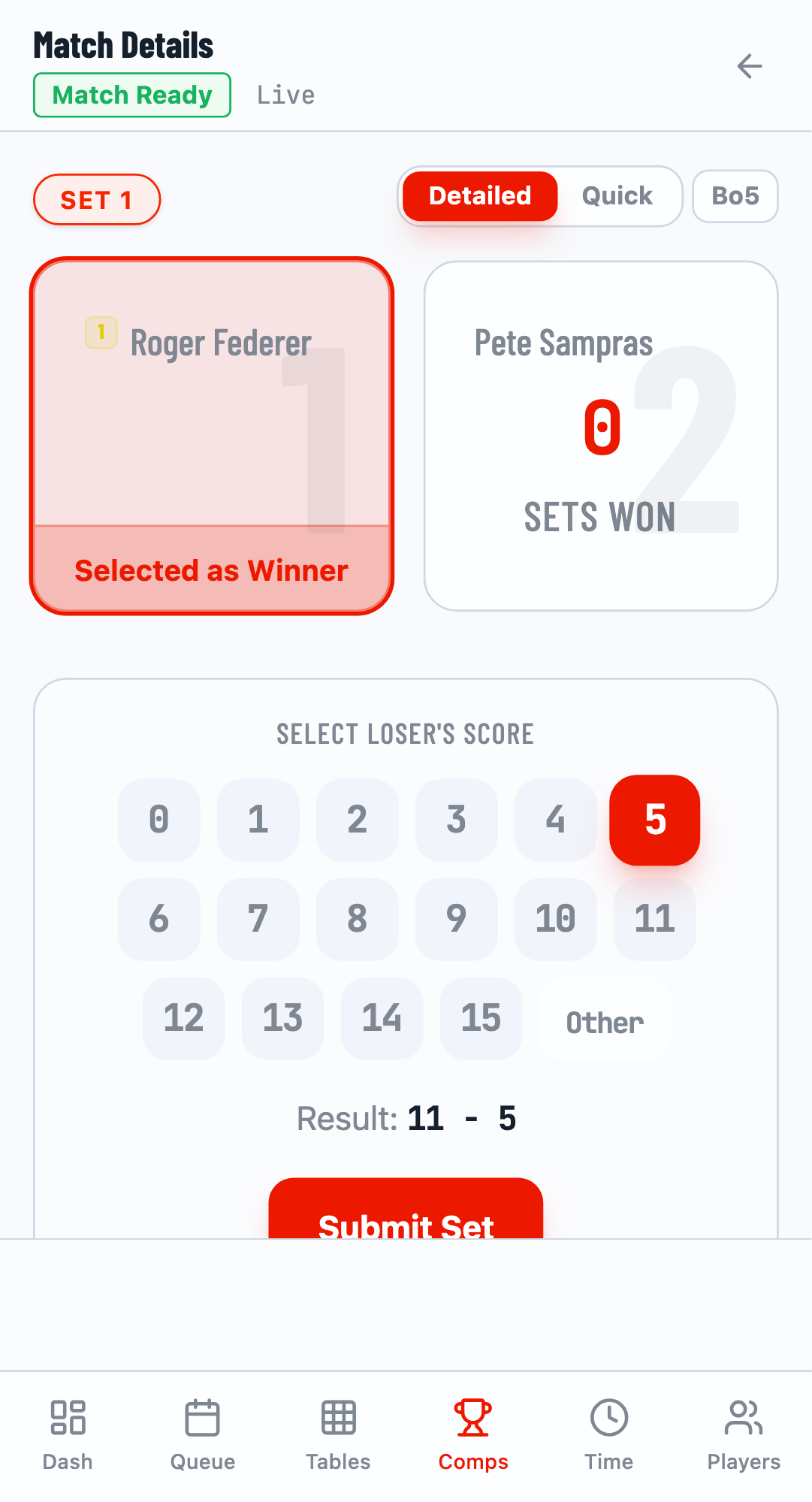
Step 4: Submit the Set
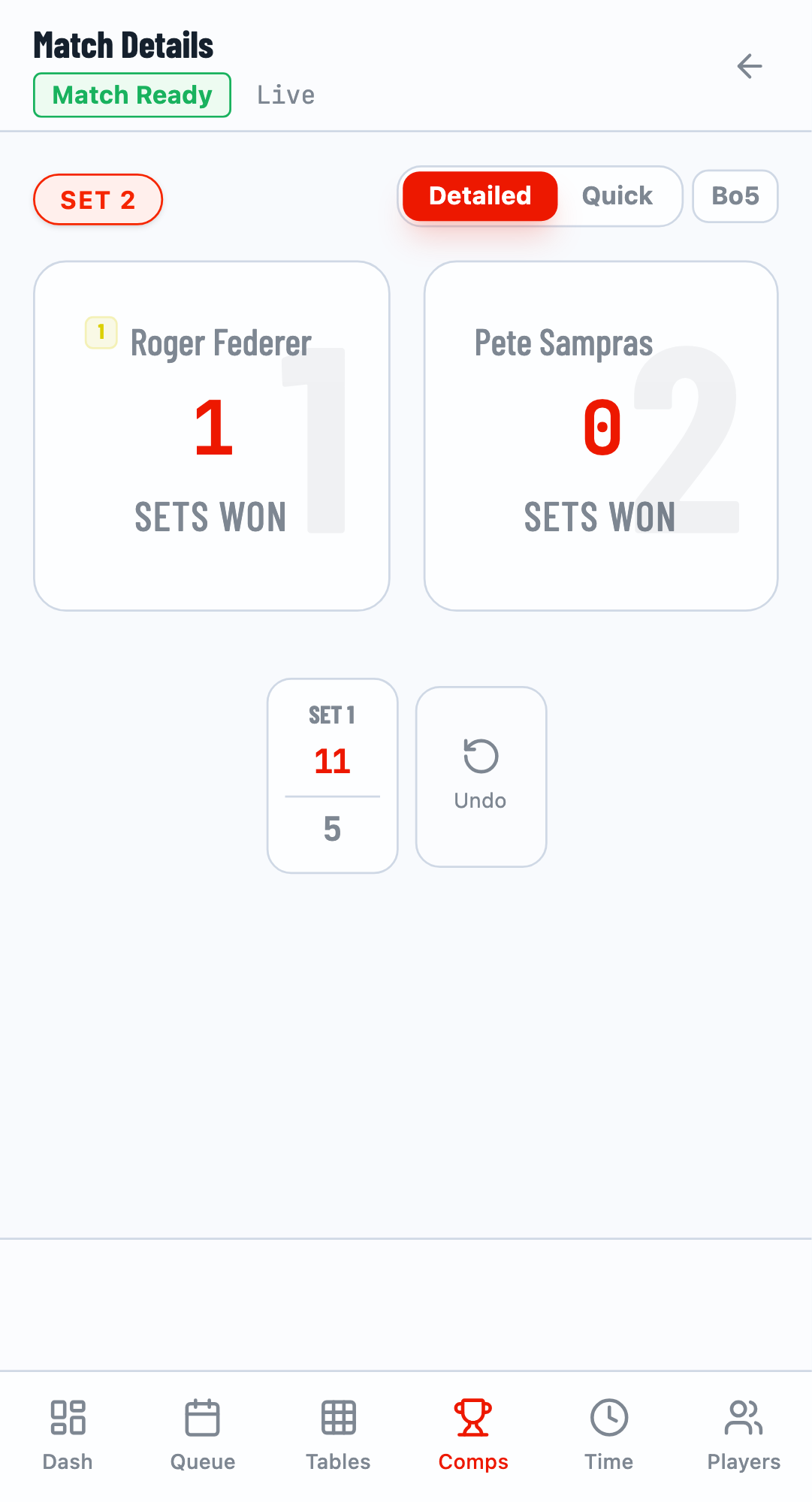
Click Submit Set to record it. The set history appears below, showing all completed sets with their scores. Repeat for each set until one player wins the required number.
Undo Feature
Made a mistake? Click the Undo button to remove the last recorded set and re-enter the correct score.
Step 5: Finish the Match
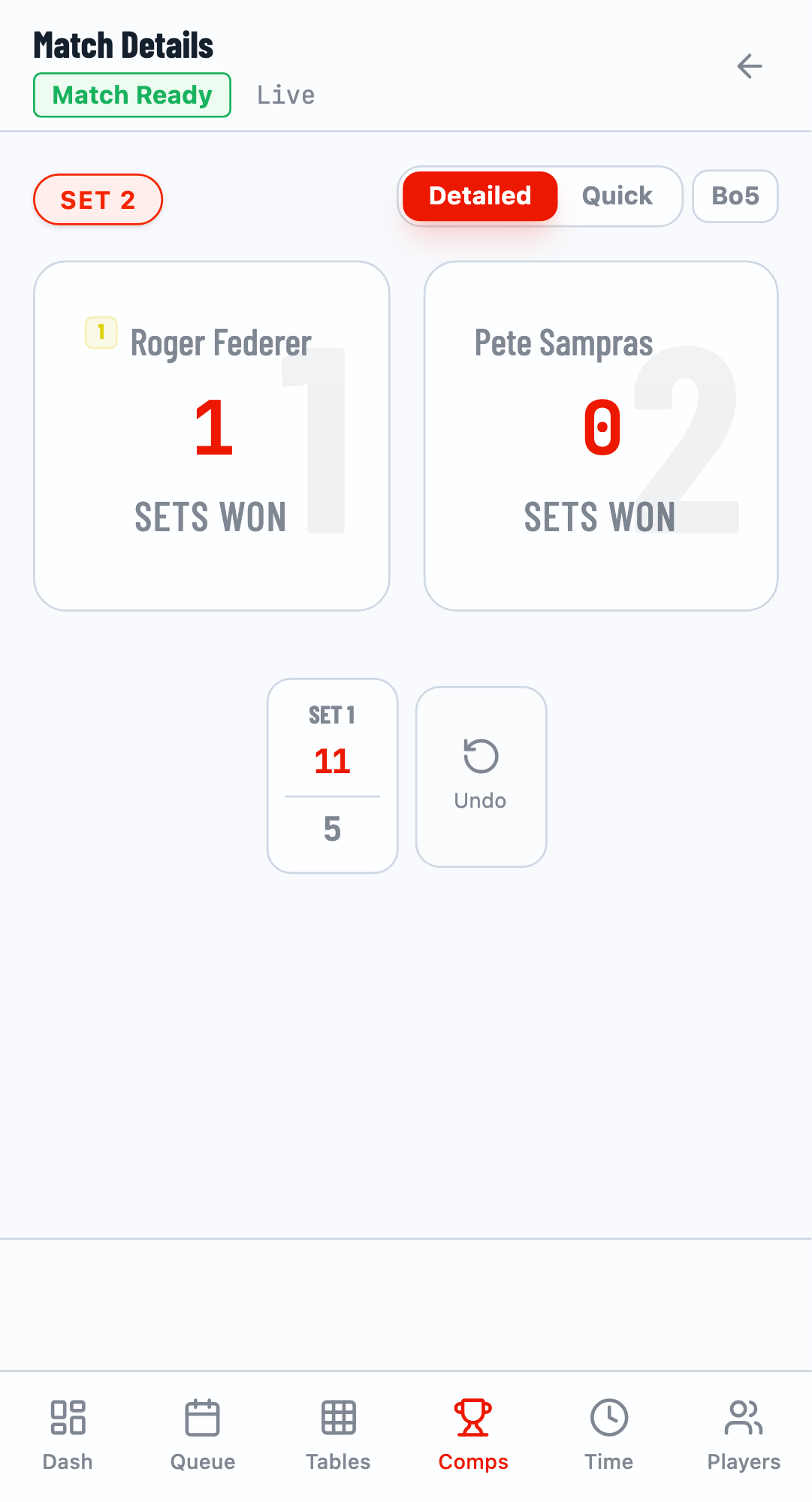
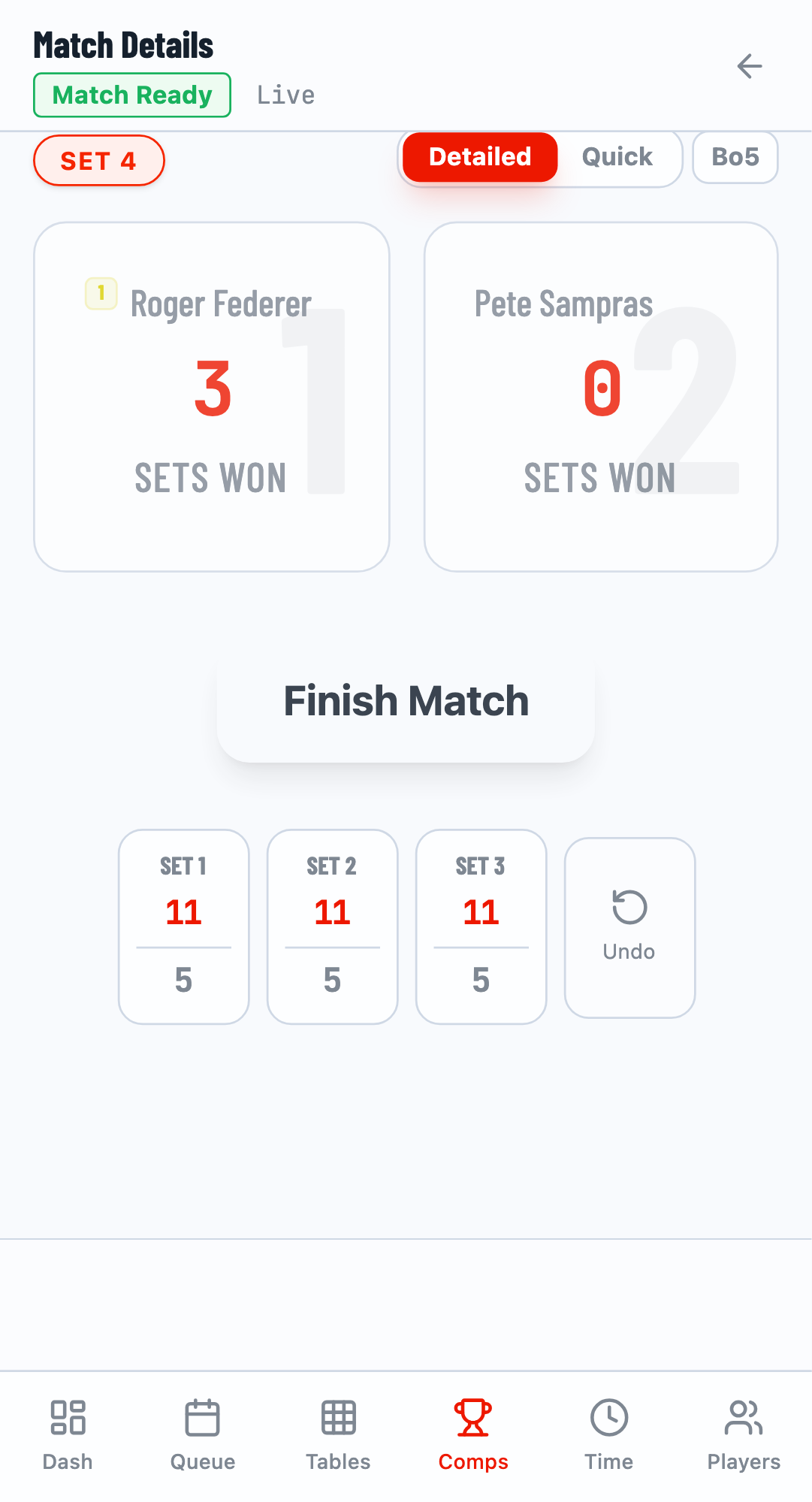
Once a player wins enough sets (e.g., 3 in Best of 5), the Finish Match button appears. Click it to record the final result and update the bracket.
Quick Scoring Mode
Quick mode lets you enter the final match result directly without tracking individual sets. Ideal for fast-paced tournaments or when detailed set scores aren't needed.
Step 1: Switch to Quick Mode
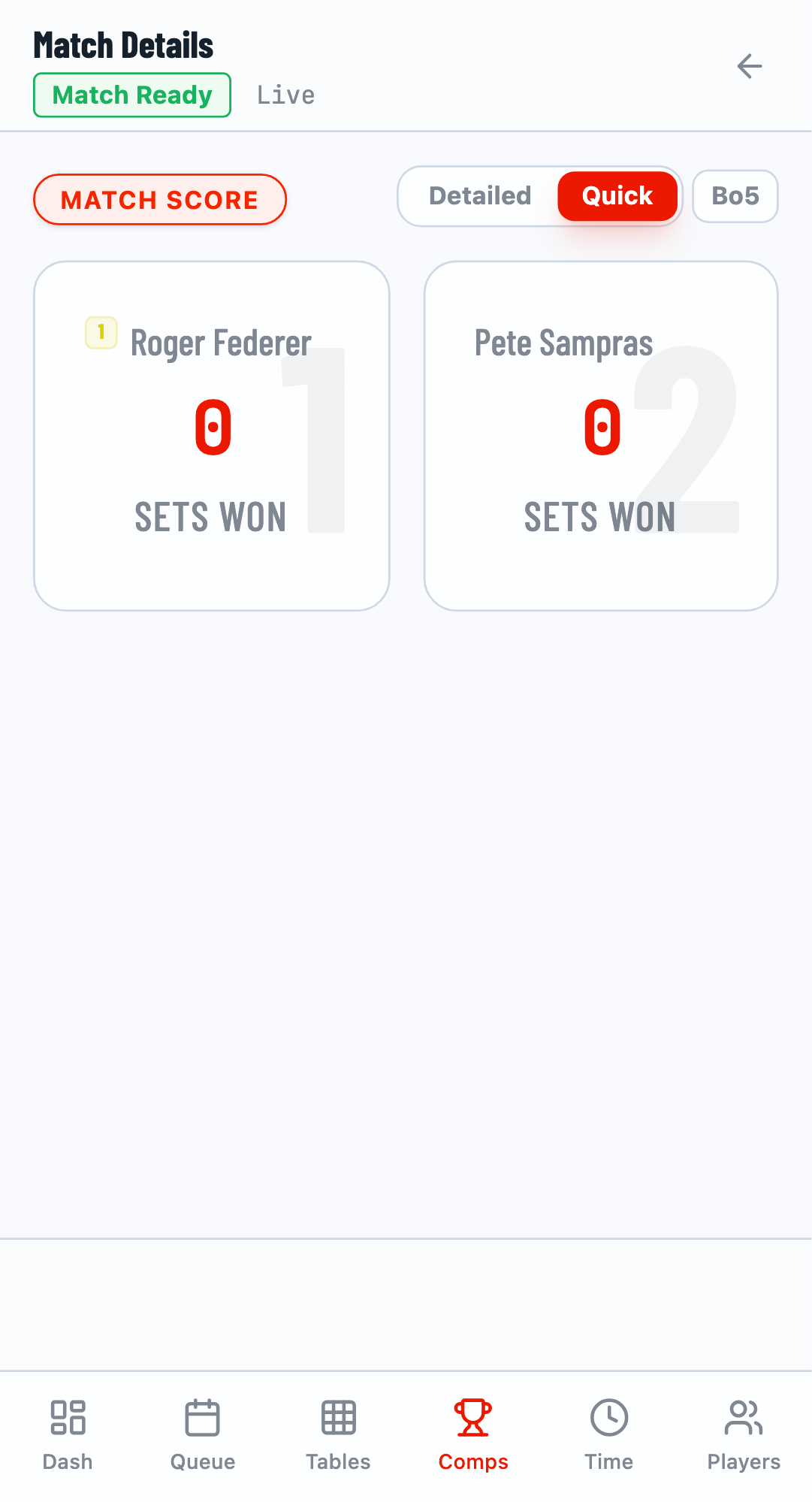
Click the Quick button at the top of the scoring panel to switch modes.
Step 2: Select the Winner
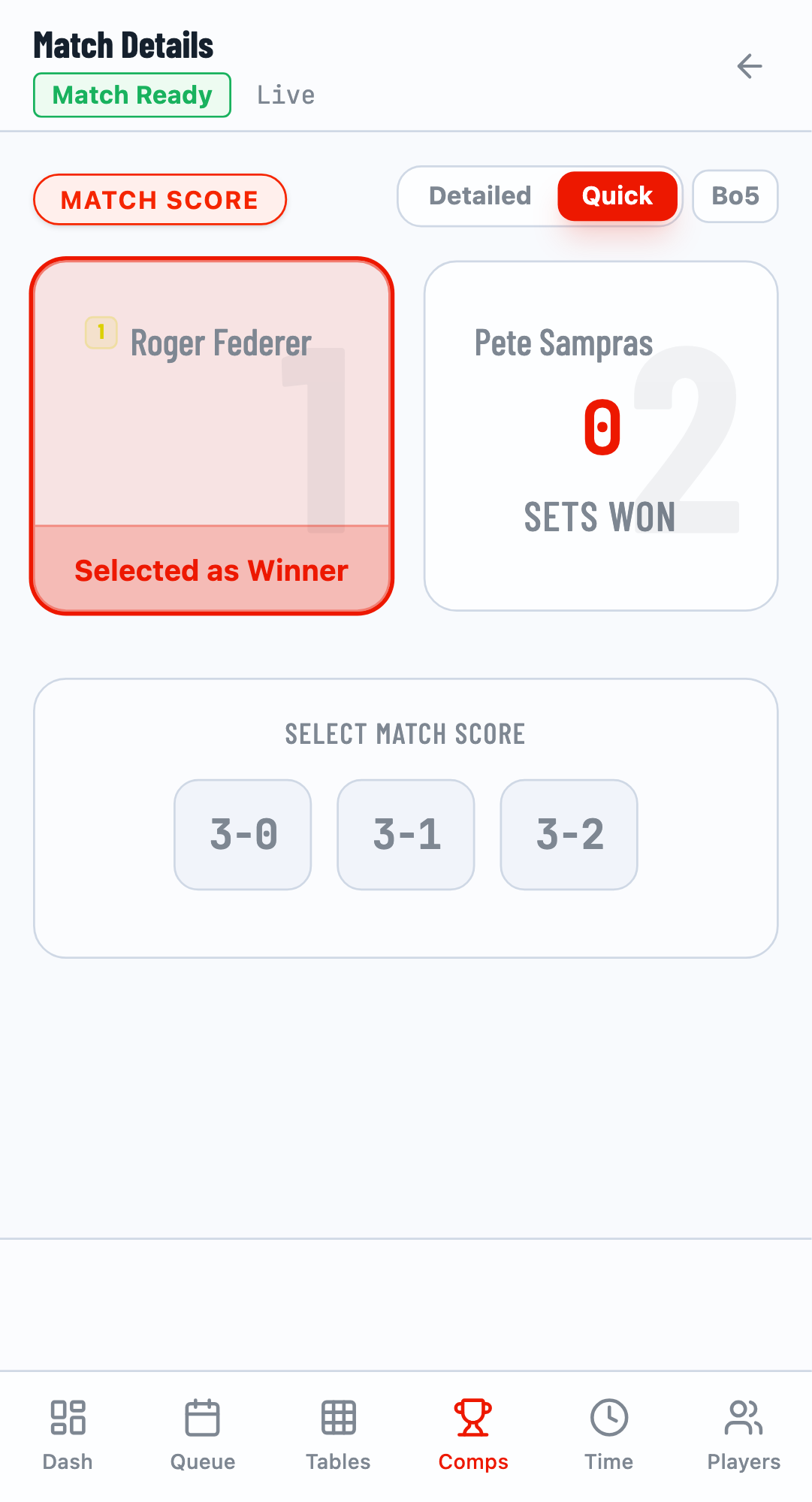
Tap the player who won the match. Their card will highlight.
Step 3: Select the Final Score
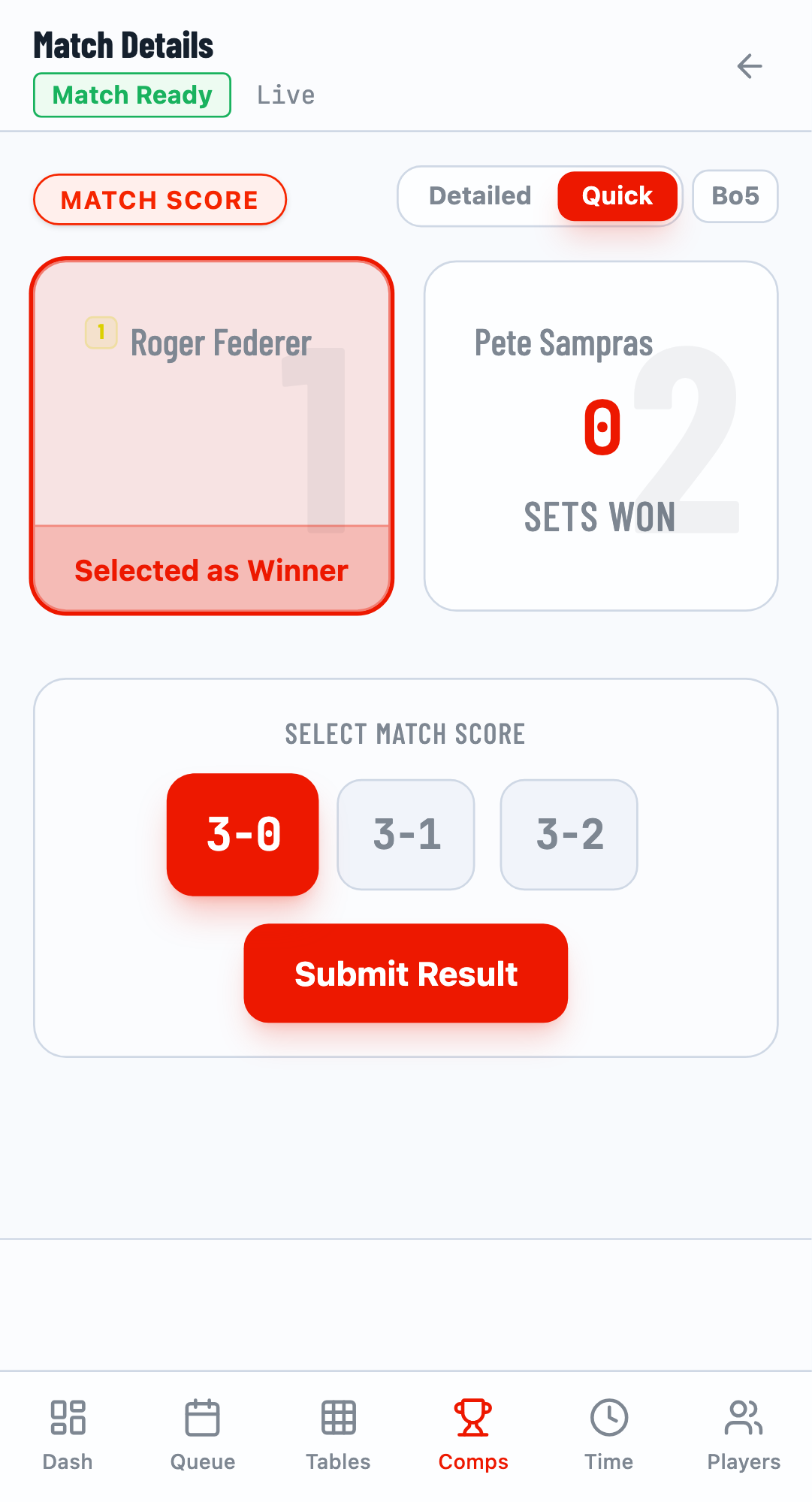
Choose the final set score (e.g., "3-0", "3-1", "3-2" for Best of 5). The available options depend on your match format.
Step 4: Submit and Finish
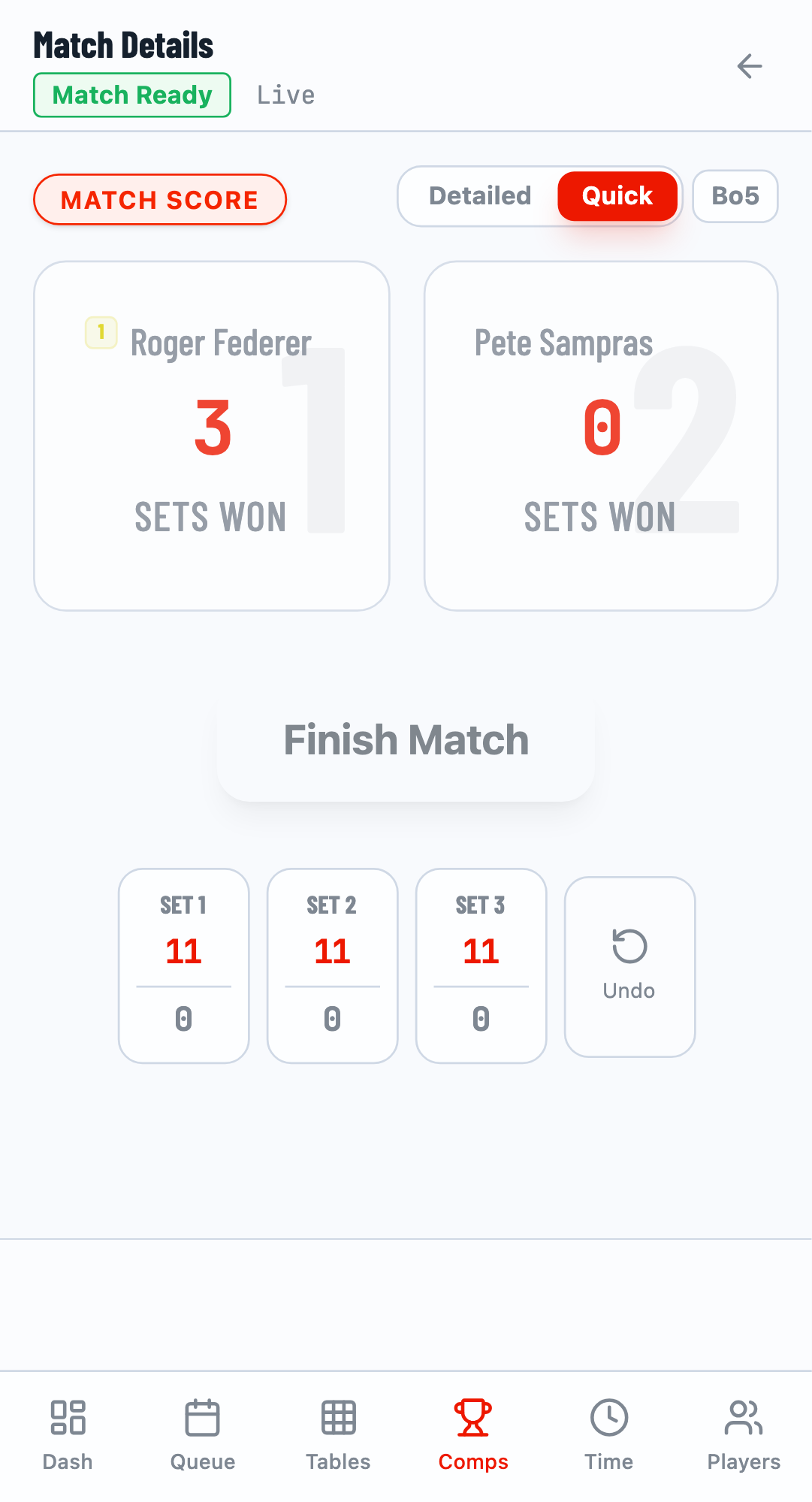
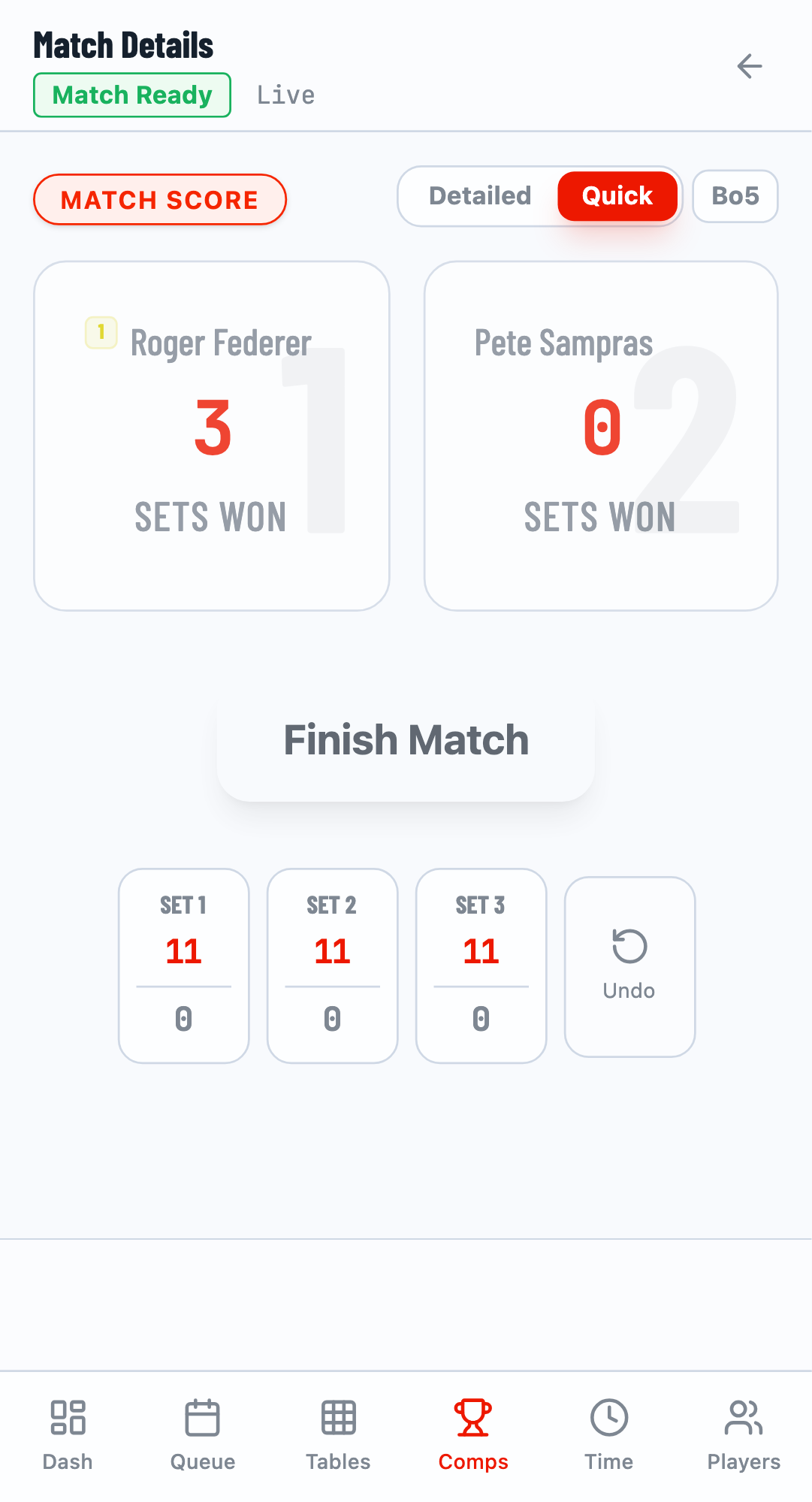
Click Submit Result, then Finish Match to record the final result.
Score Correction
Mistakes happen! TourneyPilot allows you to correct scores on finished matches as long as subsequent dependent matches haven't started yet.
Step 1: Open the Finished Match
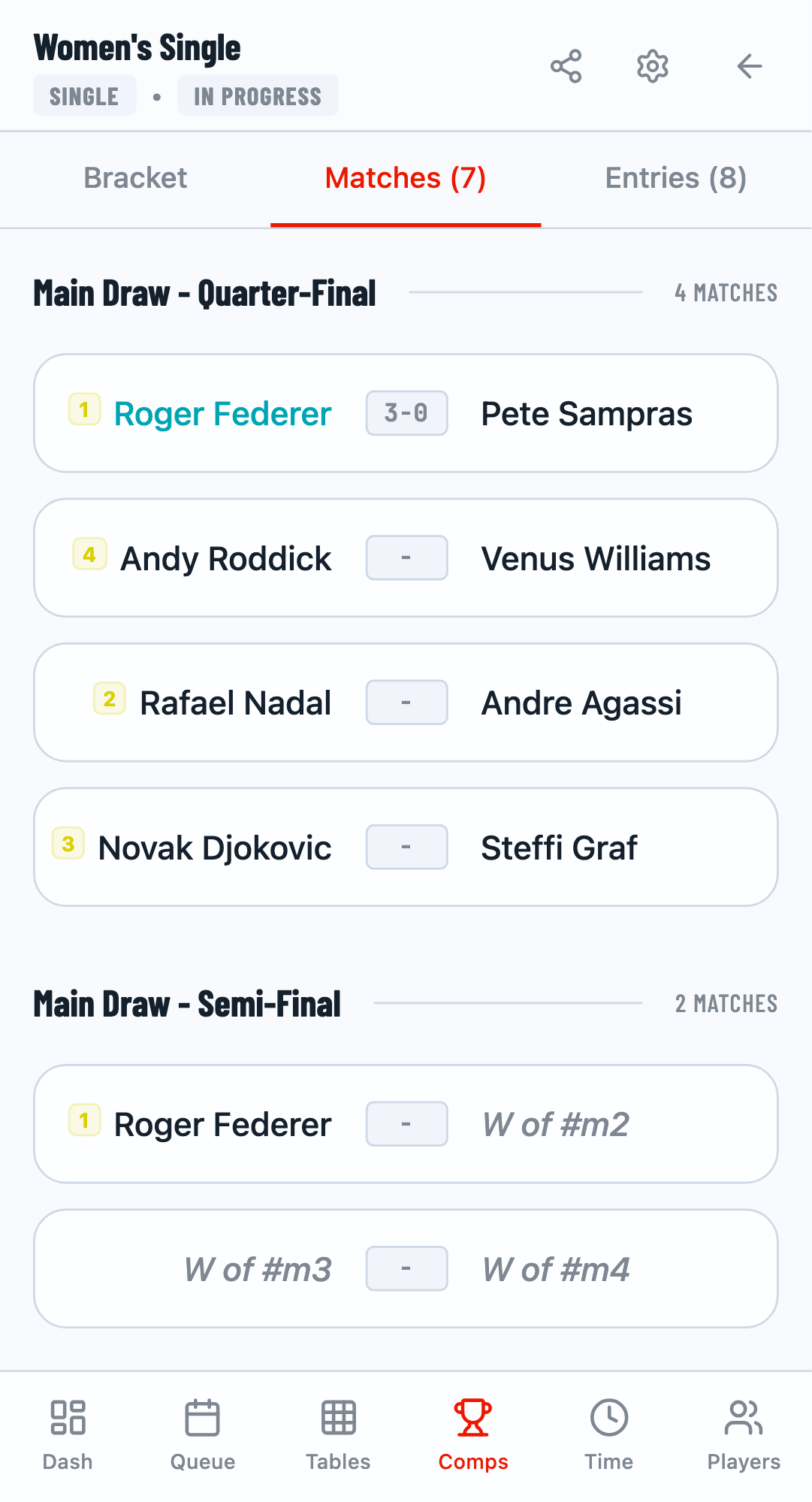
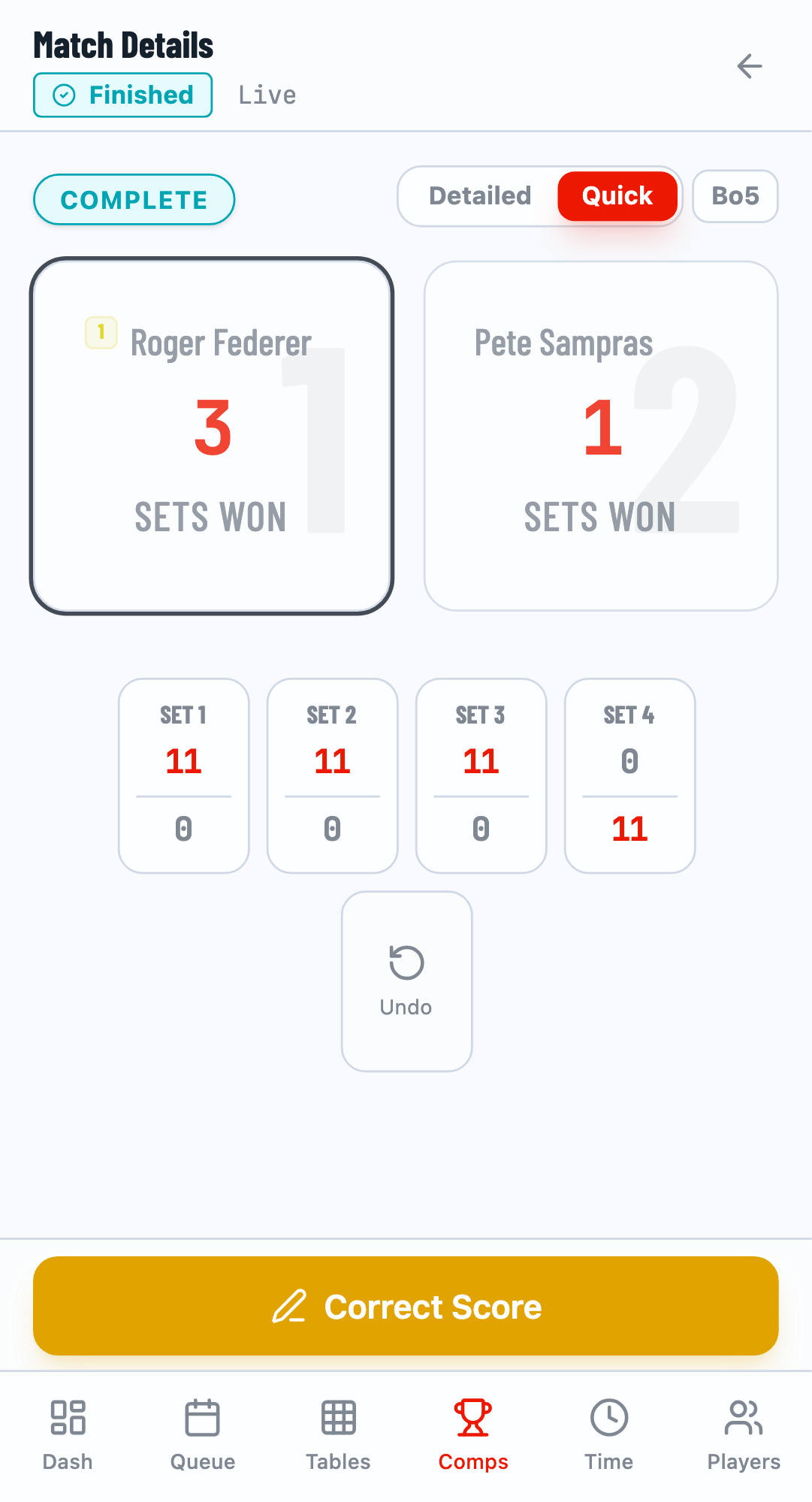
From the Matches tab, find a finished match (shown with its score) and click on it.
Step 2: Enter Correction Mode
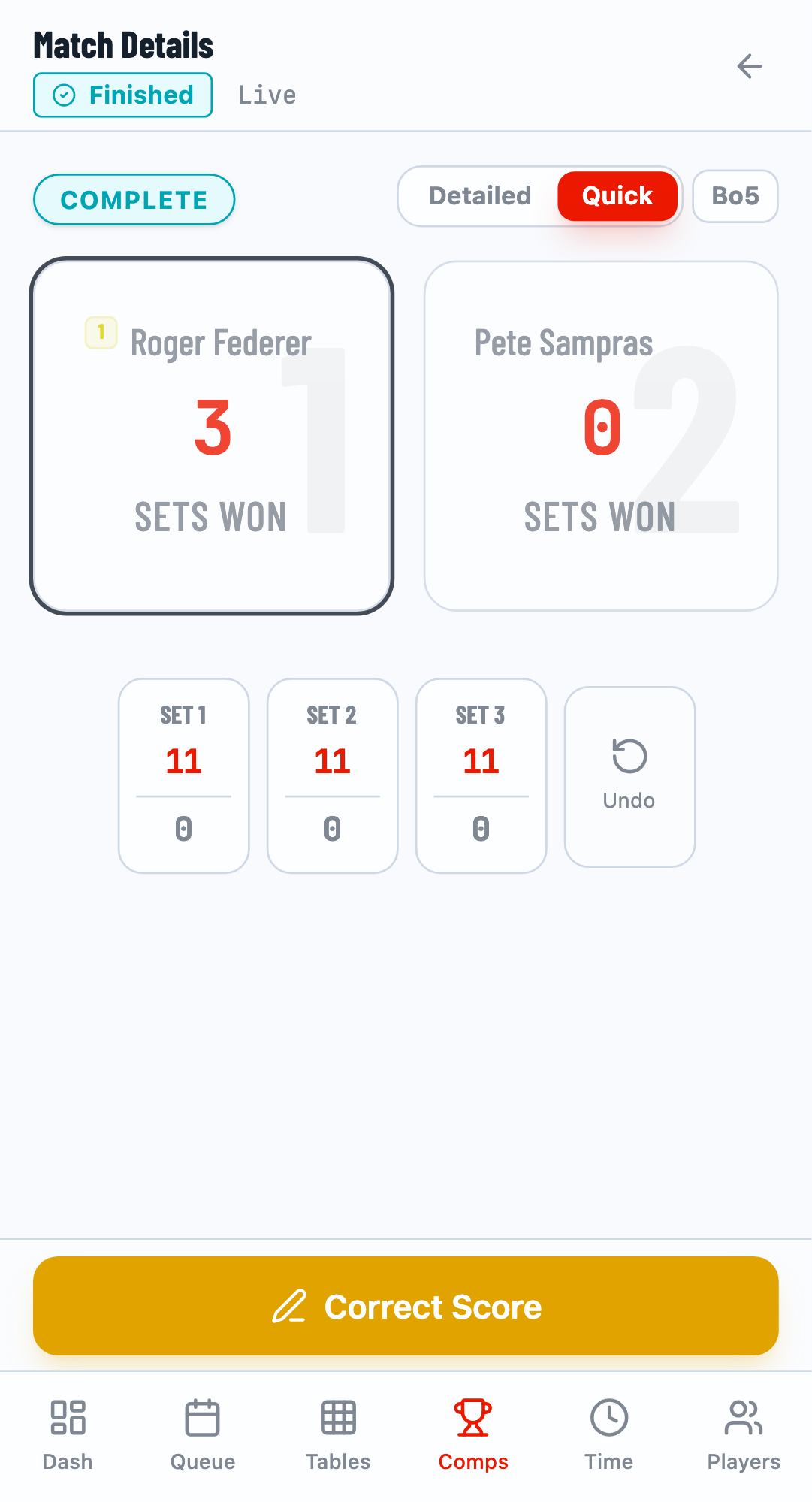
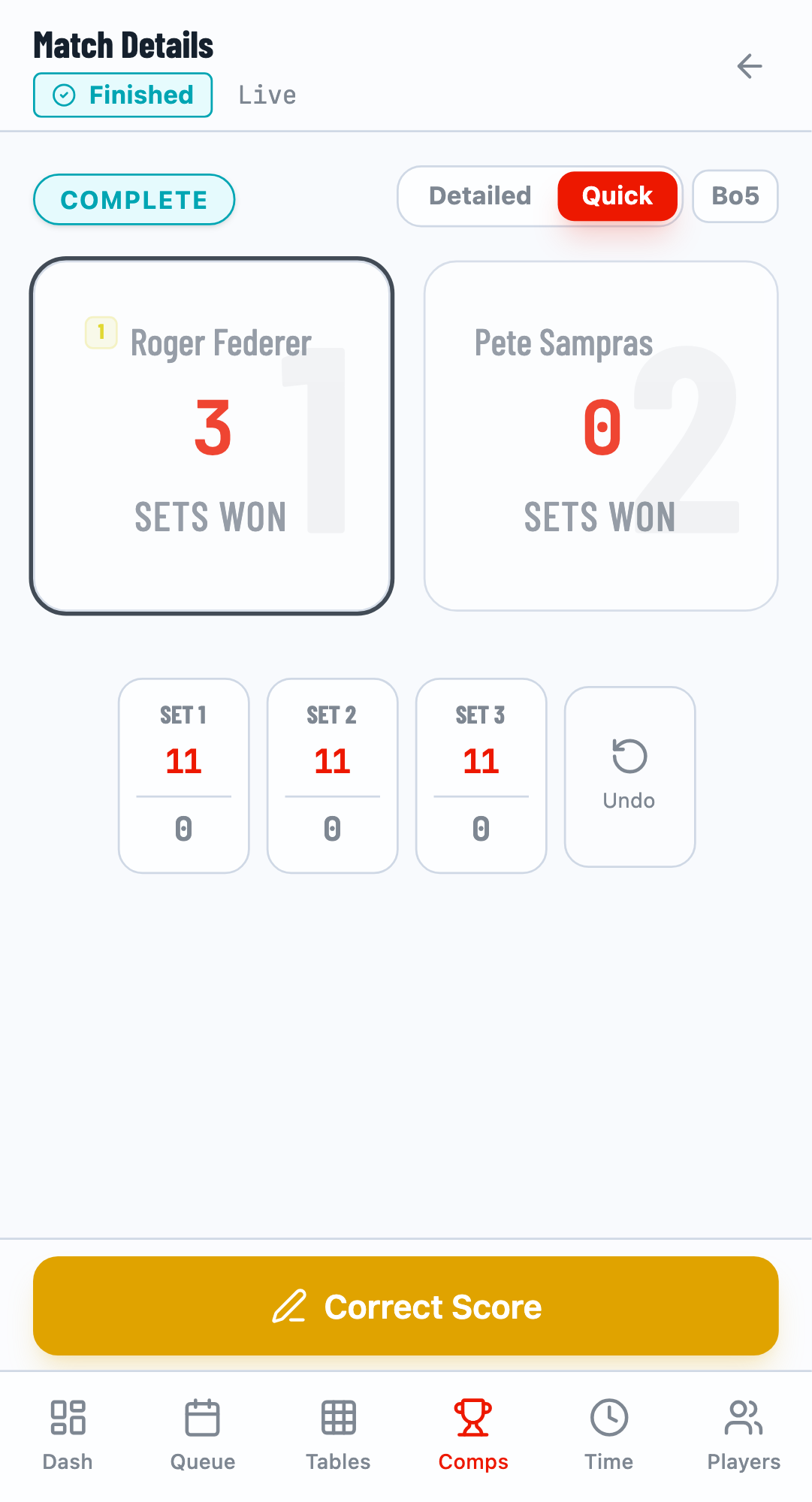
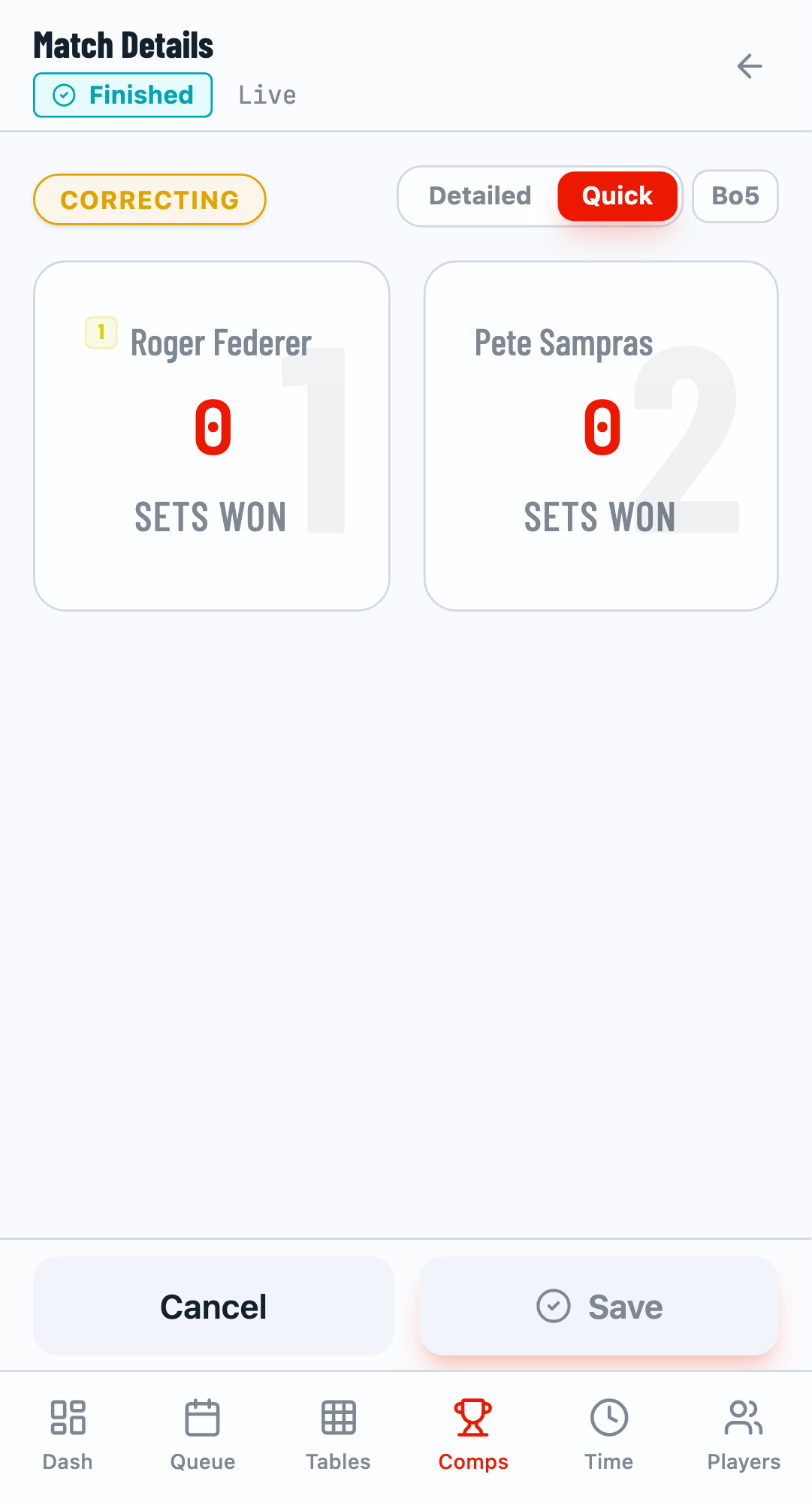
Open the finished match and click the Correct Score button. The score resets to allow you to enter the correct score.
Step 3: Enter the Correct Score
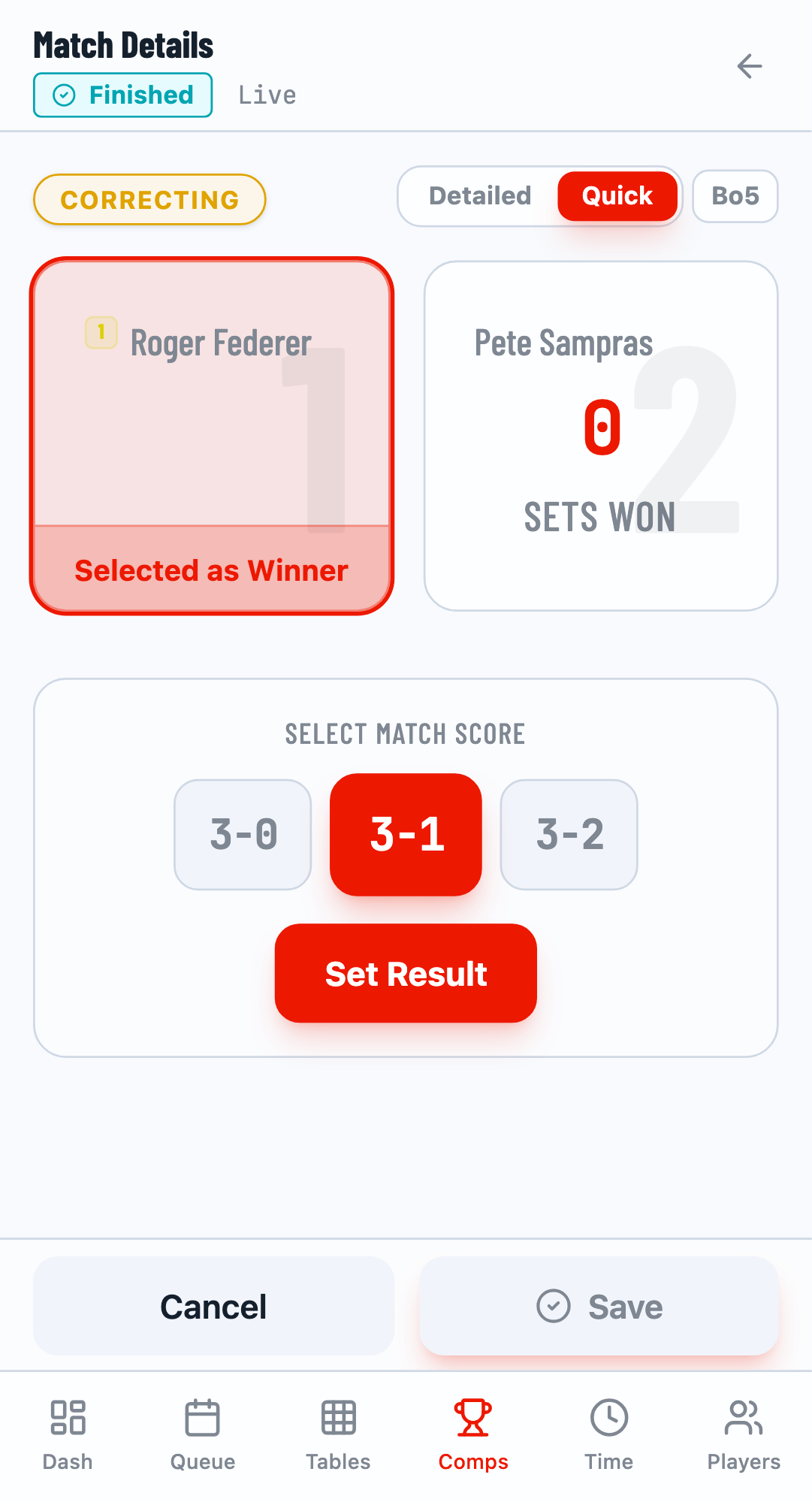
Select the winner and enter the correct score. Use Quick mode for the final result, or switch to Detailed mode if you need to enter set-by-set scores.
Step 4: Save the Correction
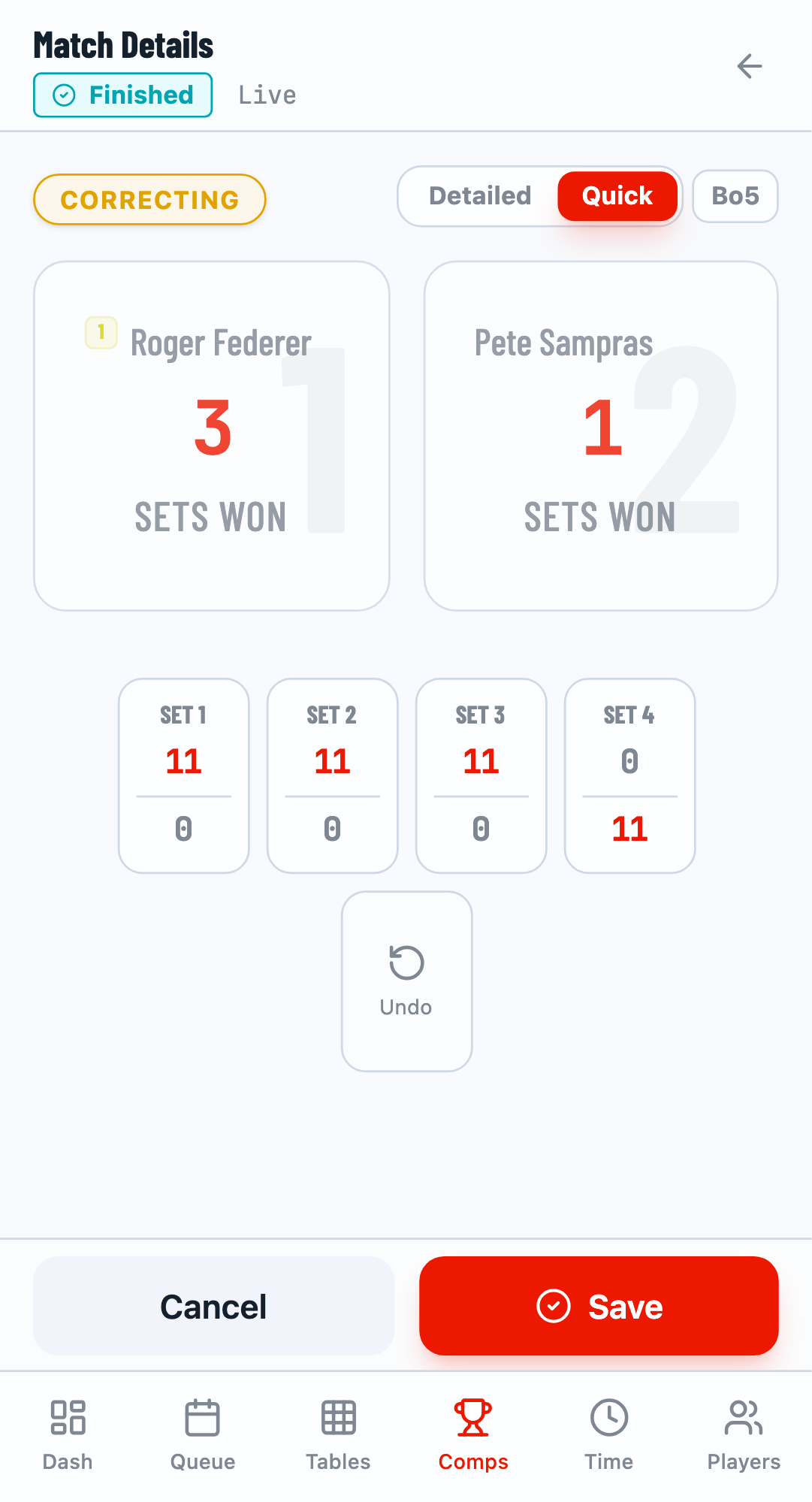
Click Set Result to preview the corrected score, then click Save to apply the correction.
Winner Change Restrictions
If you need to change the winner (not just adjust the score), the downstream match must not have started. If it has, you'll need to reset the downstream match first before correcting the earlier result.
Switching Between Modes
You can switch between Detailed and Quick modes at any time using the toggle buttons at the top of the match panel. Note that switching modes resets any pending (unsaved) input.
Related Guides
- Getting Started - Basic tournament setup
- Multi-Mode Workflow - Owner, Viewer, and Scorer modes