Player Management
Add, manage, and organize players in your tournament roster
The Players tab is your tournament roster management center. Here you can add participants, search for players, and organize your player database. Players added here can be entered into any competition within your tournament.
Viewing the Player Roster
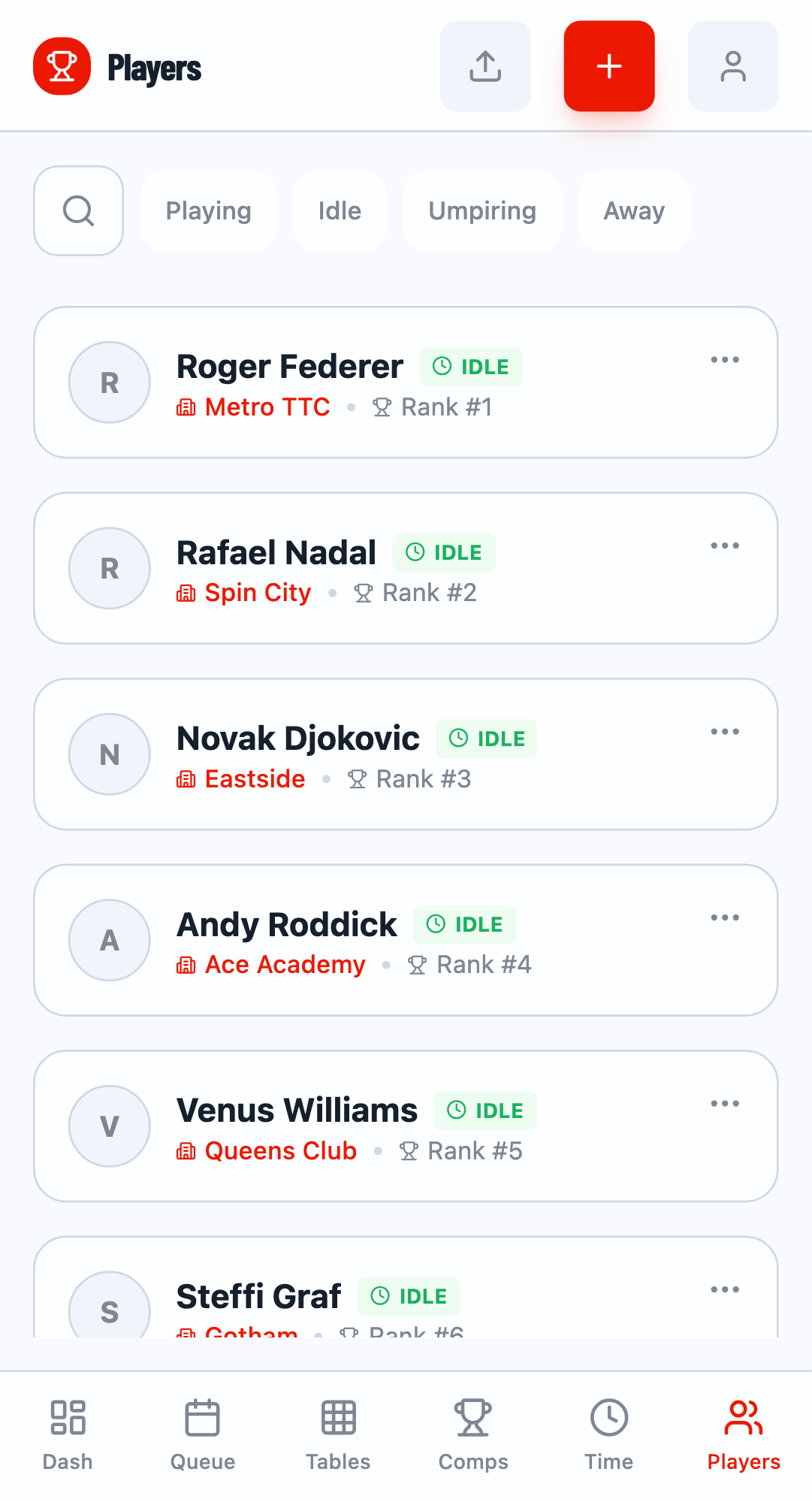
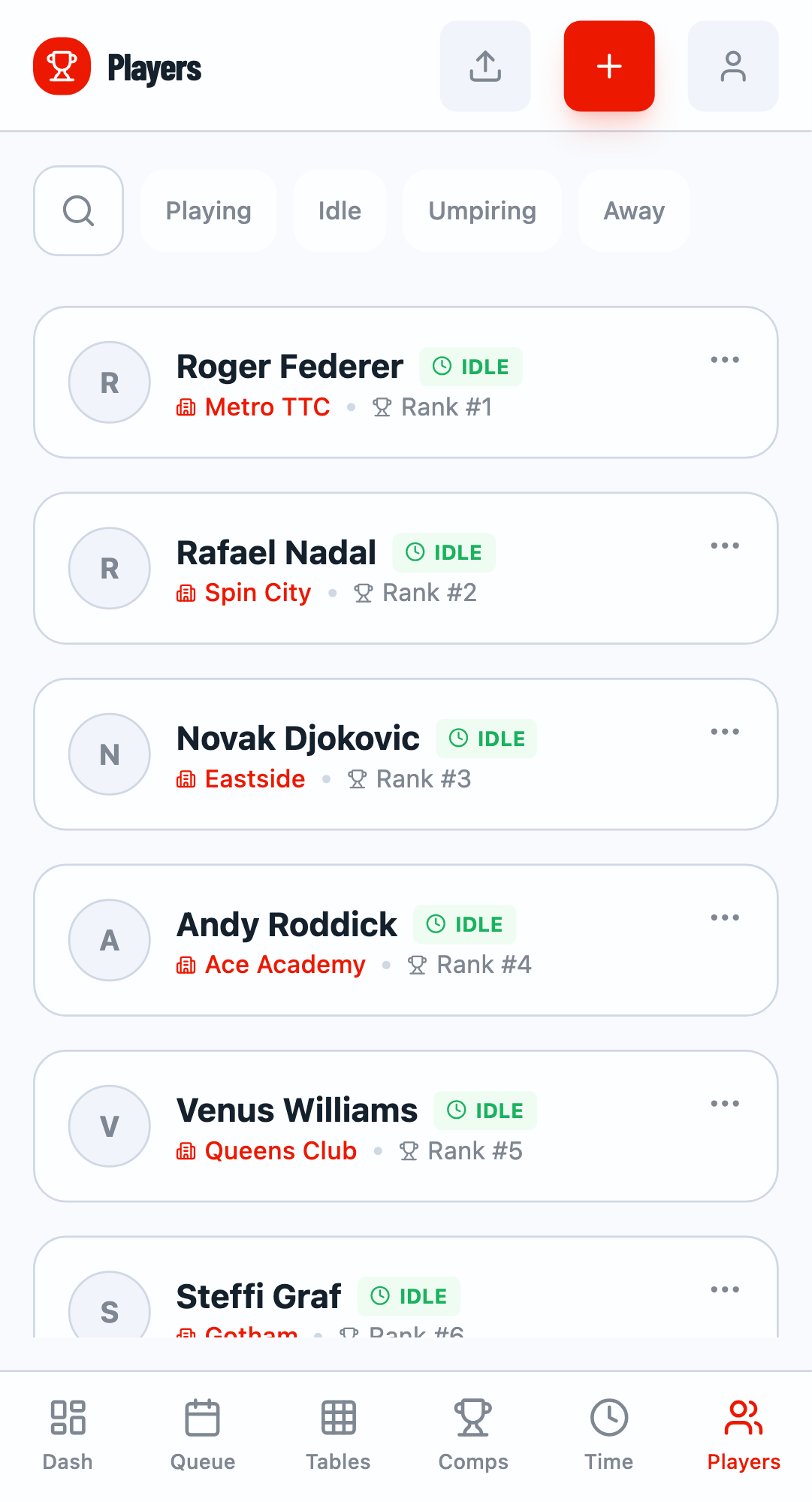
Navigate to the Players tab (mobile: "Players") to see your tournament roster. The roster displays all players with their club affiliation and rank/seed information.
Adding New Players
Click the + button to open the player addition modal. You can add players one at a time or in batches.
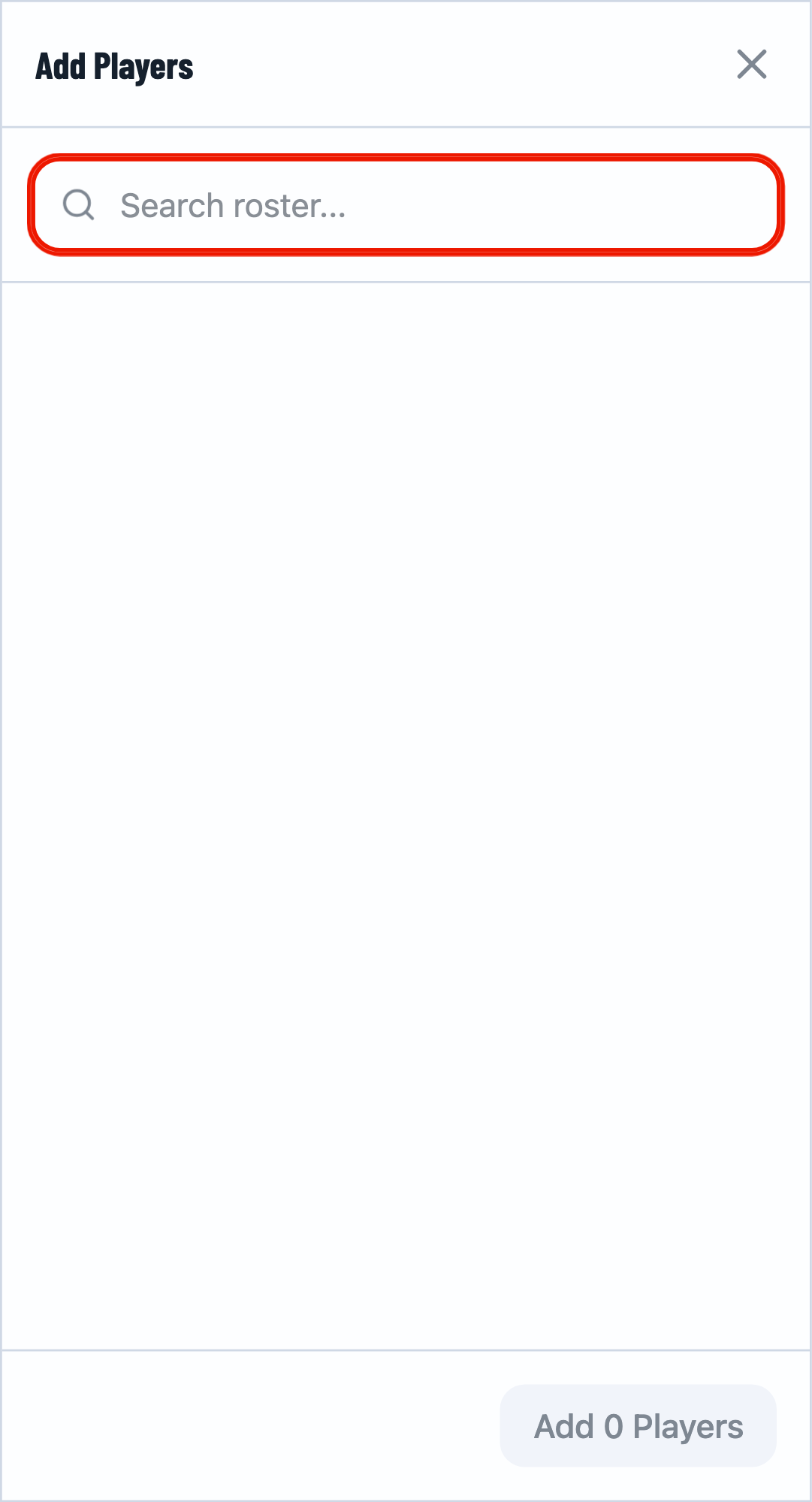
Step 1: Enter Player Name
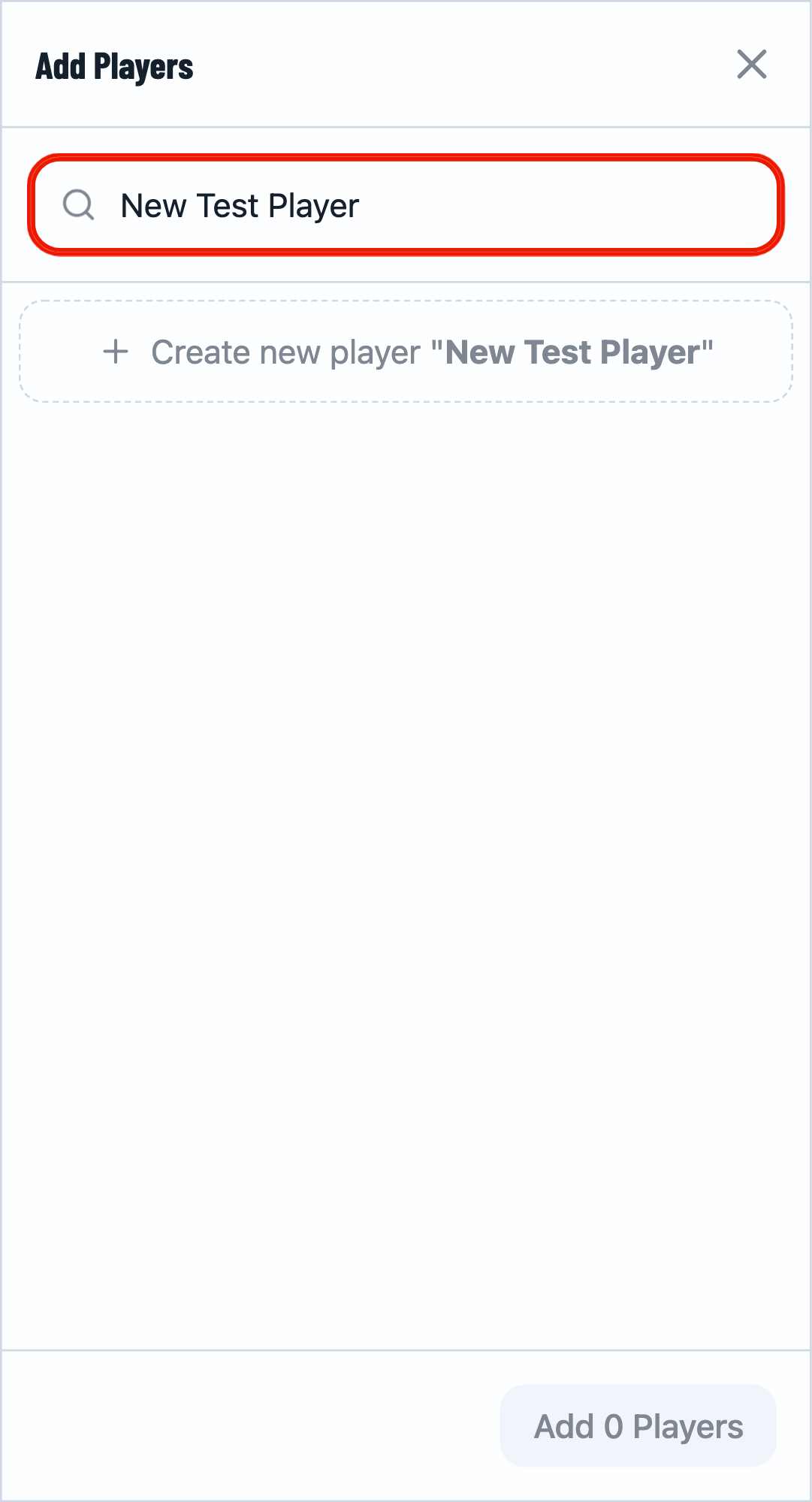
Type the player's name in the search field. If the player doesn't exist in your database, click Create new player to add them.
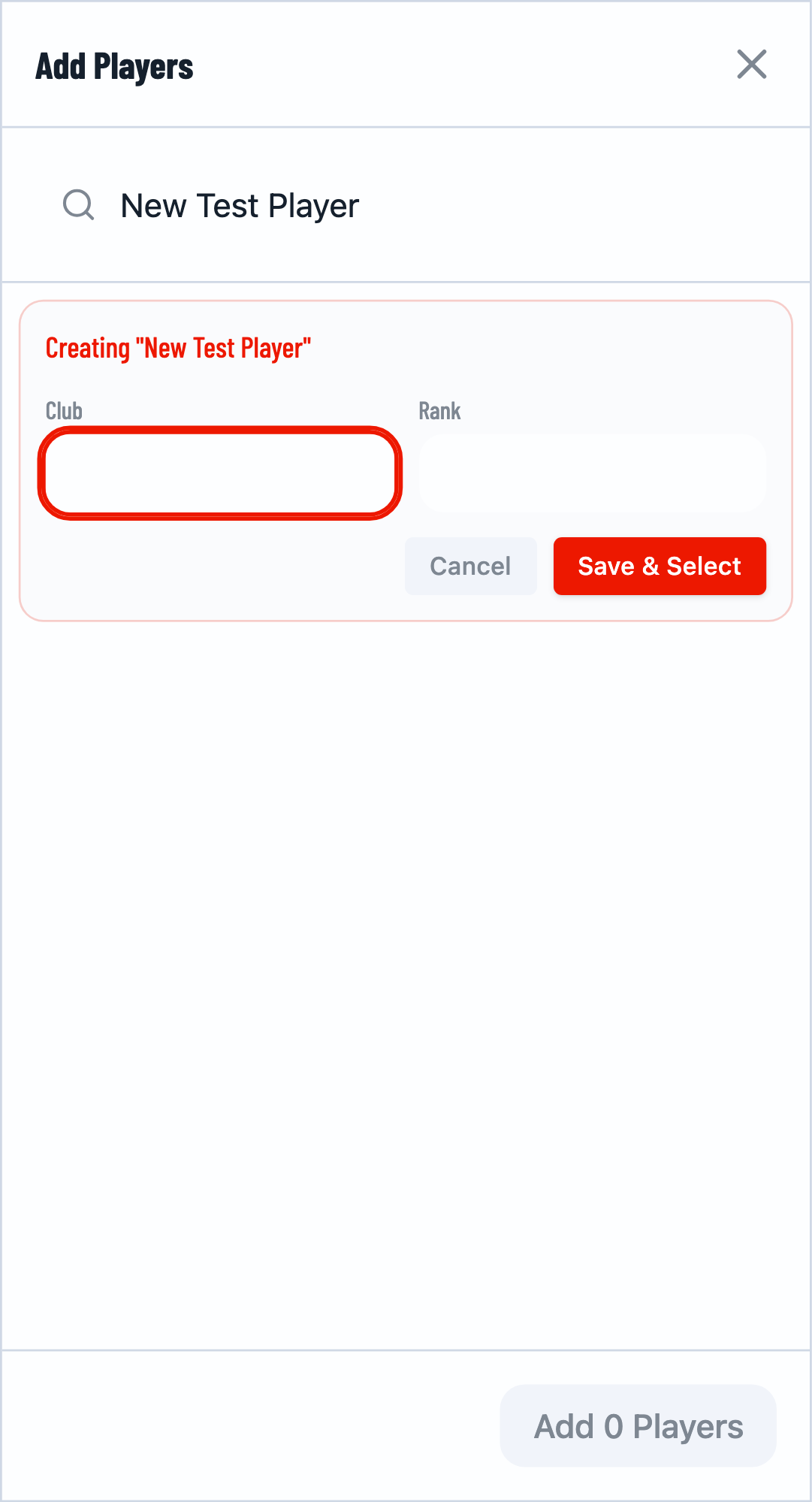
Step 2: Fill Player Details
Enter optional information:
- Club - The player's club or organization
- Rank/Seed - Used for seeding in draws (lower = higher seed)
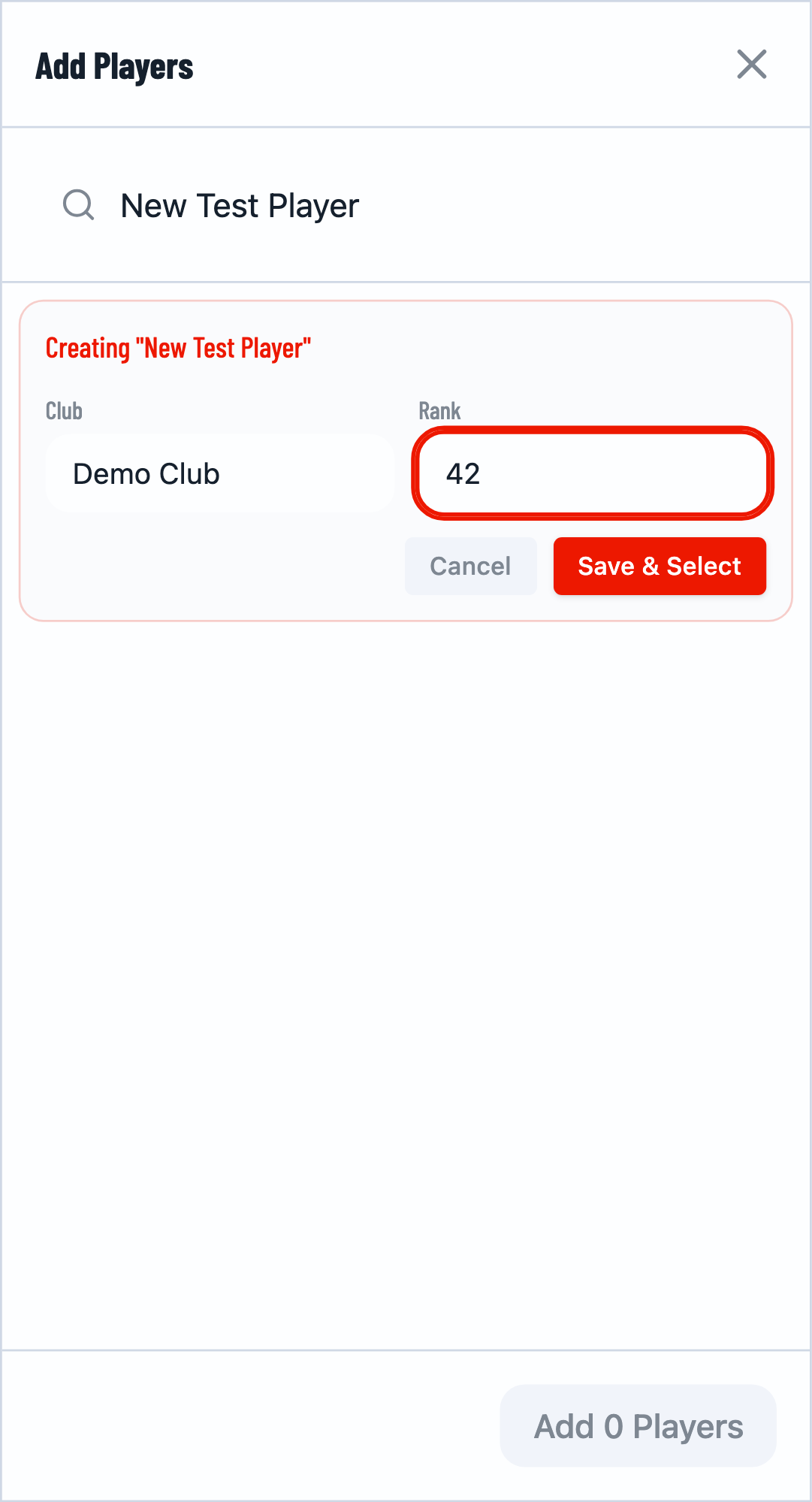
Step 3: Save and Confirm
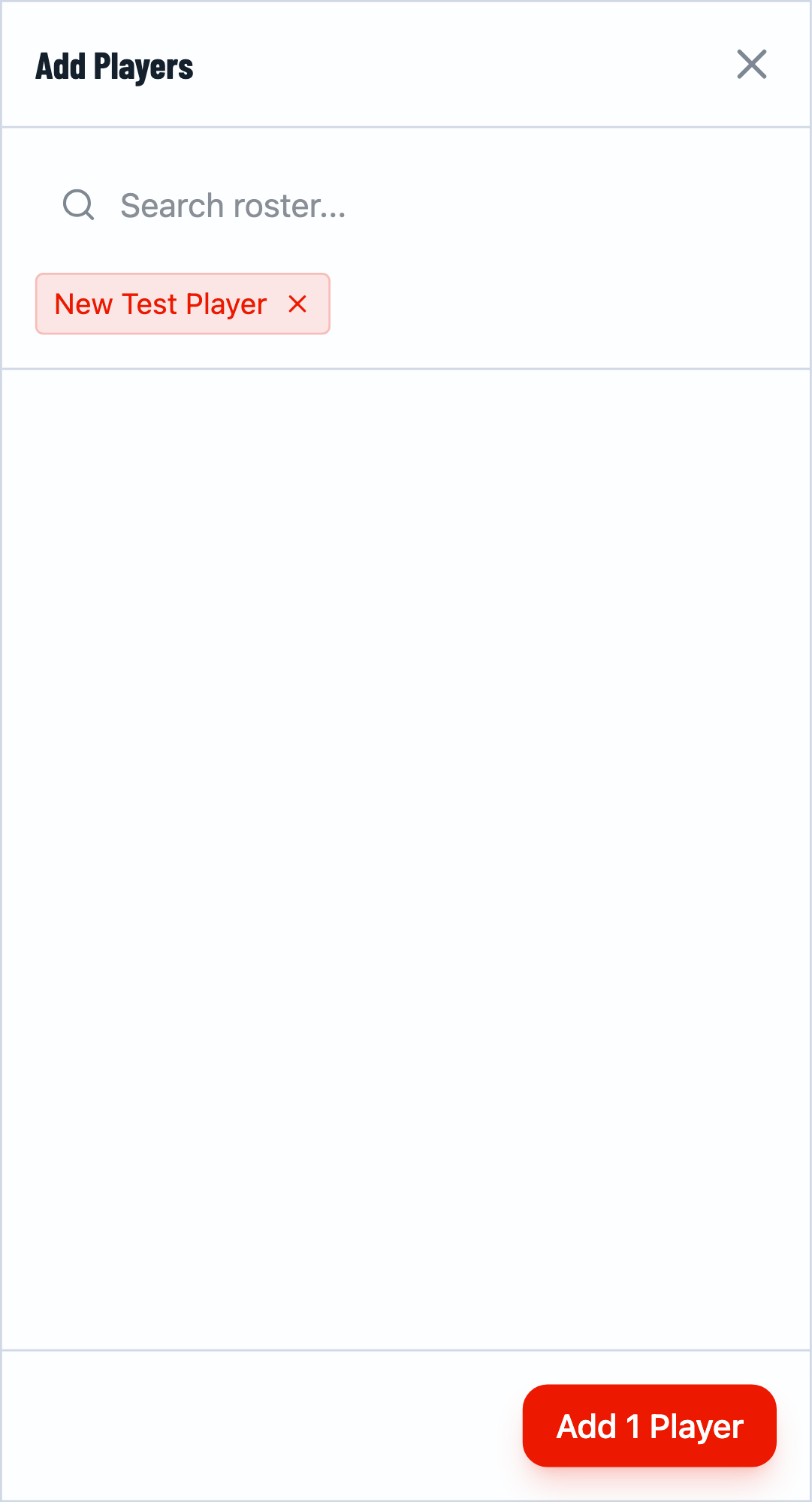
Click Save & Select to add the player. You can continue adding more players, then click Confirm to add all selected players to your roster.
Searching Players
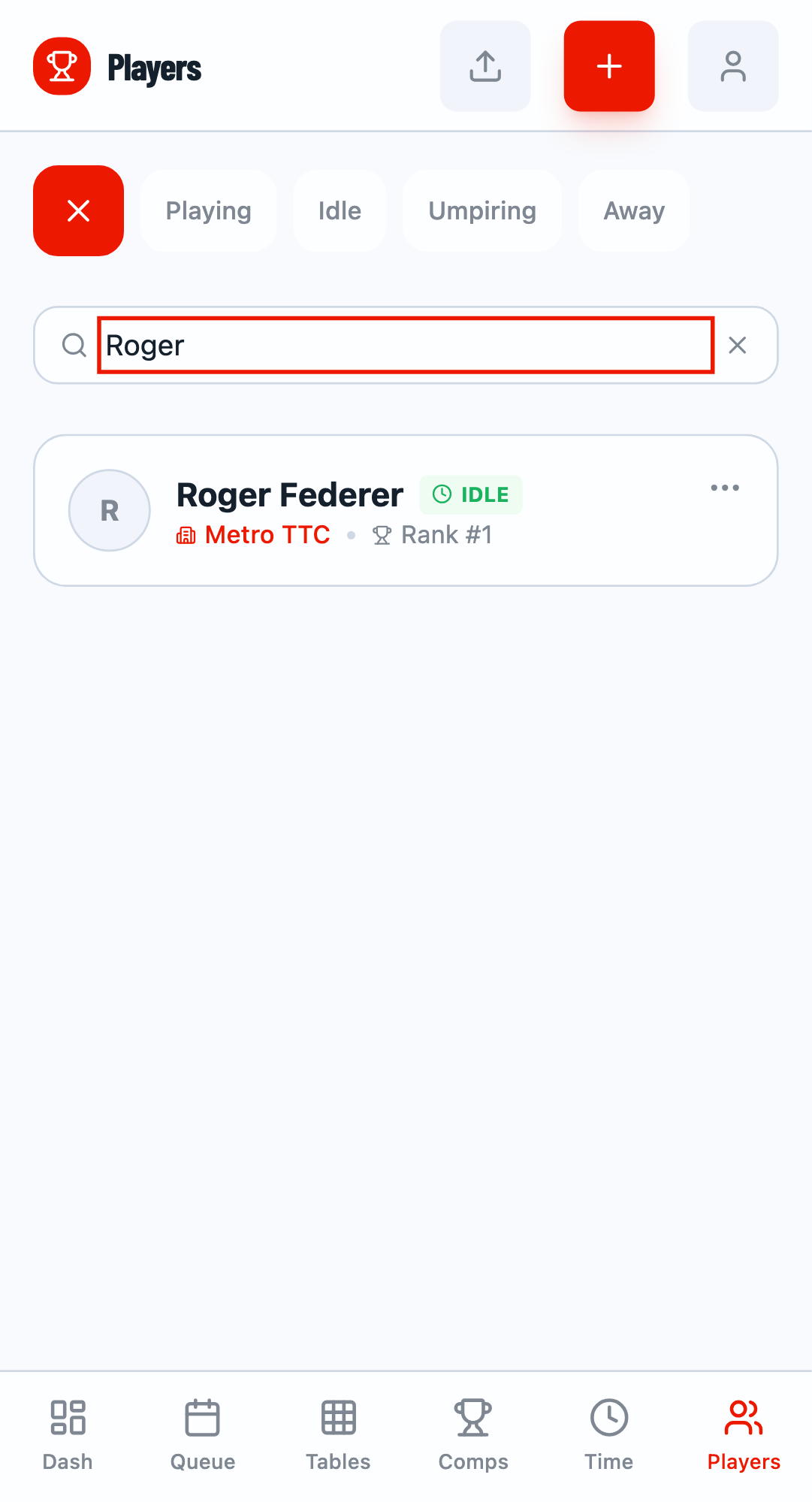
Use the search function to quickly find players in your roster. Click the search icon and type a name or club to filter the list.
Tips for Player Management
🏷️ Use Ranks for Seeding
Set player ranks (1, 2, 3...) to automatically seed them in draws. Rank 1 gets the top seed.
🏢 Organize by Club
Fill in club information to group players and make filtering easier.
Adding Players to Competitions
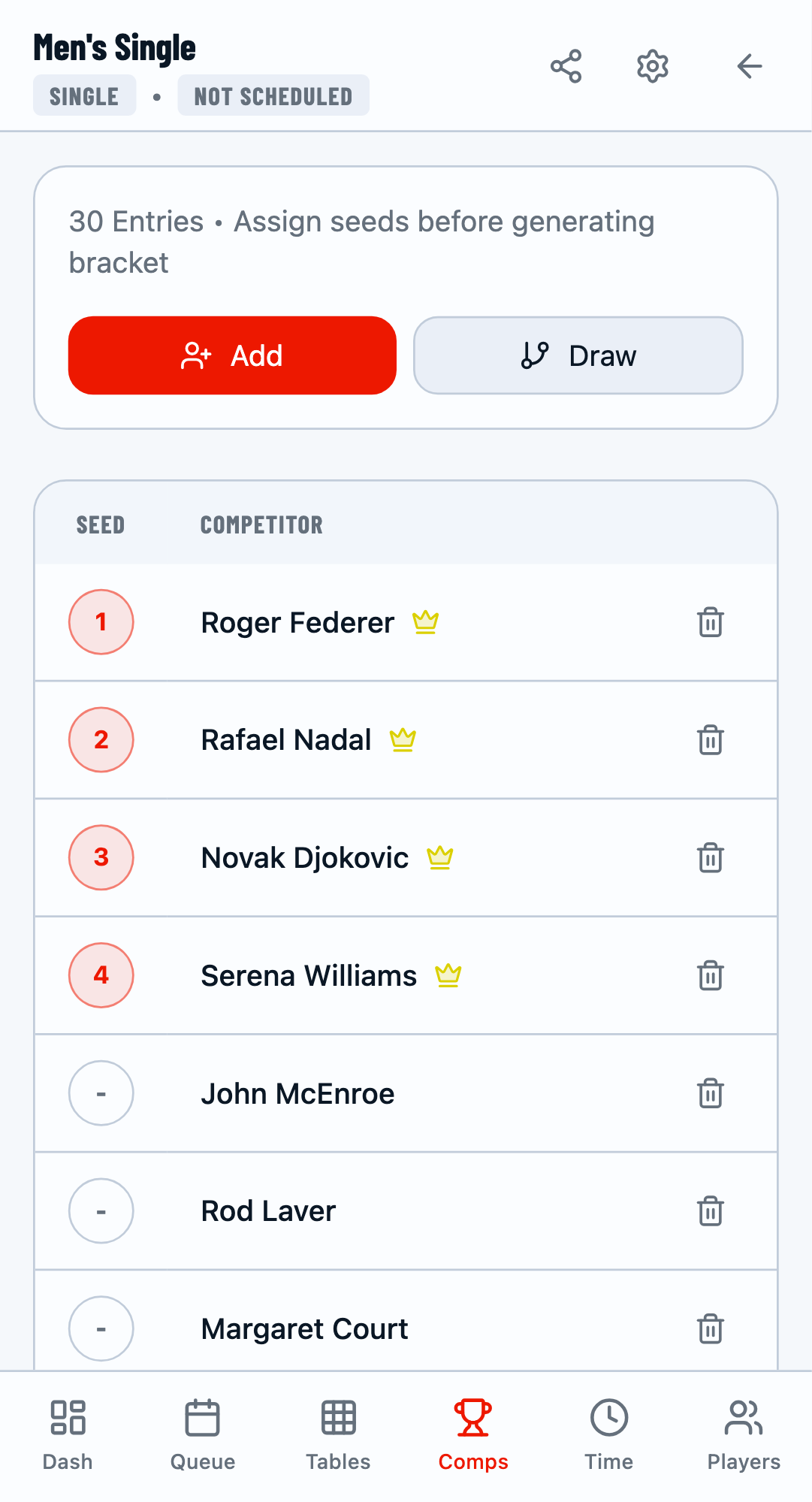
When you add players to a competition (via the competition's Entries tab), the system helps prevent duplicate entries by filtering the player list.
Navigate to Competition Entries
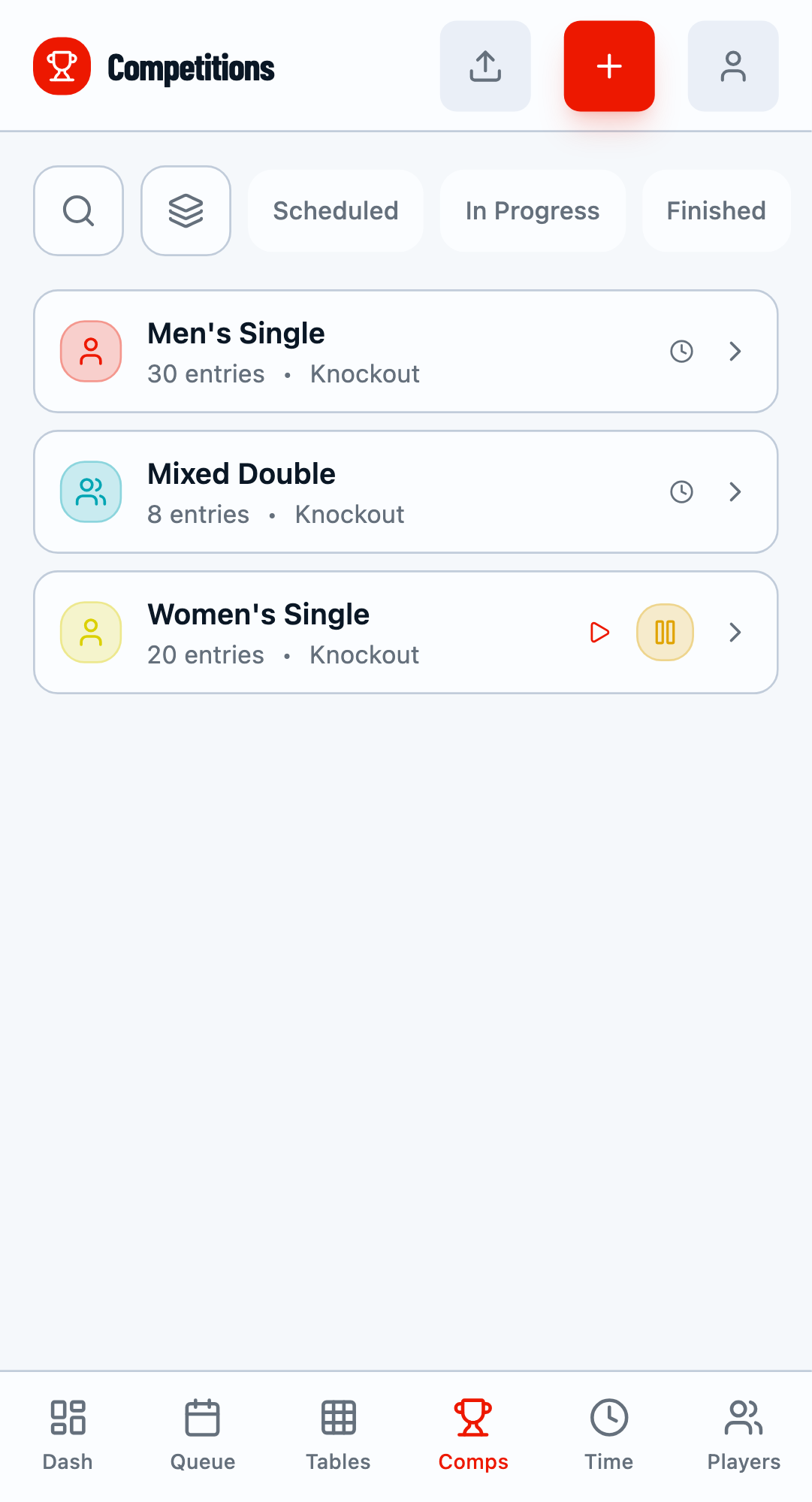
Go to the Competitions tab, select a competition, and switch to the Entries tab to manage who's participating.
Smart Filtering
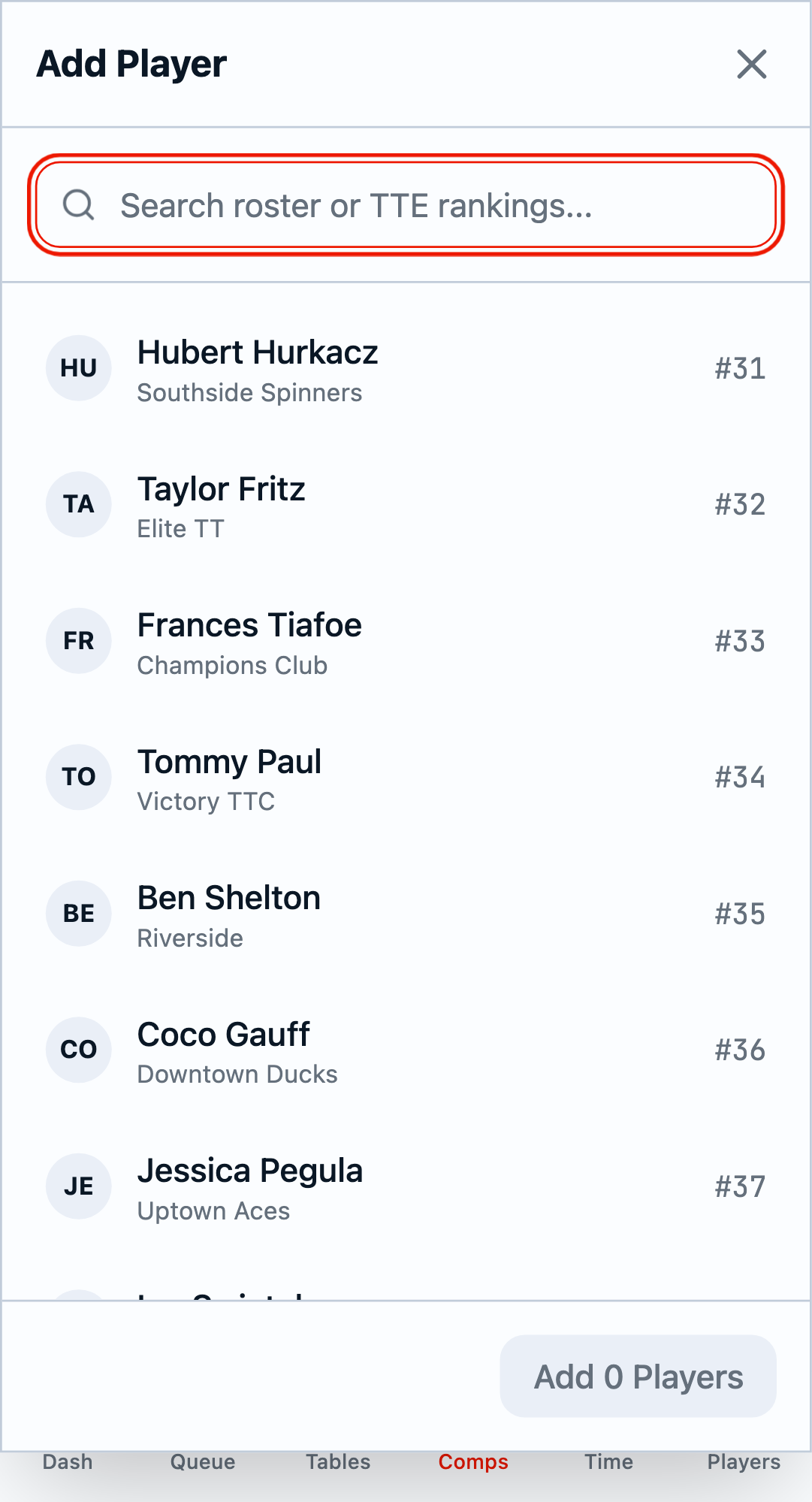
Click Add to open the player selection modal. Notice that players already entered in the competition are hidden by default.
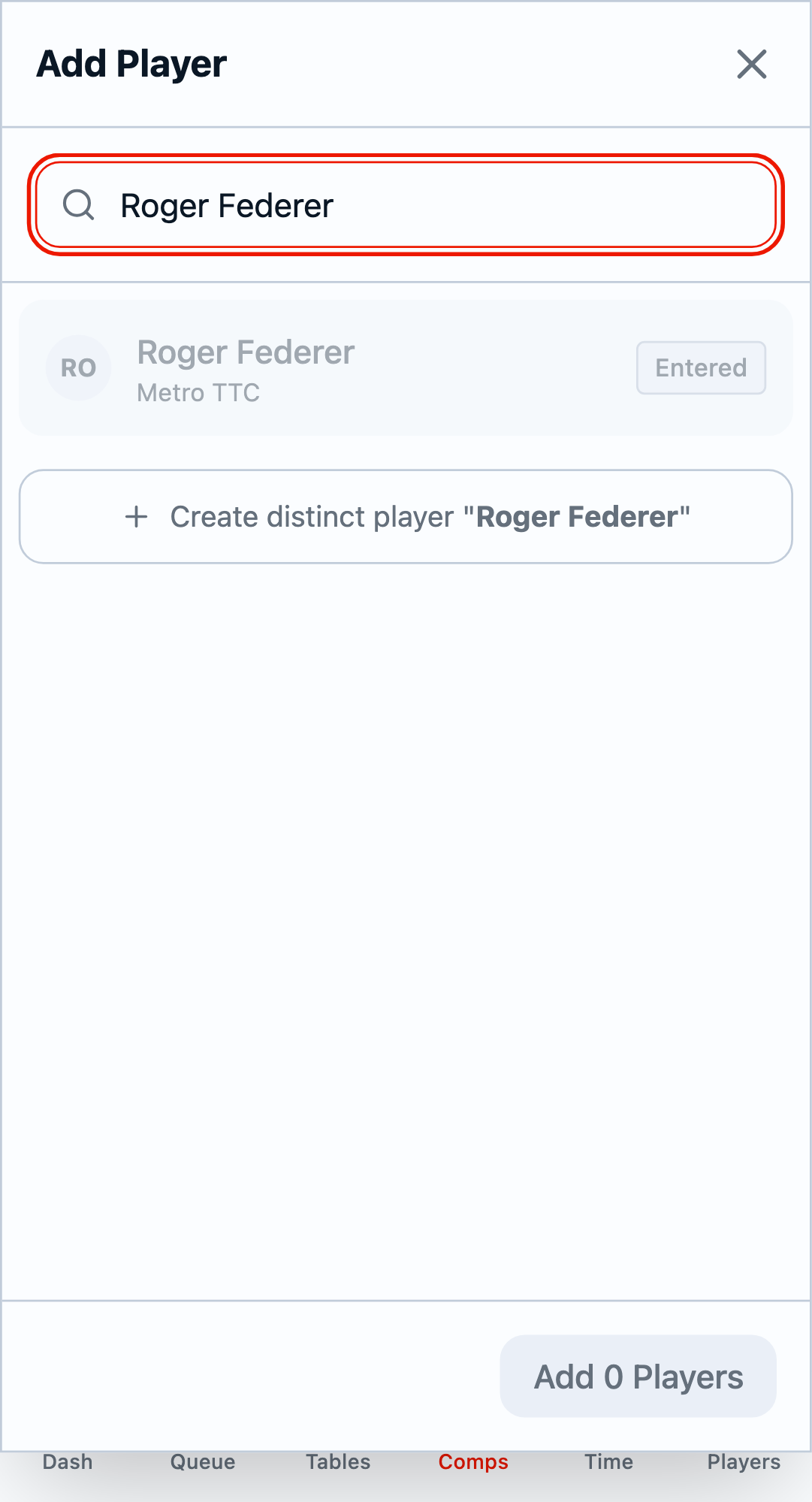
If you search for a player who's already entered, they appear with an "Entered" badge and cannot be selected again. This prevents accidental duplicate entries.
Why Hide Entered Players?
In large tournaments with many players, hiding already-entered players makes it easier to find available participants and prevents accidental duplicate entries. You can still search for entered players to verify their status.
Related Guides
- Getting Started - Basic tournament setup
- Draw Generation - Creating tournament brackets