Batch Operations
Learn how to manage multiple competitions at once with batch operations for generating schedules, starting, and pausing competitions.
When running tournaments with multiple competitions, batch operations let you perform actions on several competitions at once. This saves time and ensures consistent scheduling across your event.
Overview
Batch operations allow you to:
- Select multiple competitions at once
- Generate schedules with the same format for all selected
- Start or pause multiple competitions simultaneously
- Apply consistent settings across your tournament
Step 1: Navigate to Competitions
From your tournament dashboard, navigate to the Competitions tab. You'll see a list of all competitions in your tournament.
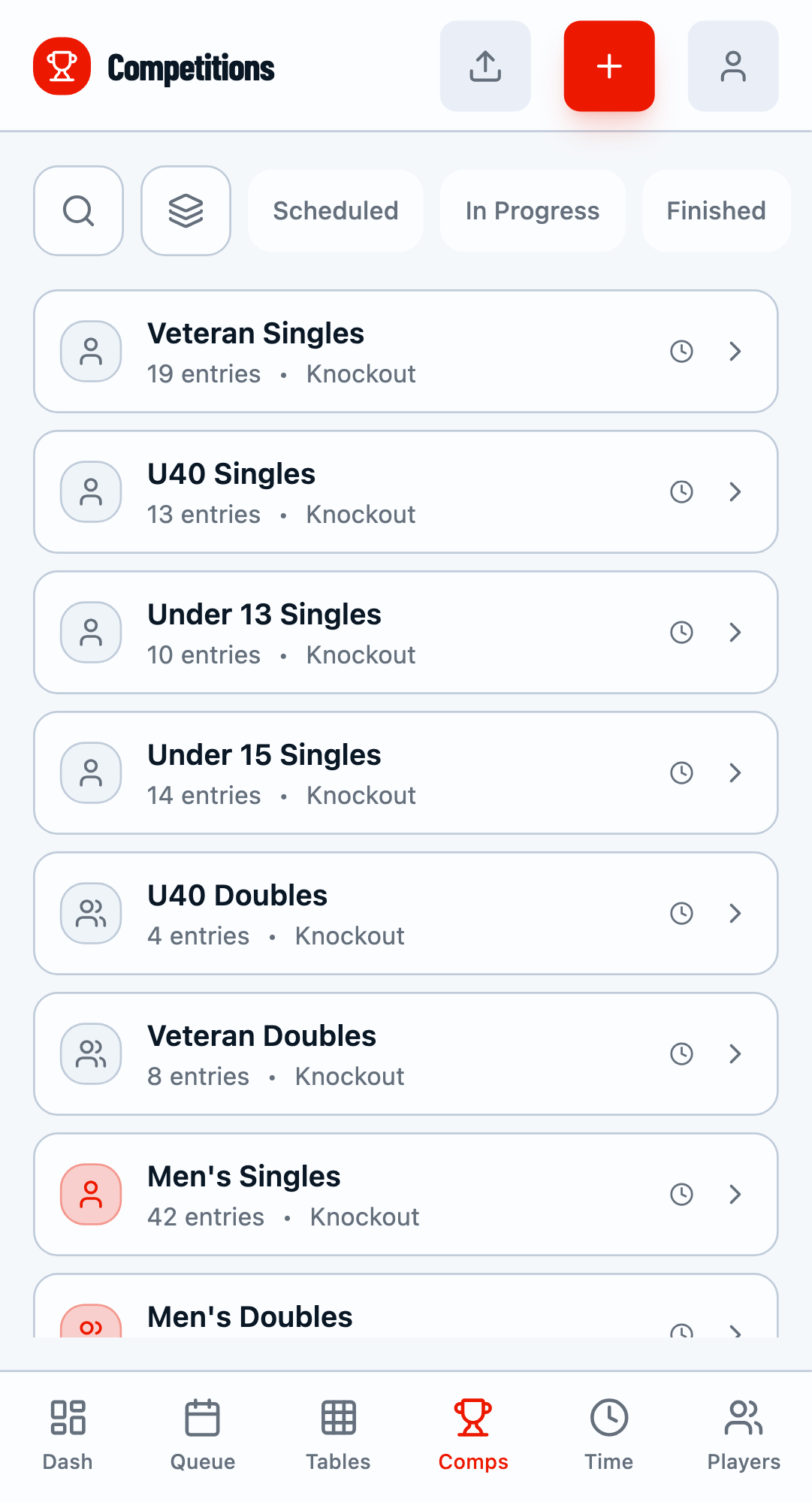
The Competitions tab showing all competitions.
Step 2: Enable Batch Mode
Click the Batch button in the top right of the competitions list. This enables selection mode where you can choose multiple competitions.
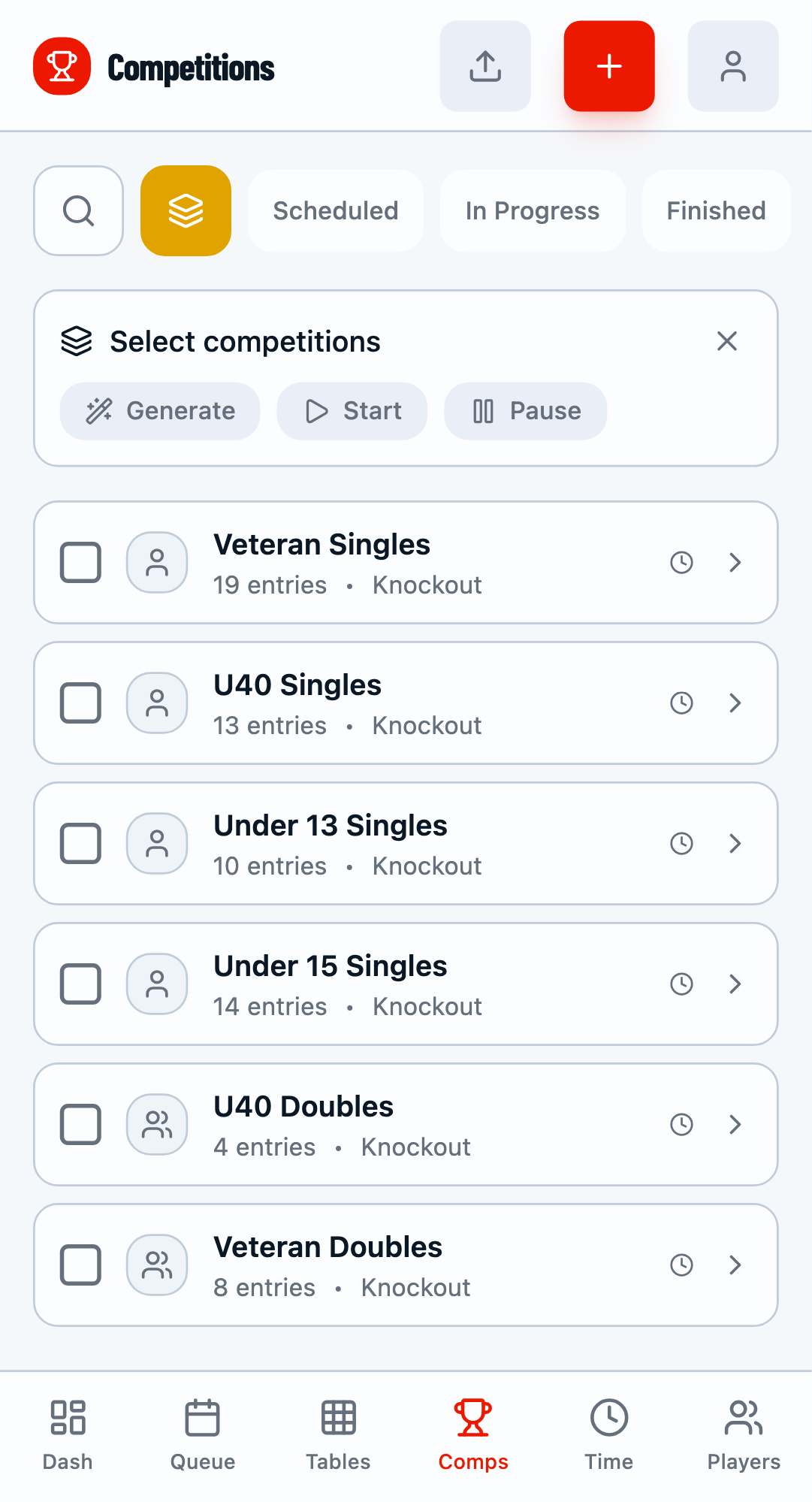
Batch mode enabled - ready to select competitions.
Step 3: Select Competitions
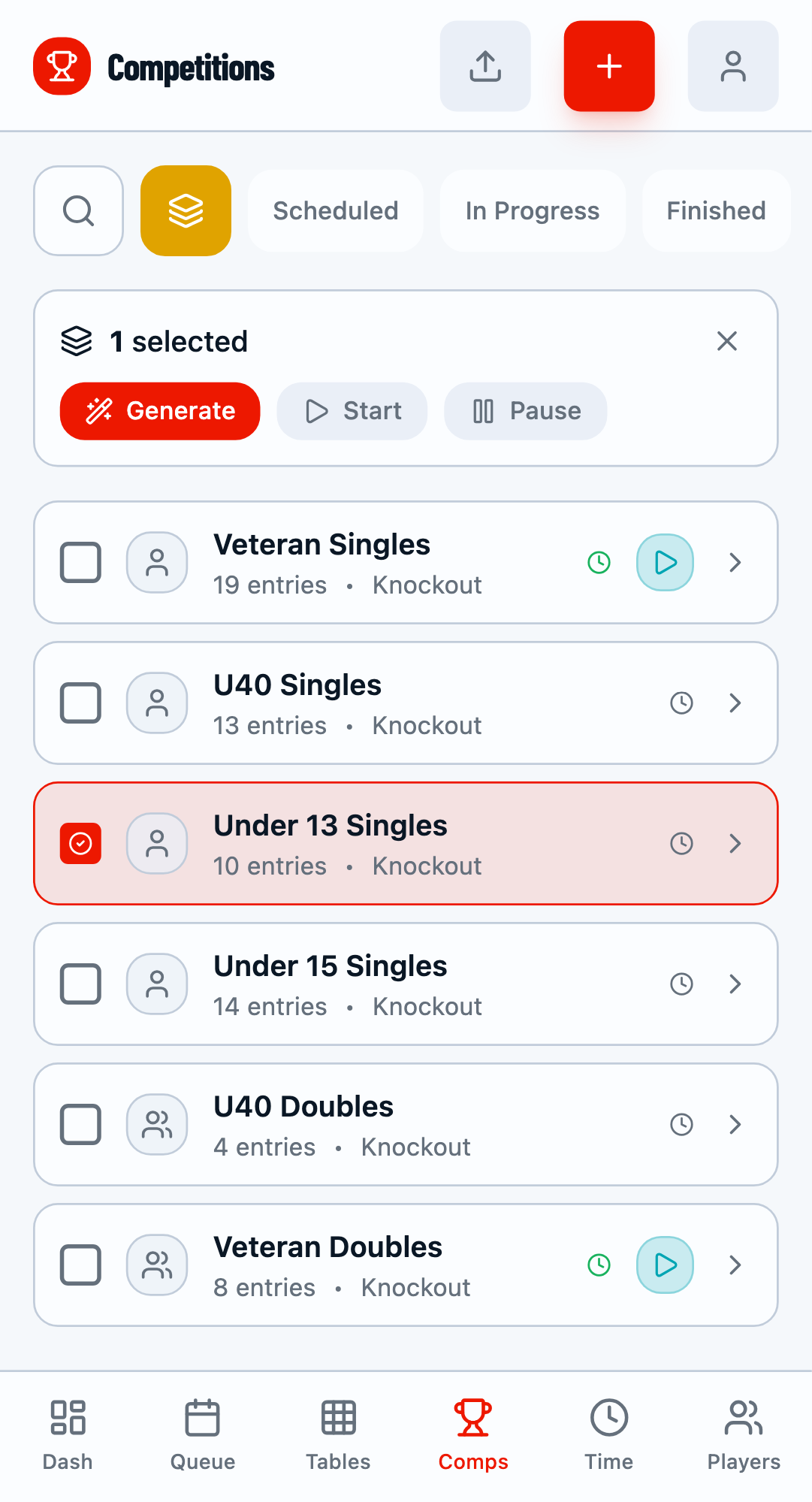
Tap on competition cards to select them. Selected competitions are highlighted and a counter shows how many you've selected.
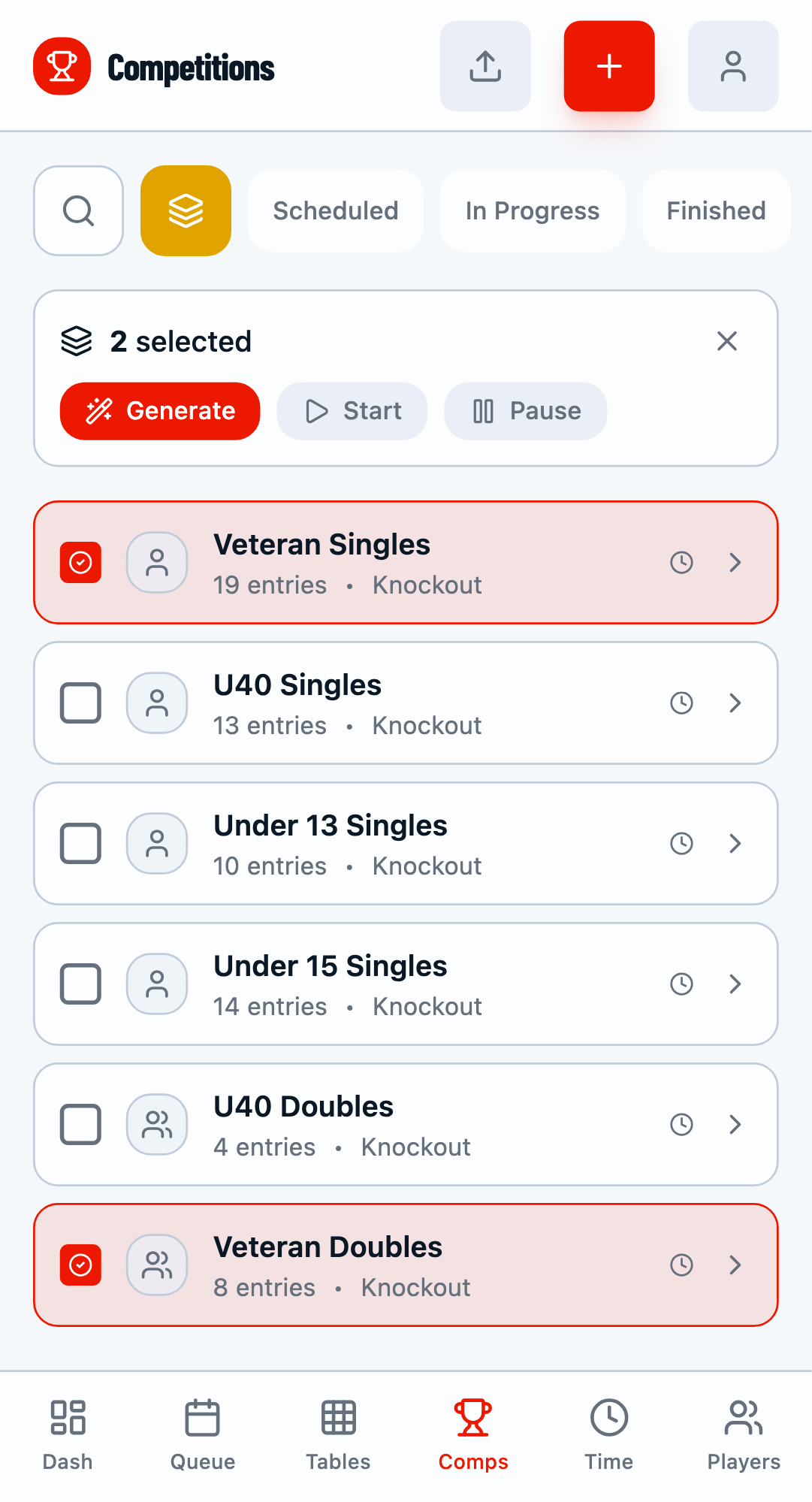
Two competitions selected for batch operation.
Step 4: Generate Schedules
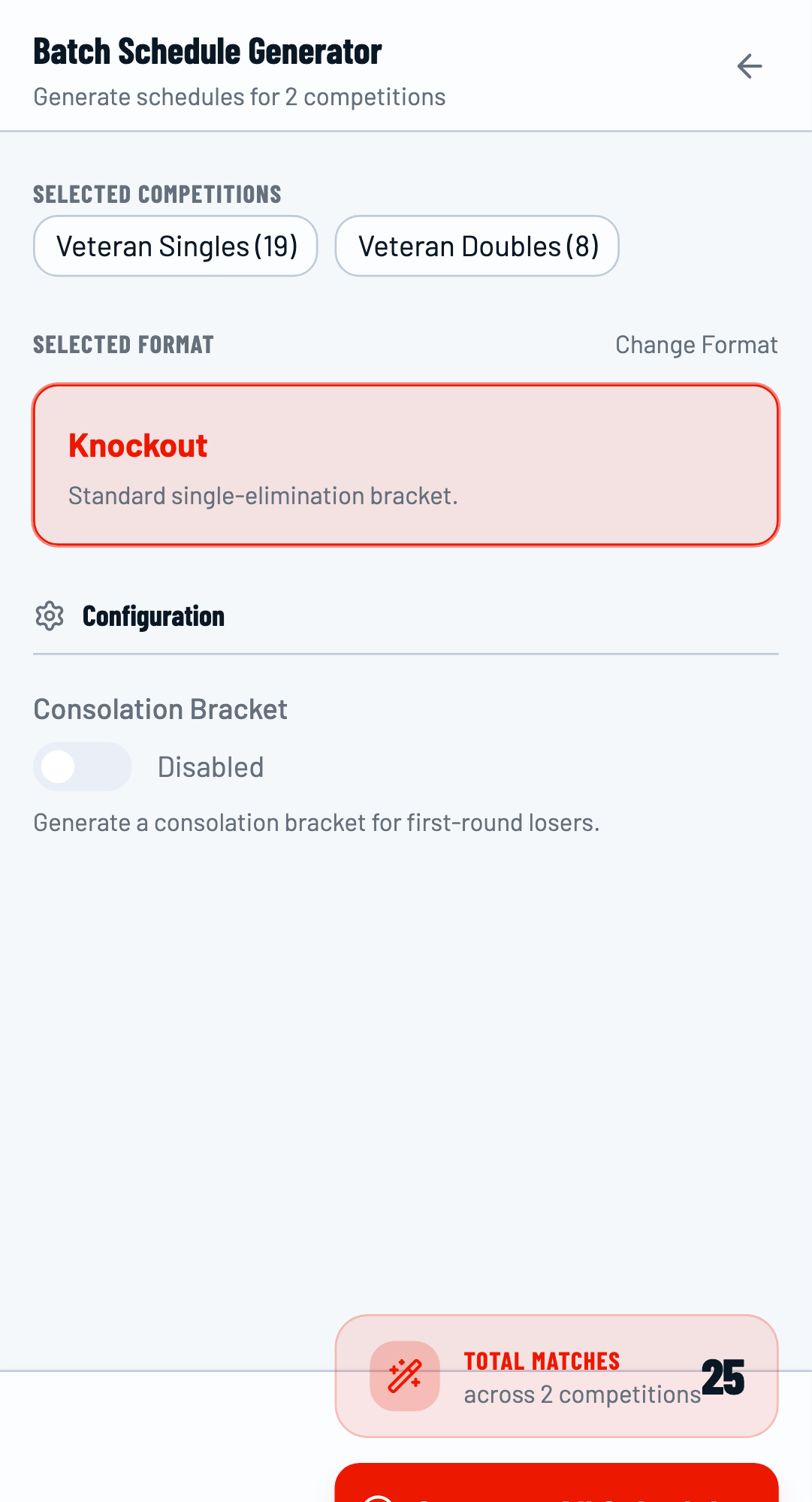
With competitions selected, click the Generate button to open the Batch Schedule Generator modal.
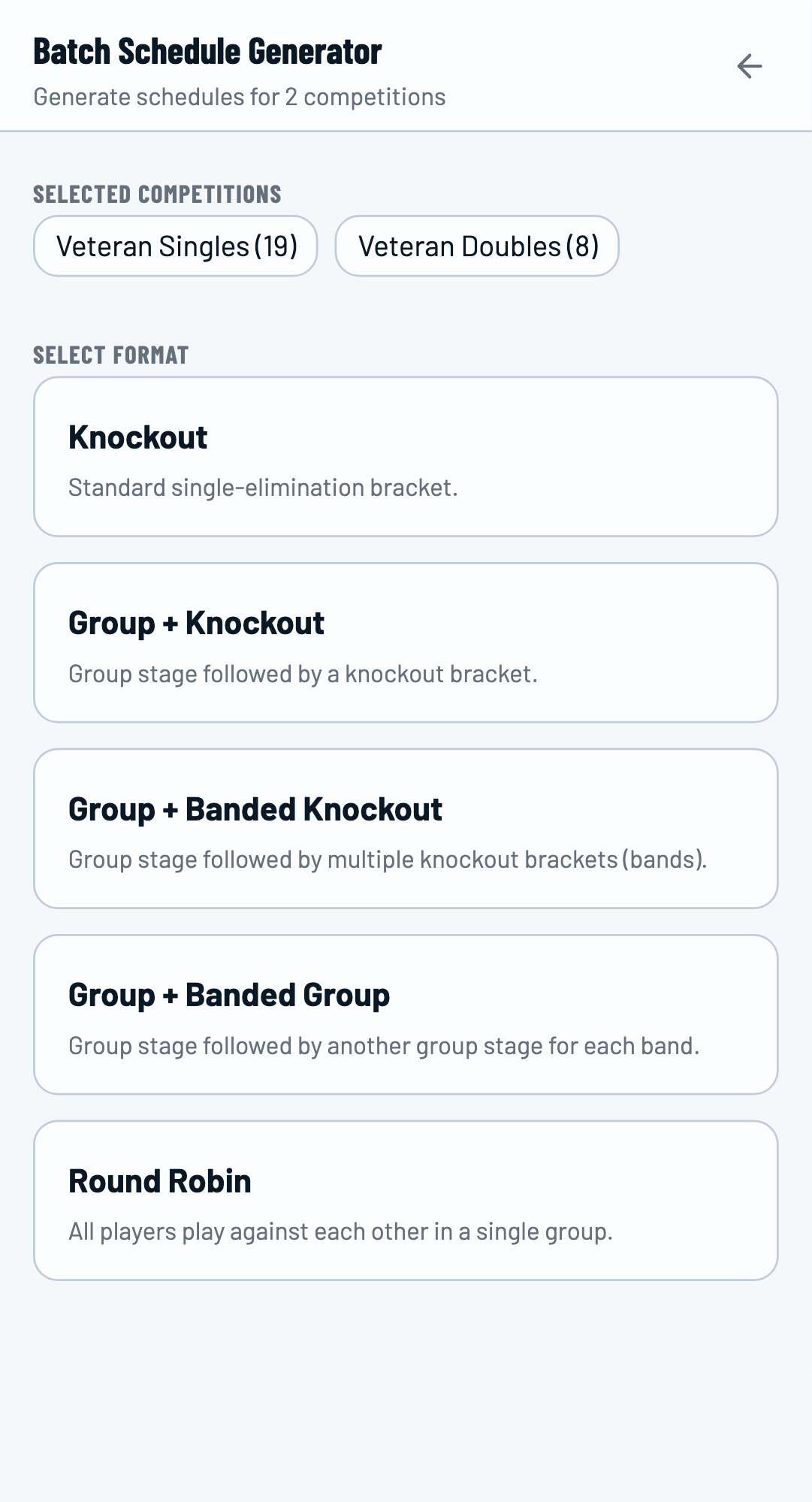
The Batch Schedule Generator modal.
Choose a Format
Select the draw format for all selected competitions. Available formats include:
- Knockout - Single elimination bracket
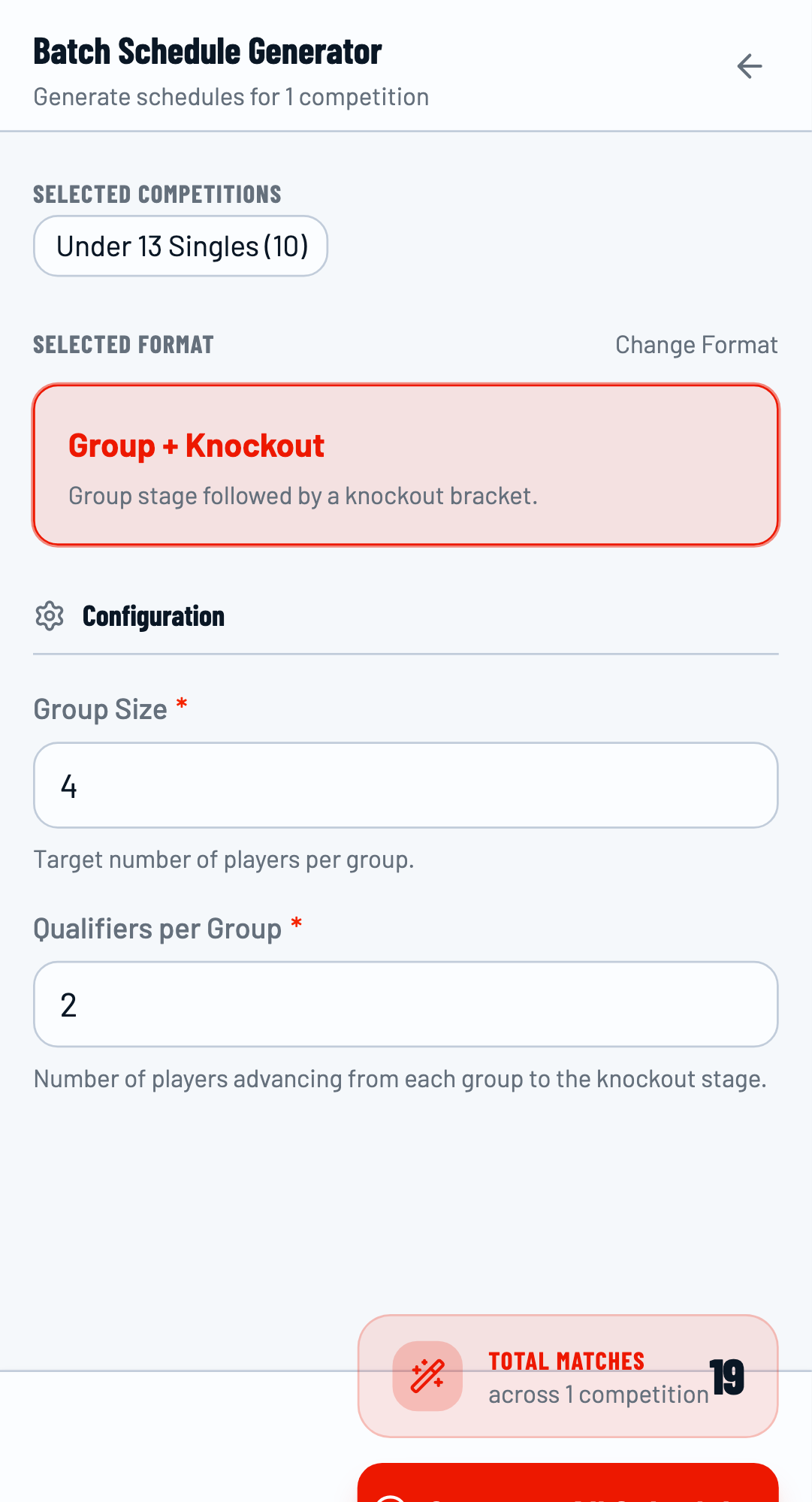
- Group + Knockout - Group stage followed by elimination
- Round Robin - Everyone plays everyone
Generate for Single Competition
You can also use batch mode for a single competition. This is useful when you want to try different formats.
Different Formats for Different Competitions
You can generate schedules in batches, using different formats each time. For example, generate Knockout for some competitions, then Group+Knockout for others.
Step 5: Verify Generated Fixtures
After generating, click on each competition to verify the fixtures were created correctly.
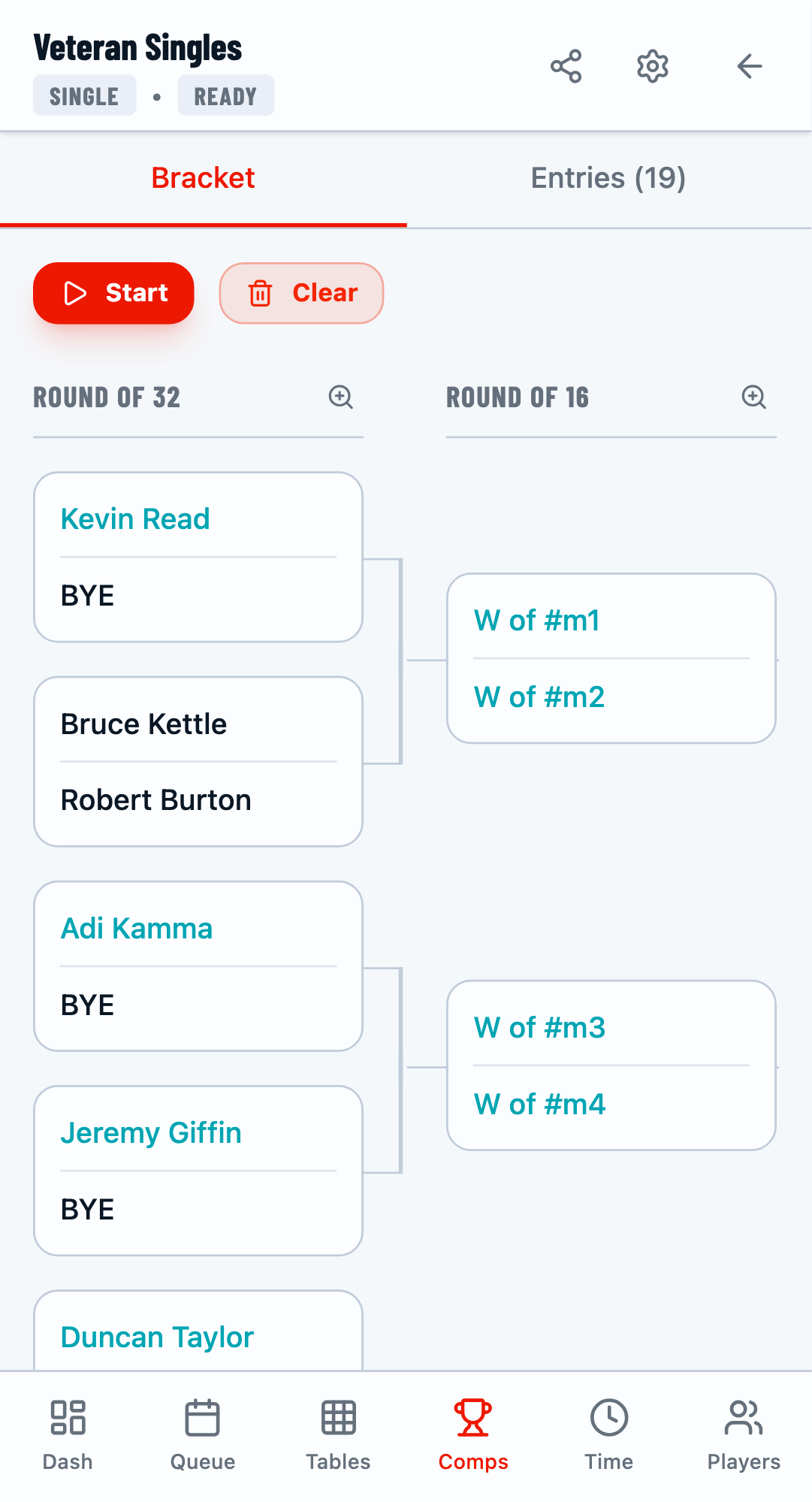
Knockout bracket successfully generated.
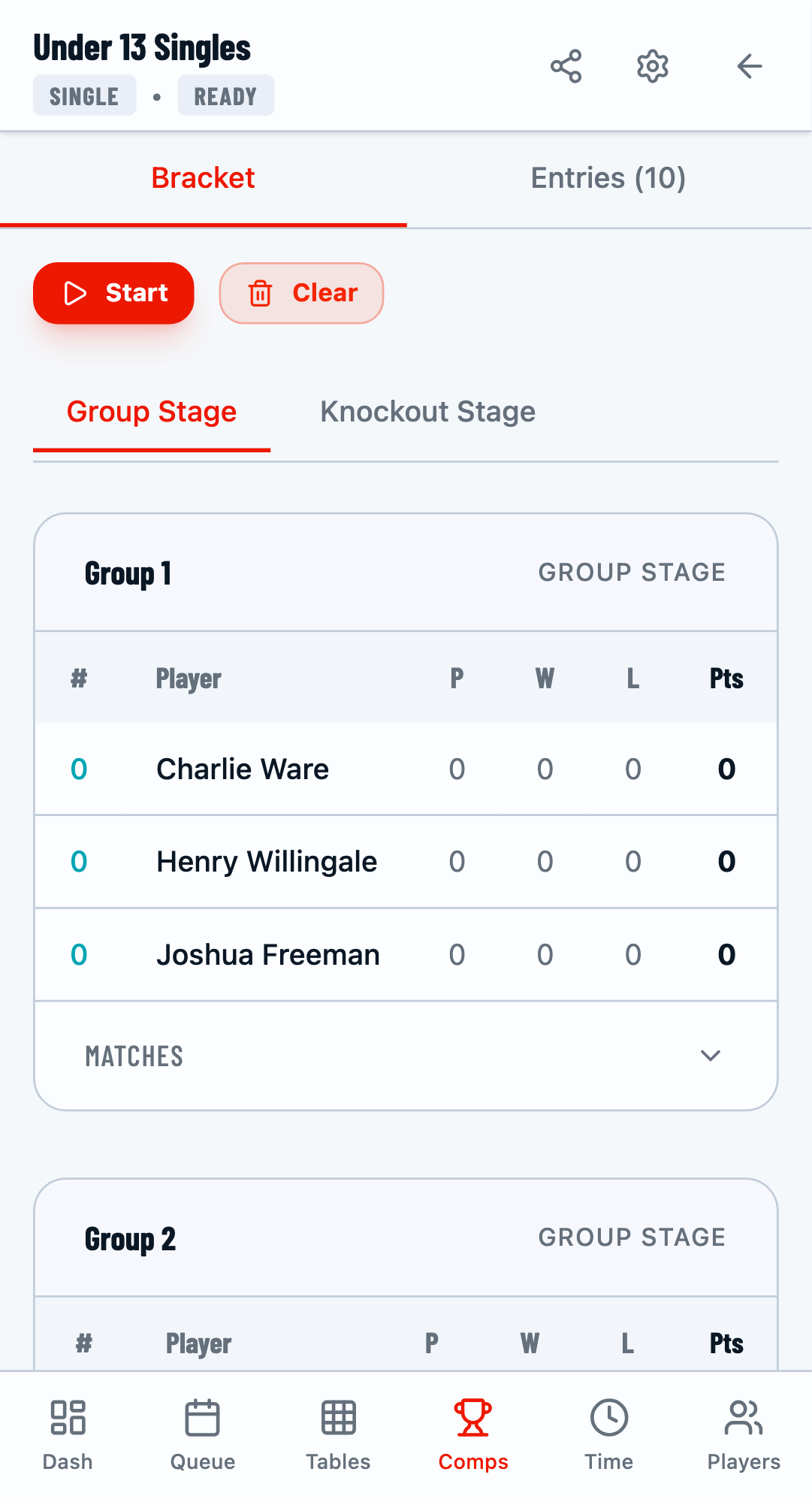
Group stage successfully generated.
Step 6: Batch Start Competitions
Once competitions have fixtures, you can start them in batch. Enter batch mode, select the competitions, and click Start.
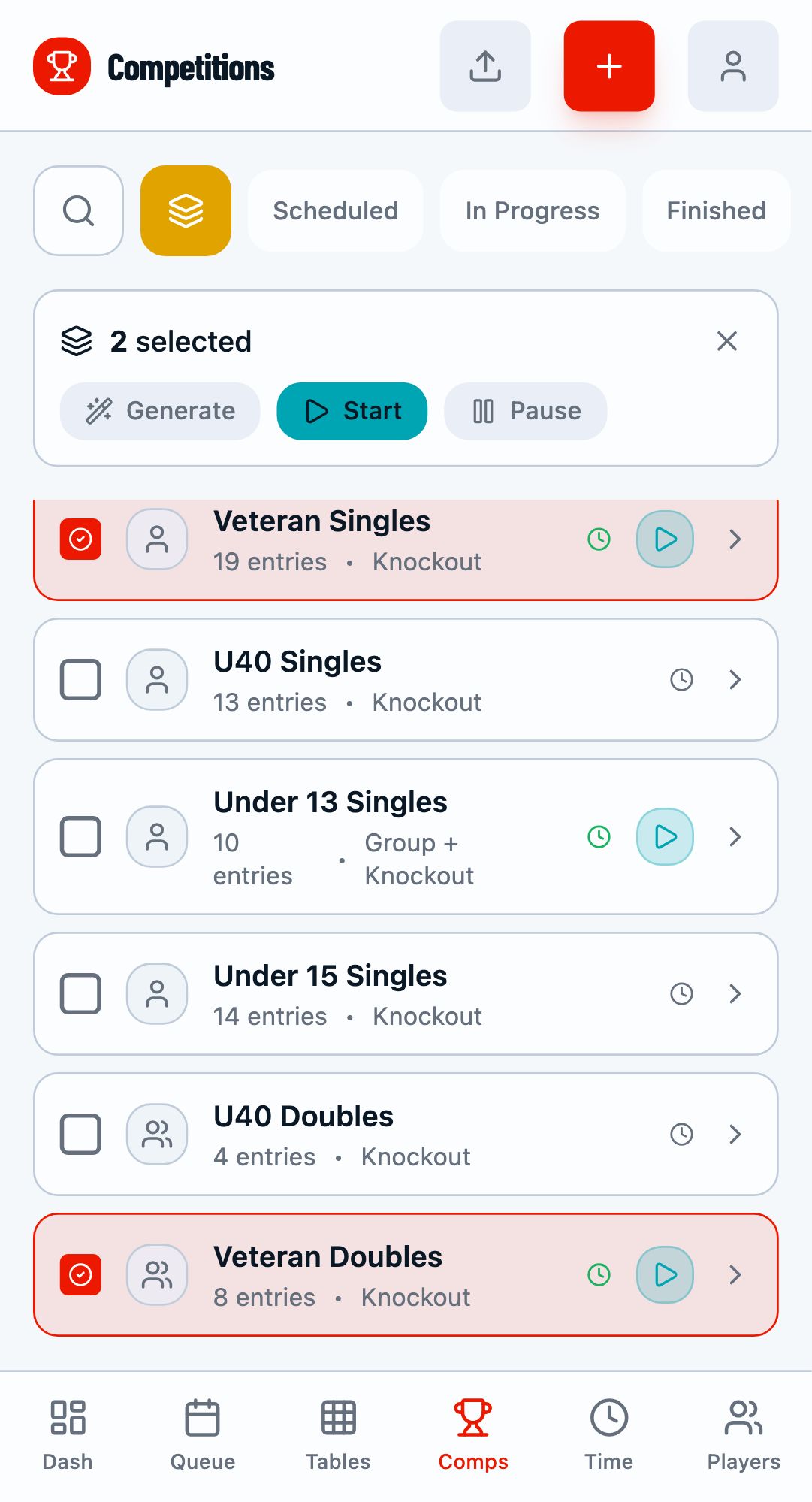
Selected competitions ready to start.
Step 7: Batch Pause Competitions
If you need to temporarily stop a competition (e.g., for a lunch break), you can pause multiple competitions at once. Select them in batch mode and click Pause.
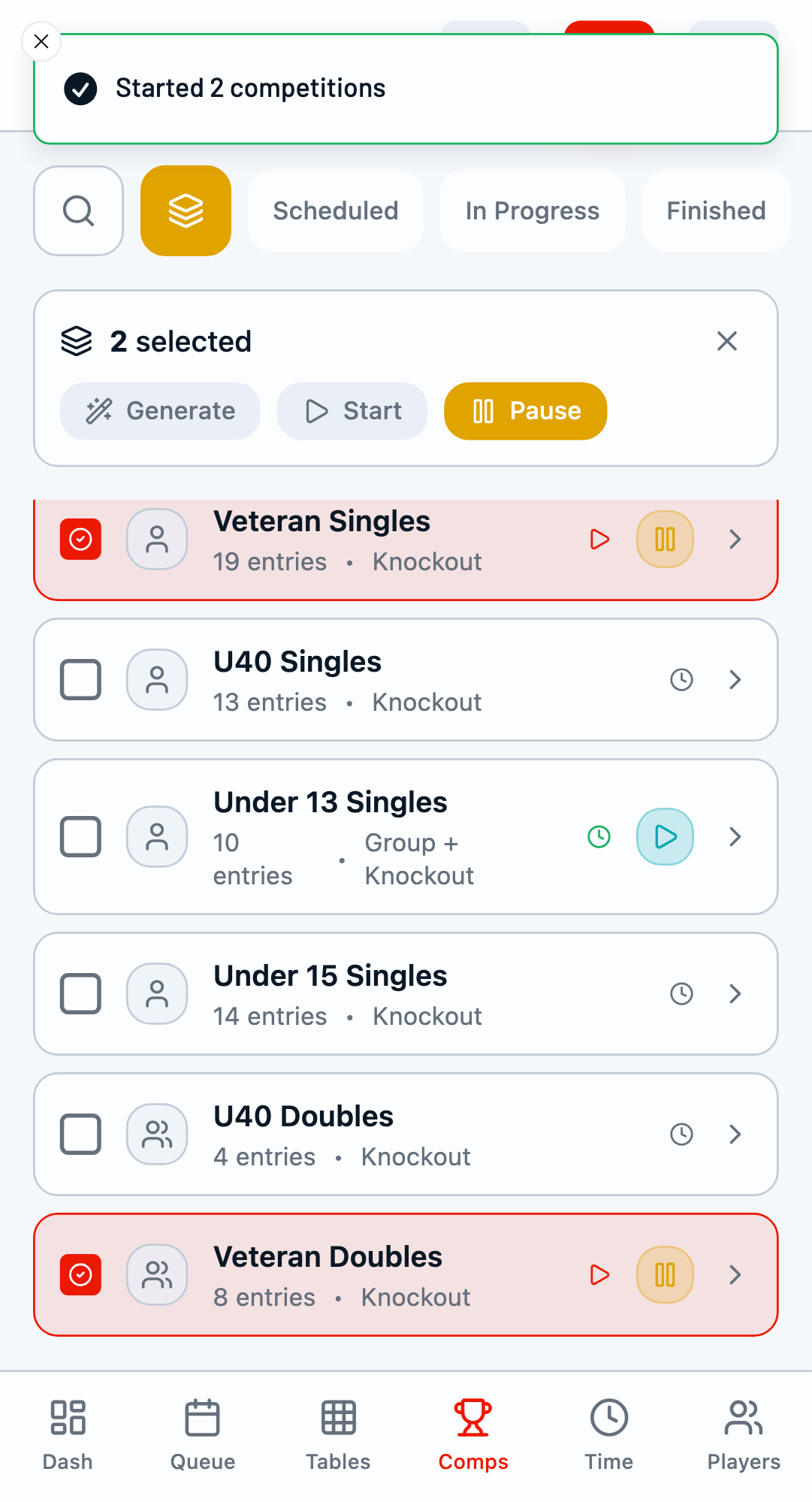
Pause option available for in-progress competitions.
Step 8: Exit Batch Mode
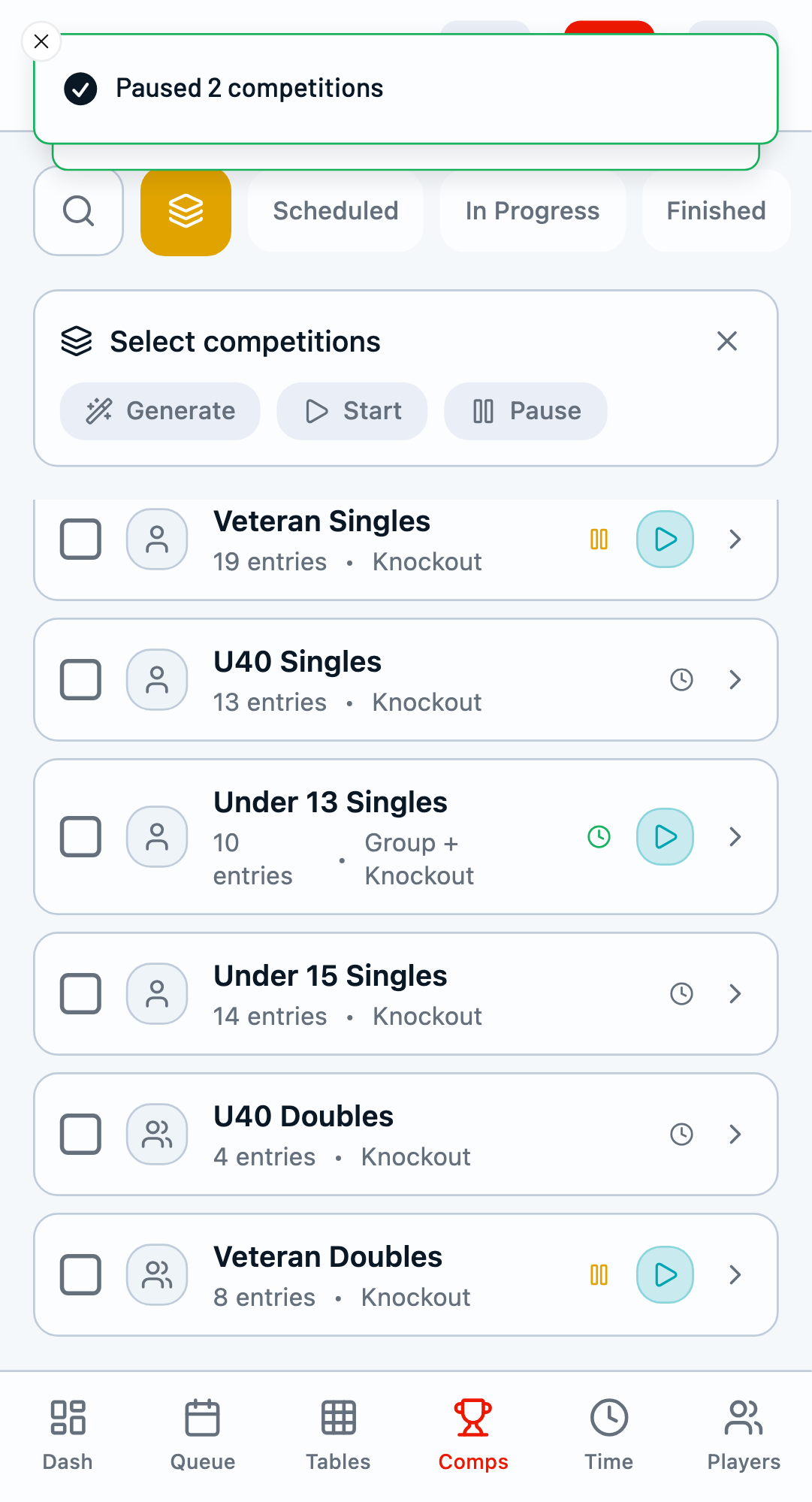
When you're done with batch operations, click the Cancel button or simply navigate away from the competitions tab.
Pro Tips
- Use batch operations at the start of your tournament to set up all competitions quickly
- Generate schedules before players arrive so you can start immediately
- Pause all competitions simultaneously for scheduled breaks
- Batch mode works best when competitions have similar structures
Important Notes
- Competitions must have entries before you can generate fixtures
- Regenerating fixtures will clear any existing matches
- Started competitions cannot have their fixtures regenerated