Team Competitions
Learn how to create and manage team competitions with Swaythling Cup, Olympic, and Two-Player formats.
Team competitions allow you to organize matches between teams of players. Each team format defines how many players per team, how matches are structured, and how scoring works. This guide walks you through the complete flow from tournament creation to match completion.
Team Formats
TourneyPilot supports several team competition formats, each designed for different tournament styles:
- Swaythling Cup - 3 players per team, 5 singles matches (best of 5). First team to win 3 matches wins the tie.
- Olympic - 3 players per team, 4 singles matches + 1 doubles match. Classic Olympic format.
- Two-Player Team - 2 players per team, 4 singles matches + 1 doubles match.
Step 1: Create a Tournament
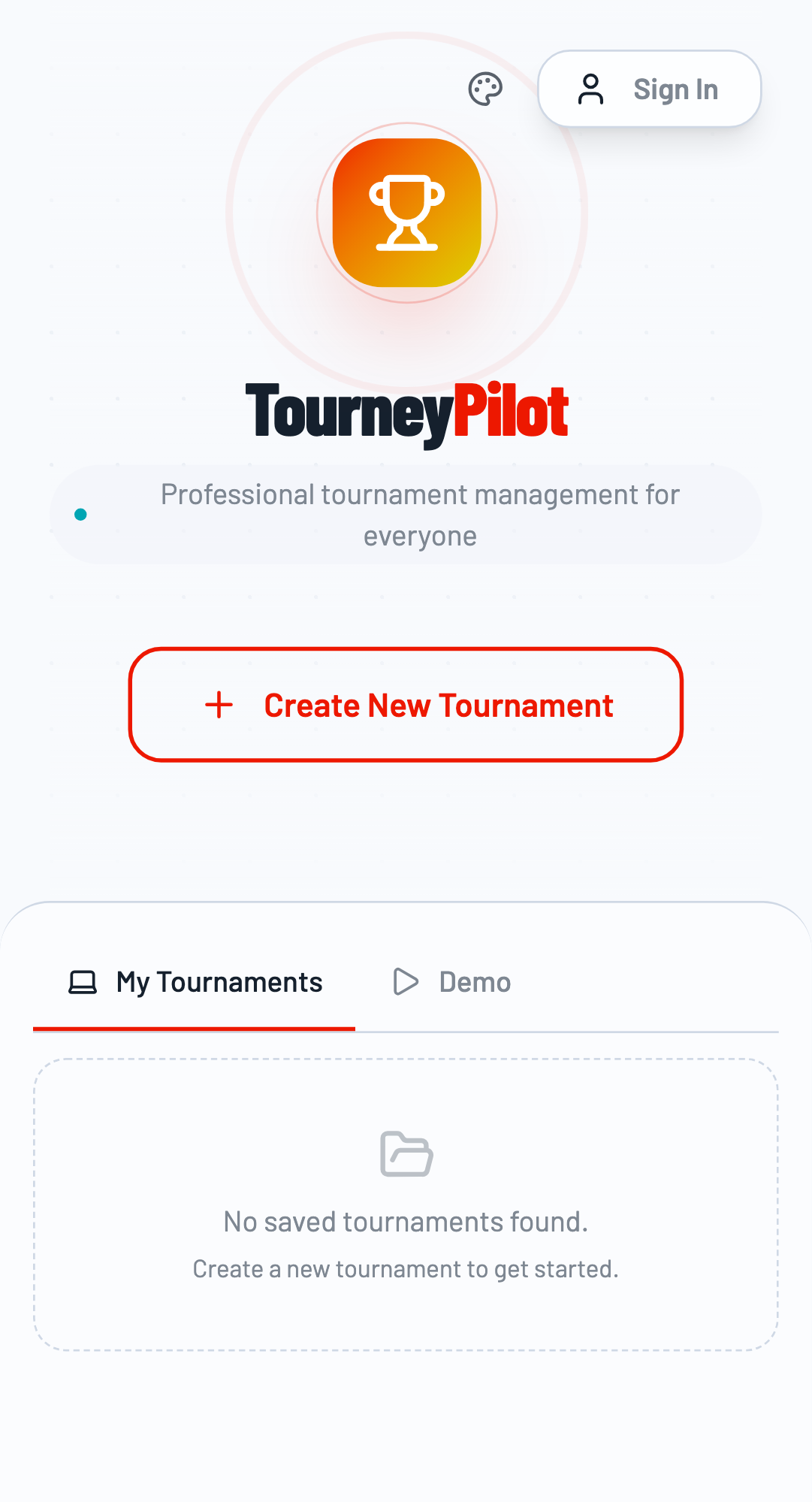
Start by creating a new tournament and adding players. For a team competition, you'll need at least 6 players (3 per team for Swaythling Cup format).
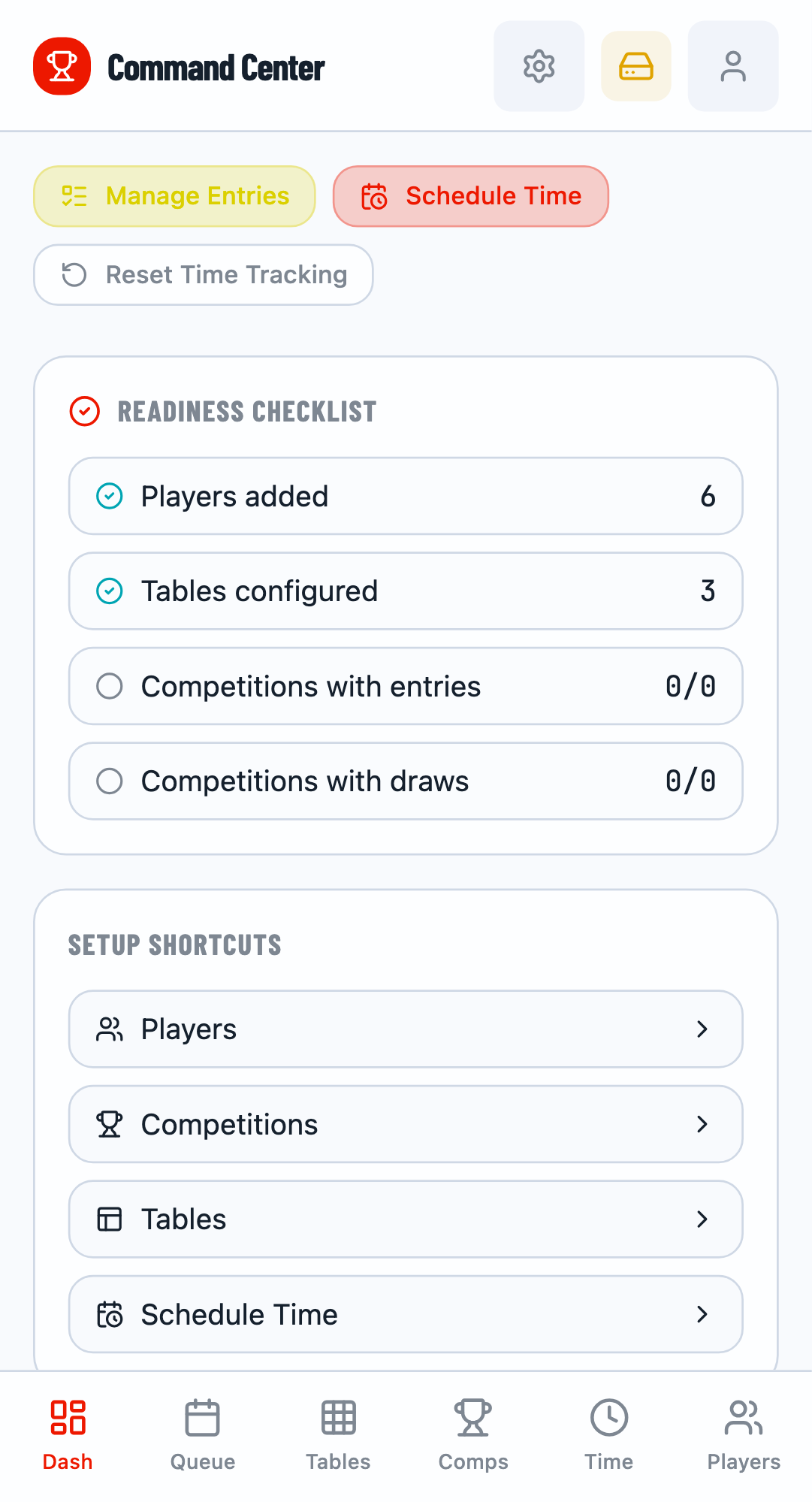
After creating the tournament, you'll see the tournament dashboard where you can manage competitions, players, and tables.
Step 2: Create a Team Competition
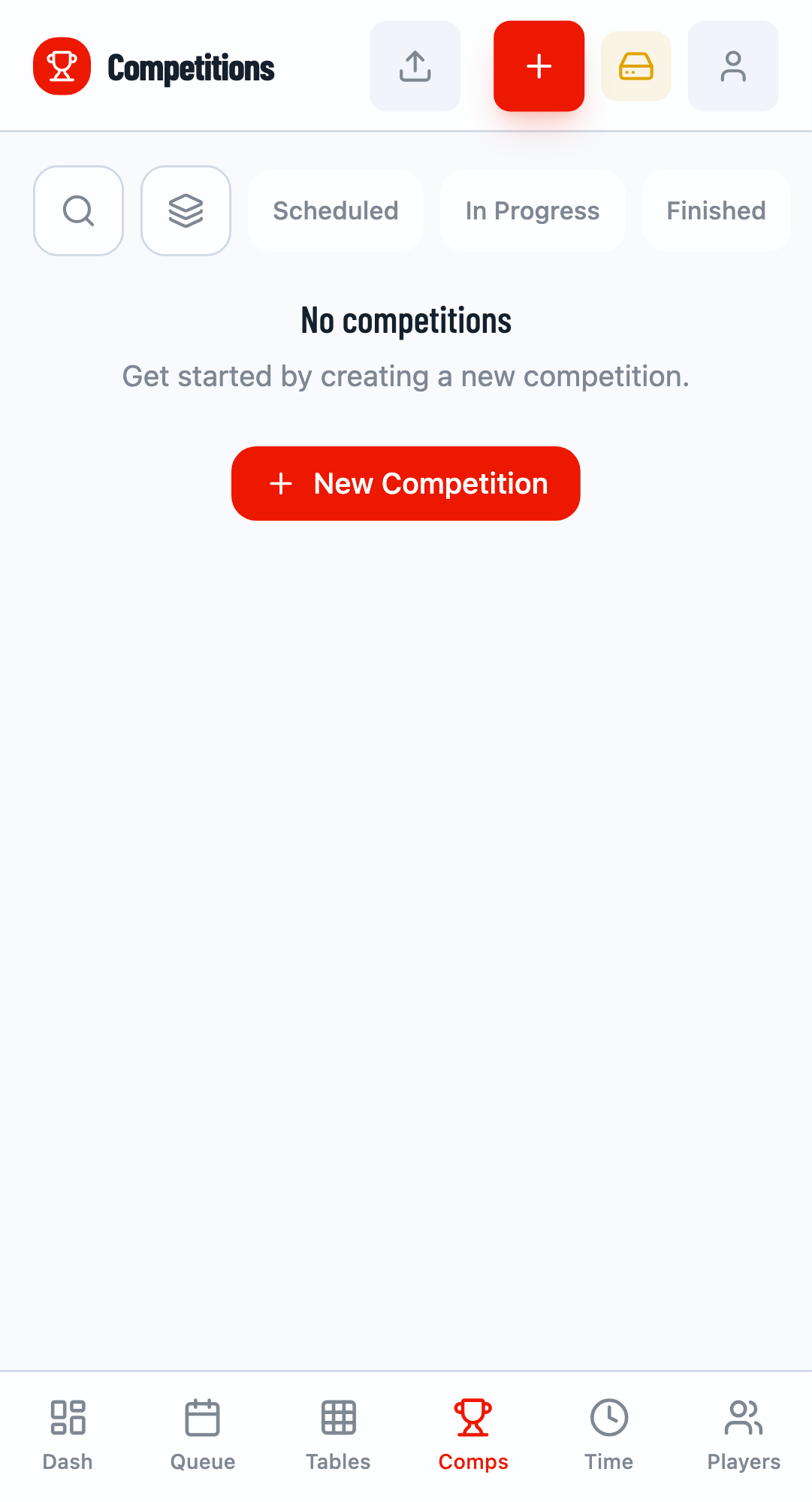
Navigate to the Competitions tab and click the New Event button to create a new competition.
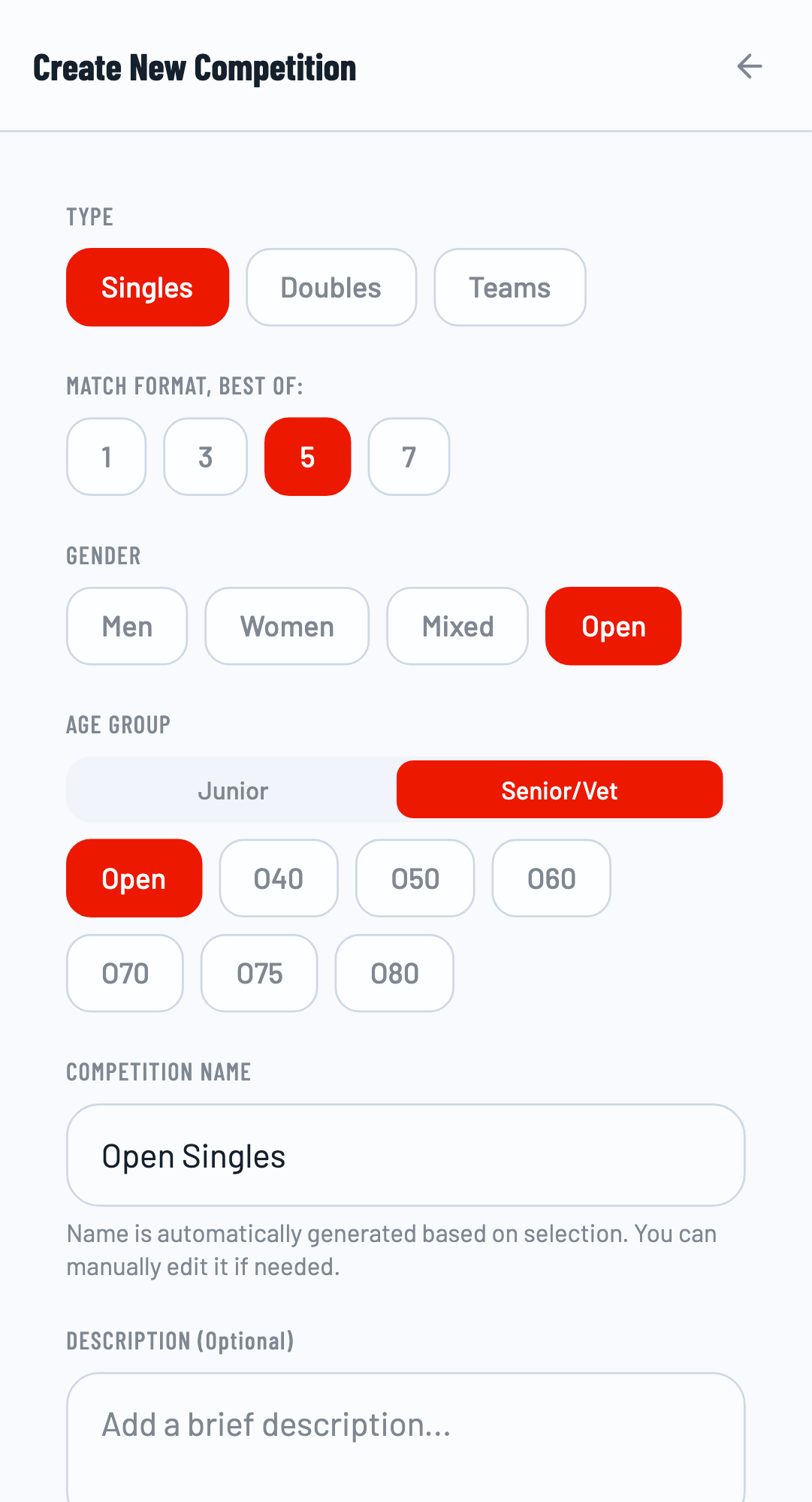
In the new competition modal, enter a name for your competition and select Teams as the competition type.
Select Team Format
After selecting Teams, you'll see the available team format options. Each format shows a brief description of the structure.
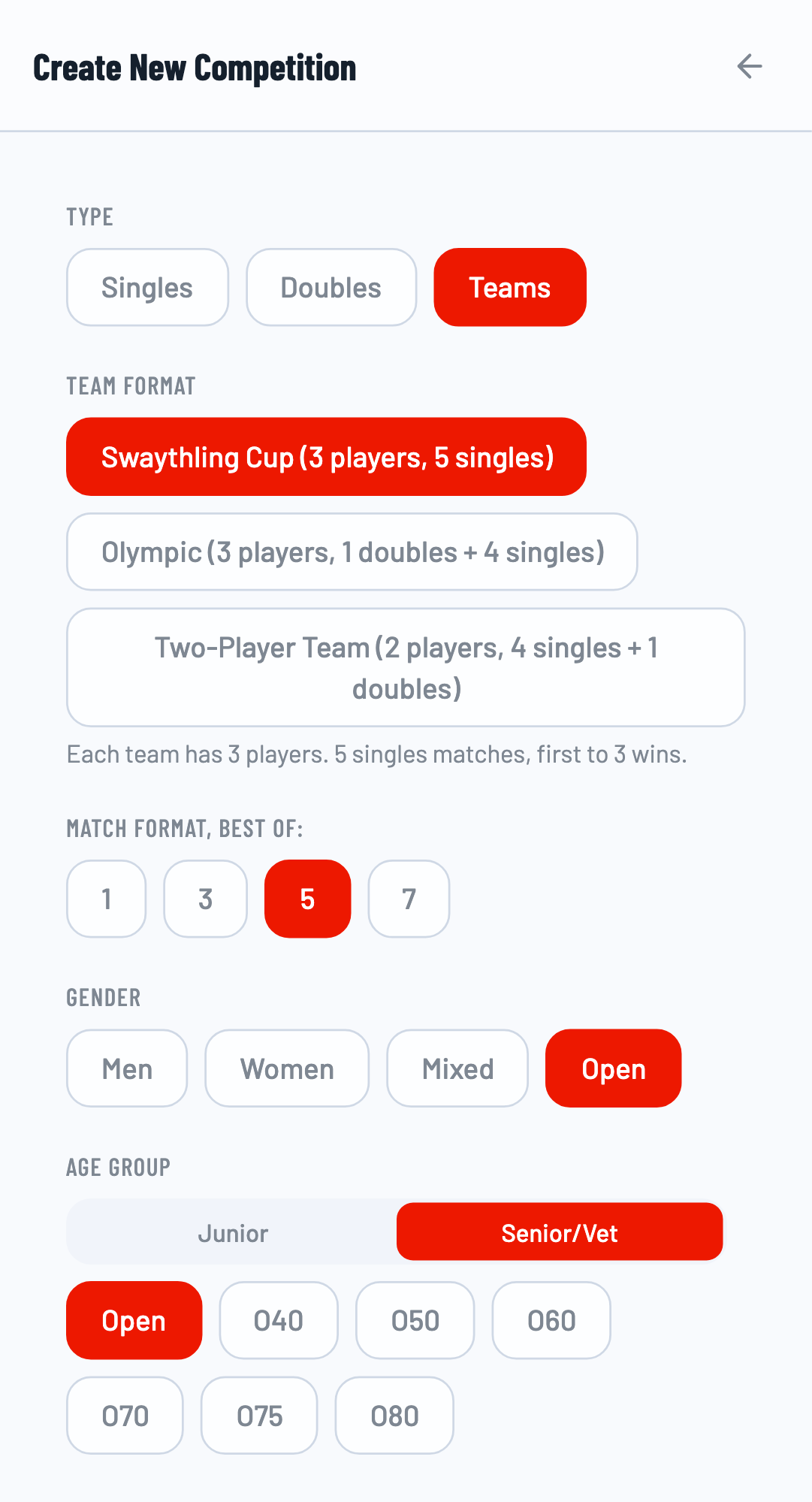
Select the Swaythling Cup format for a classic 3-player team competition with 5 singles matches. The format description shows that each team has 3 players and plays 5 singles matches.
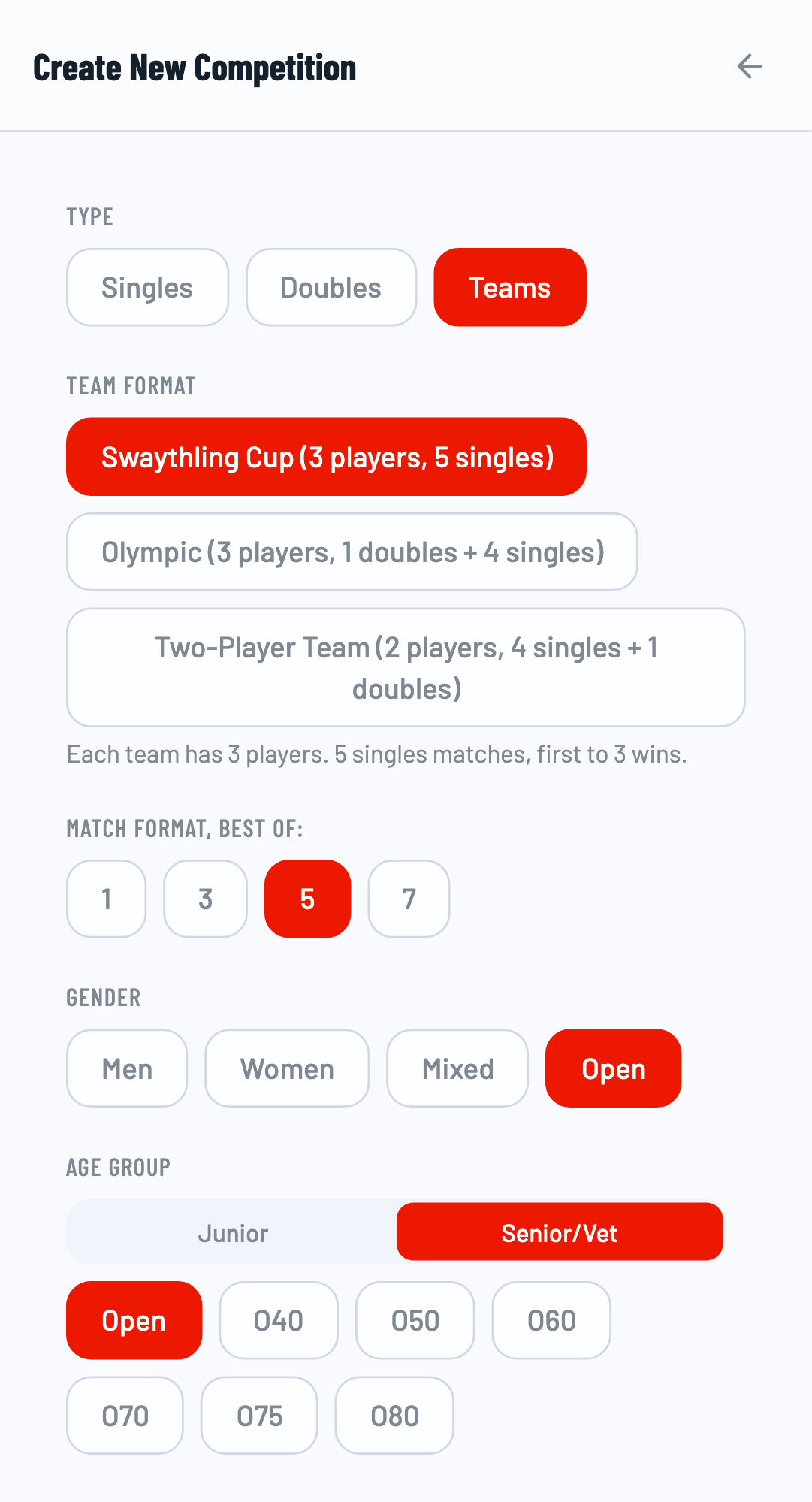
Click Create to create the competition. It will appear in your competitions list.
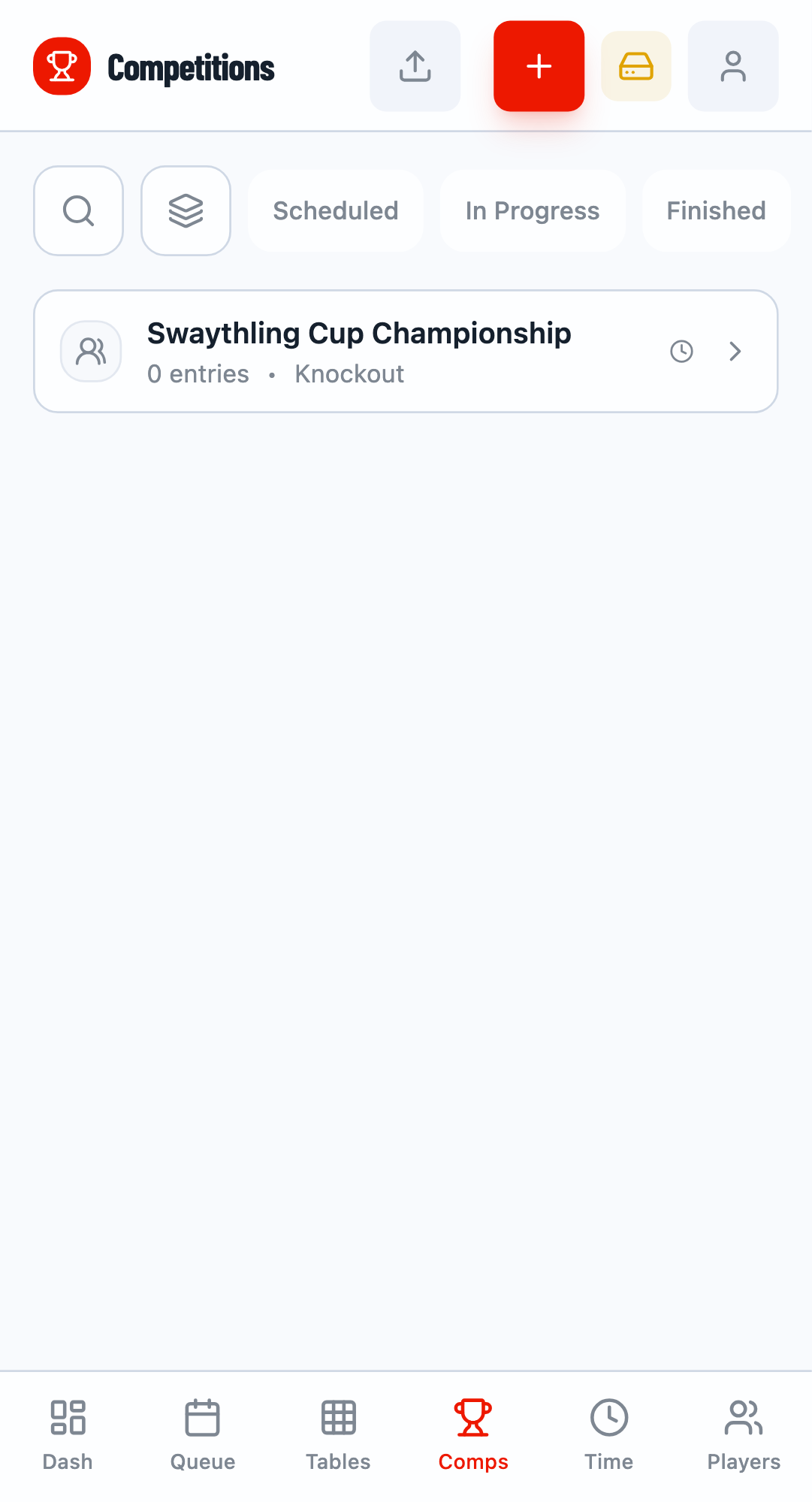
Step 3: Add Team Entries
Open the competition to add team entries. Click on the competition name to open the competition detail view.
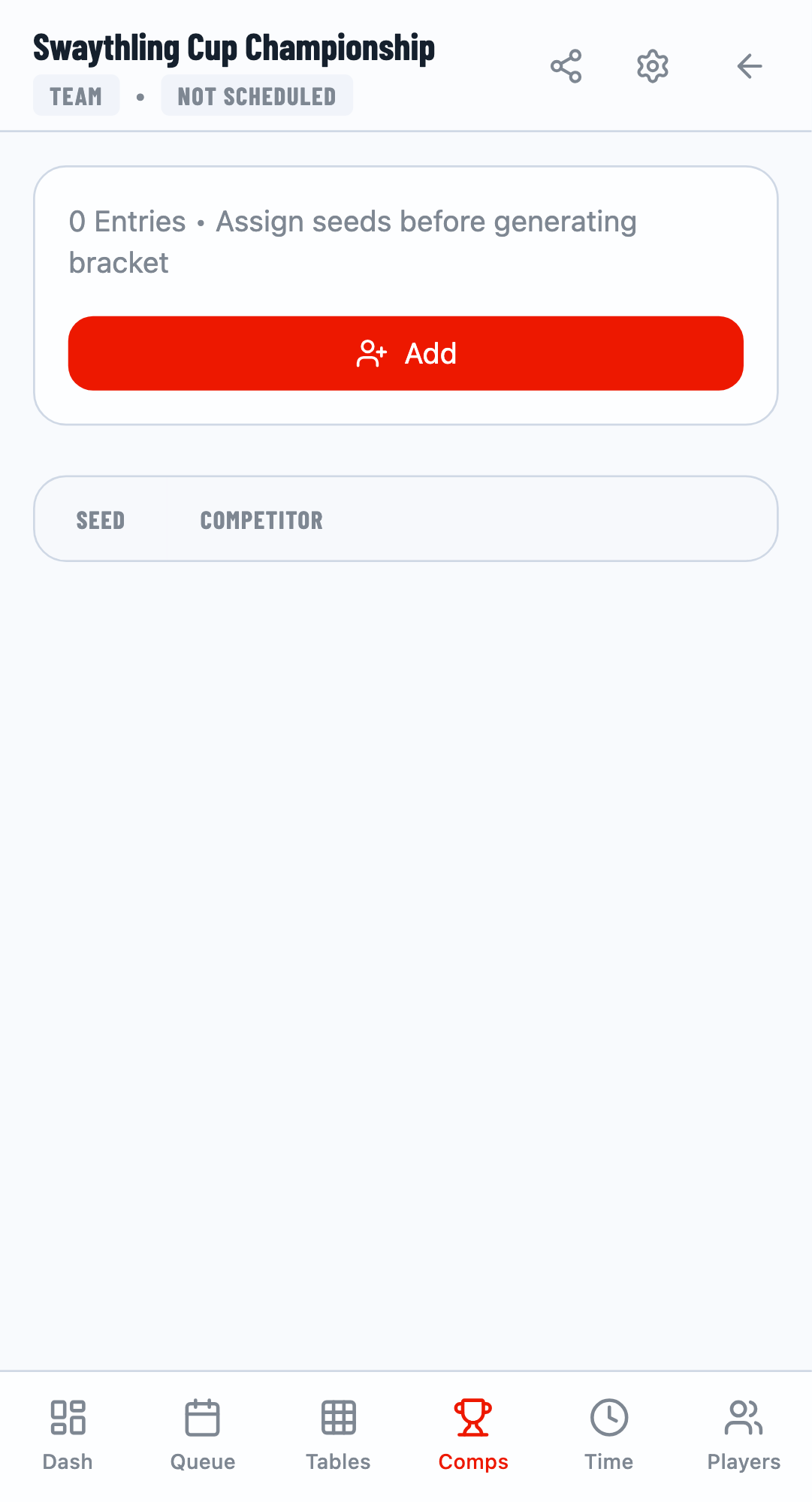
Click the Add button to add a new team. In the add team modal, search for and select players to add to the team.
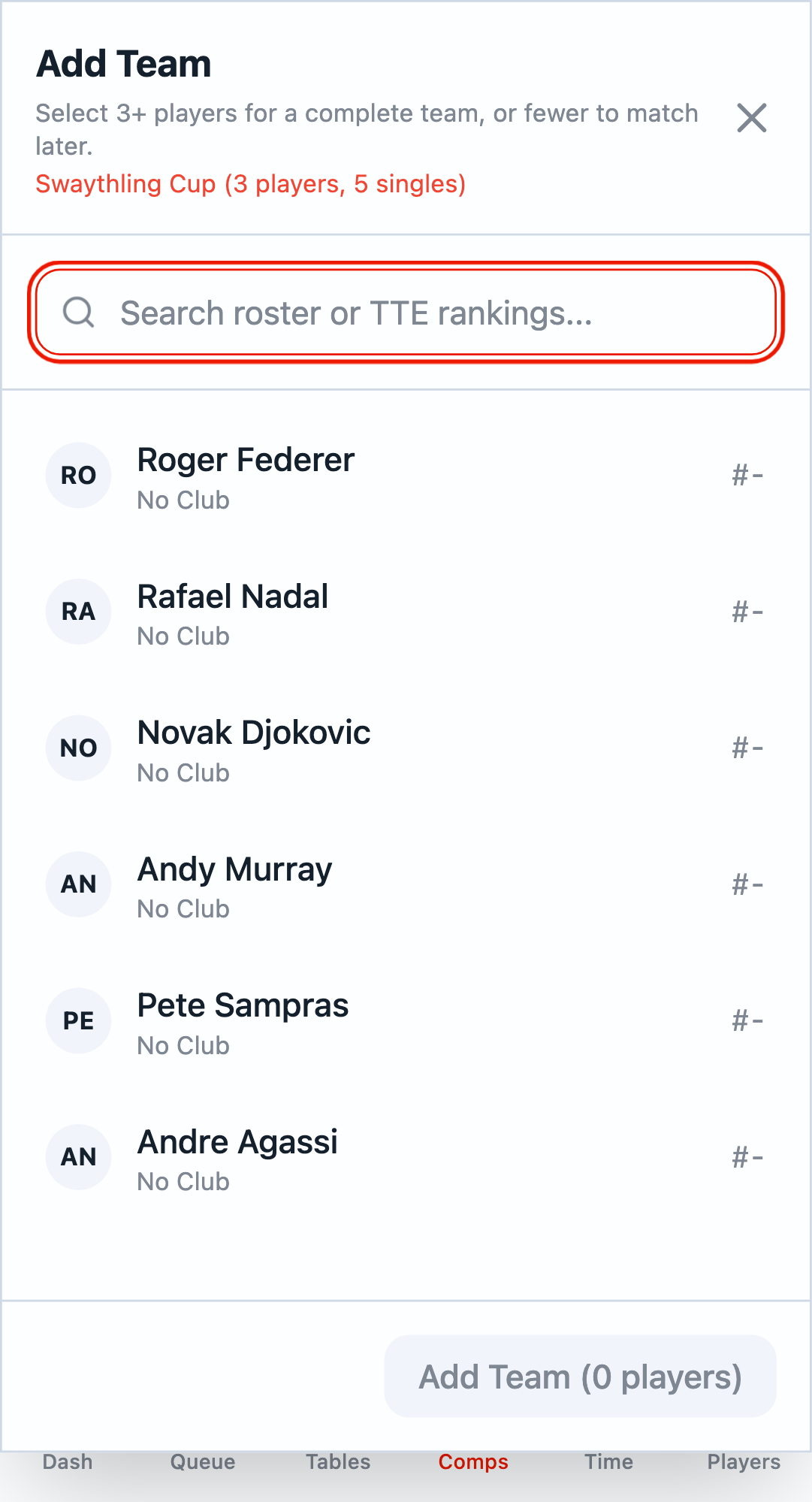
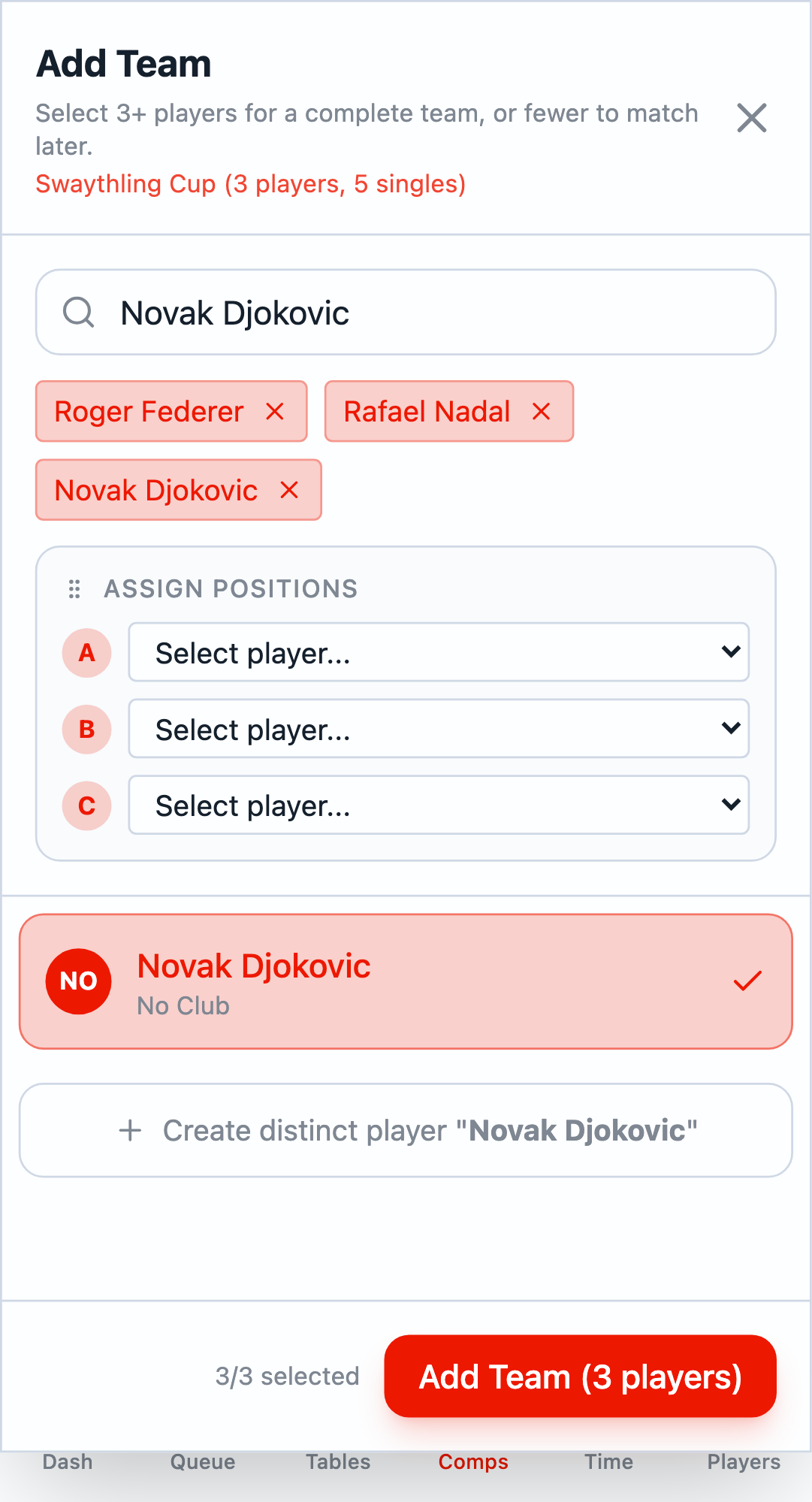
For Swaythling Cup format, you need to select exactly 3 players per team. As you select players, they appear in the team roster with their assigned positions.
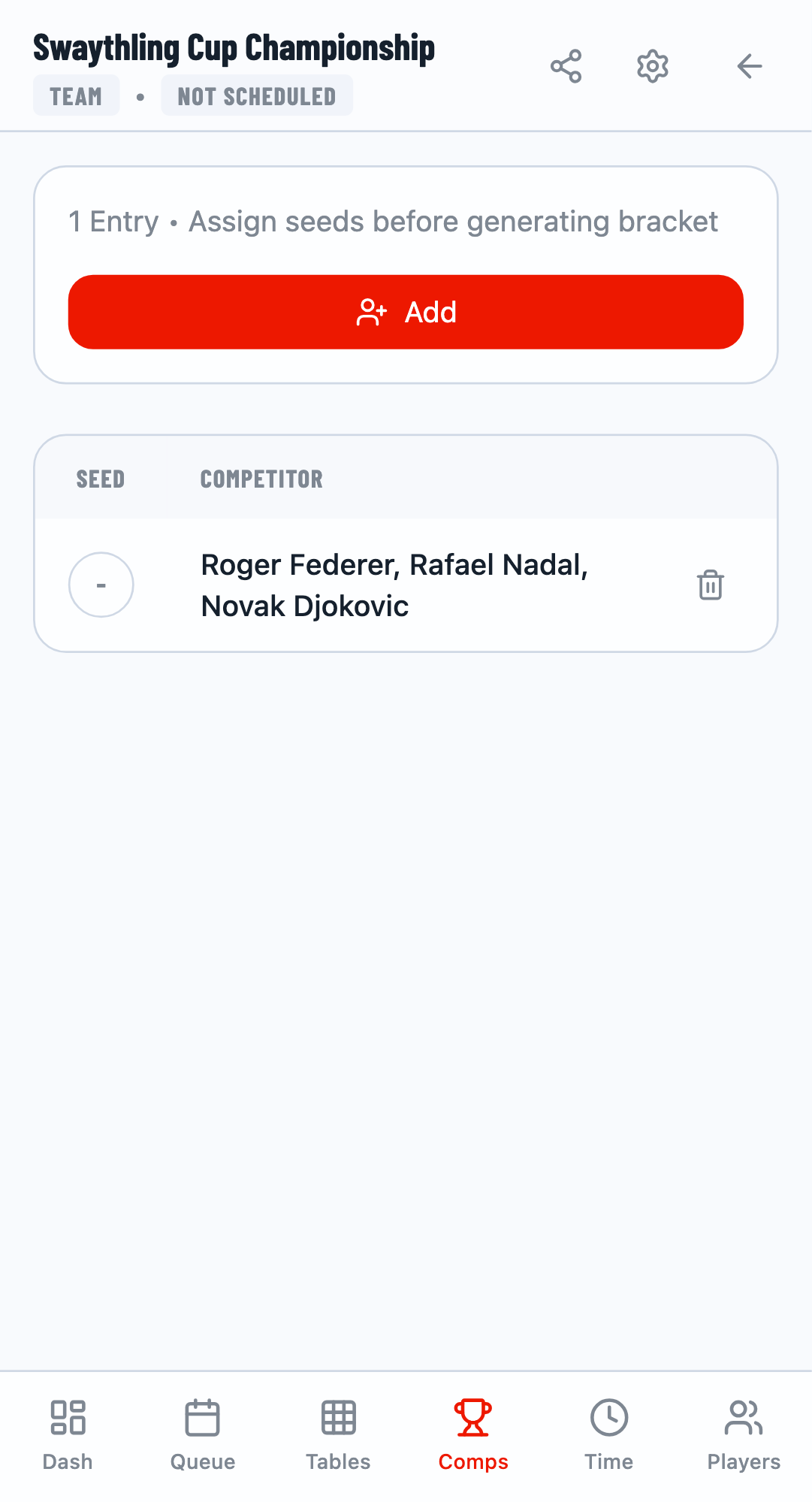
After adding the first team, you'll see it listed in the entries. Add a second team to complete the matchup.
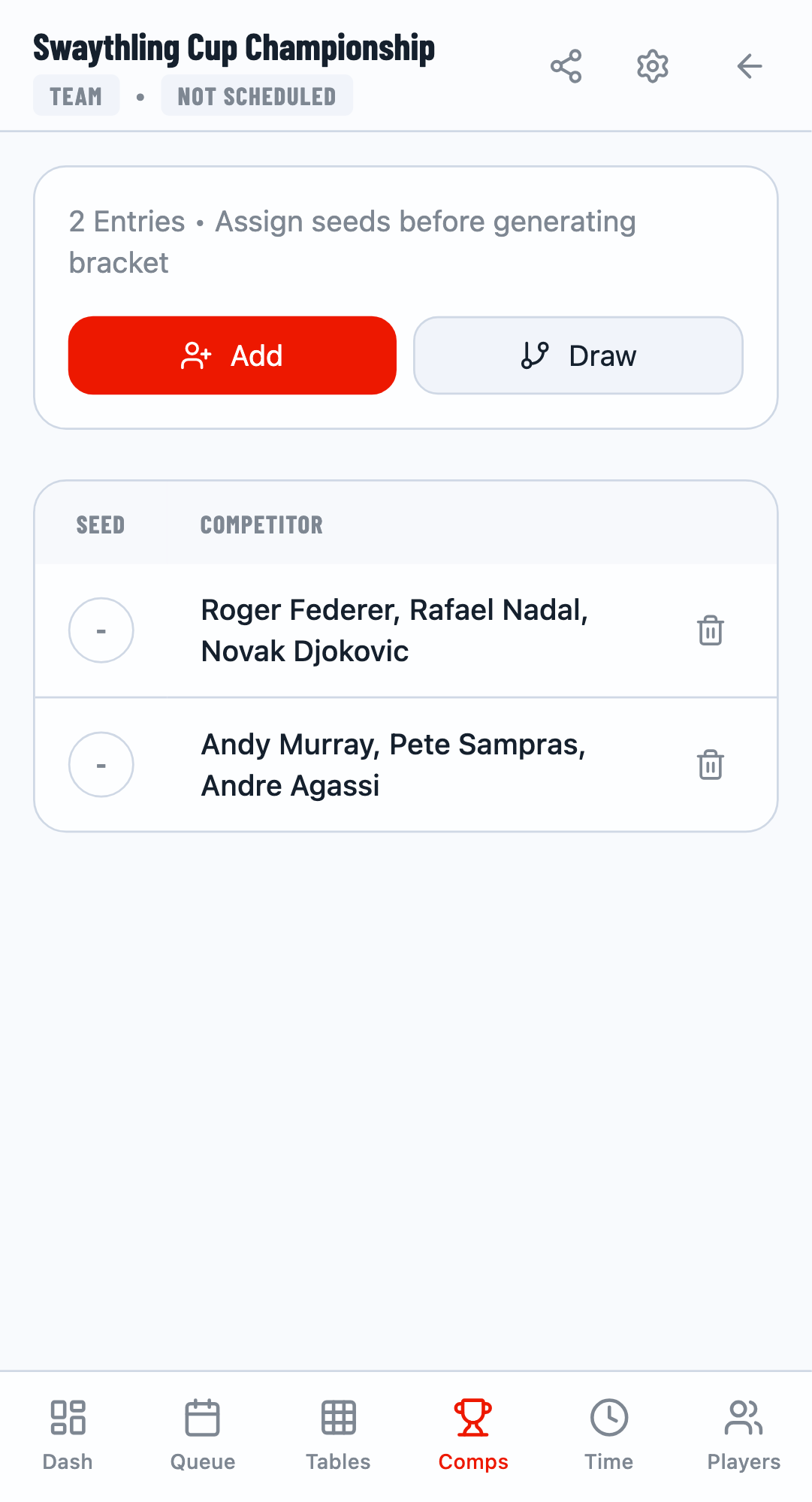
Repeat the process to add the second team with 3 different players.
Step 4: Generate Fixtures
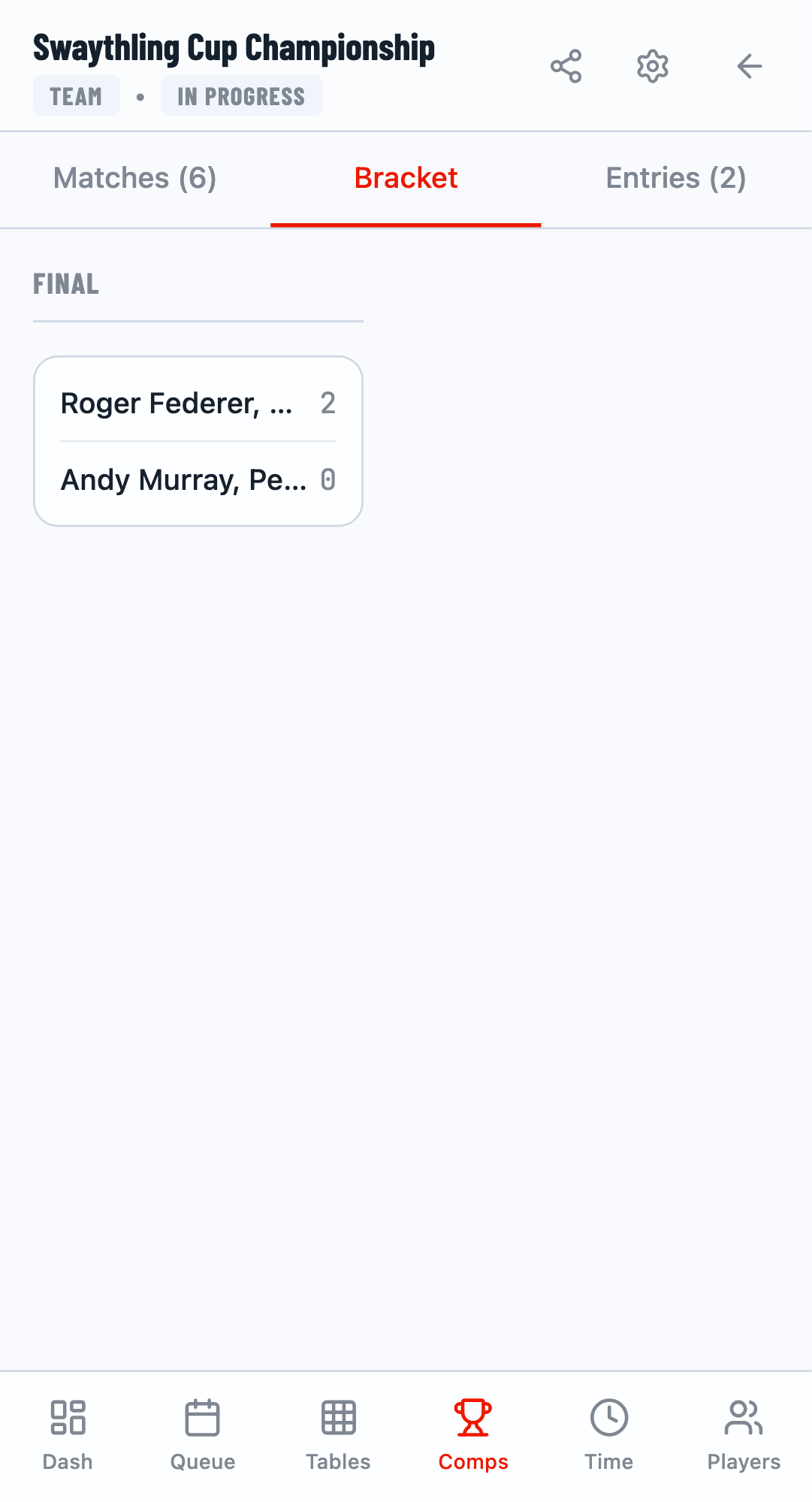
Navigate to the bracket/draw view to generate fixtures. Click the Draw button to see the bracket.
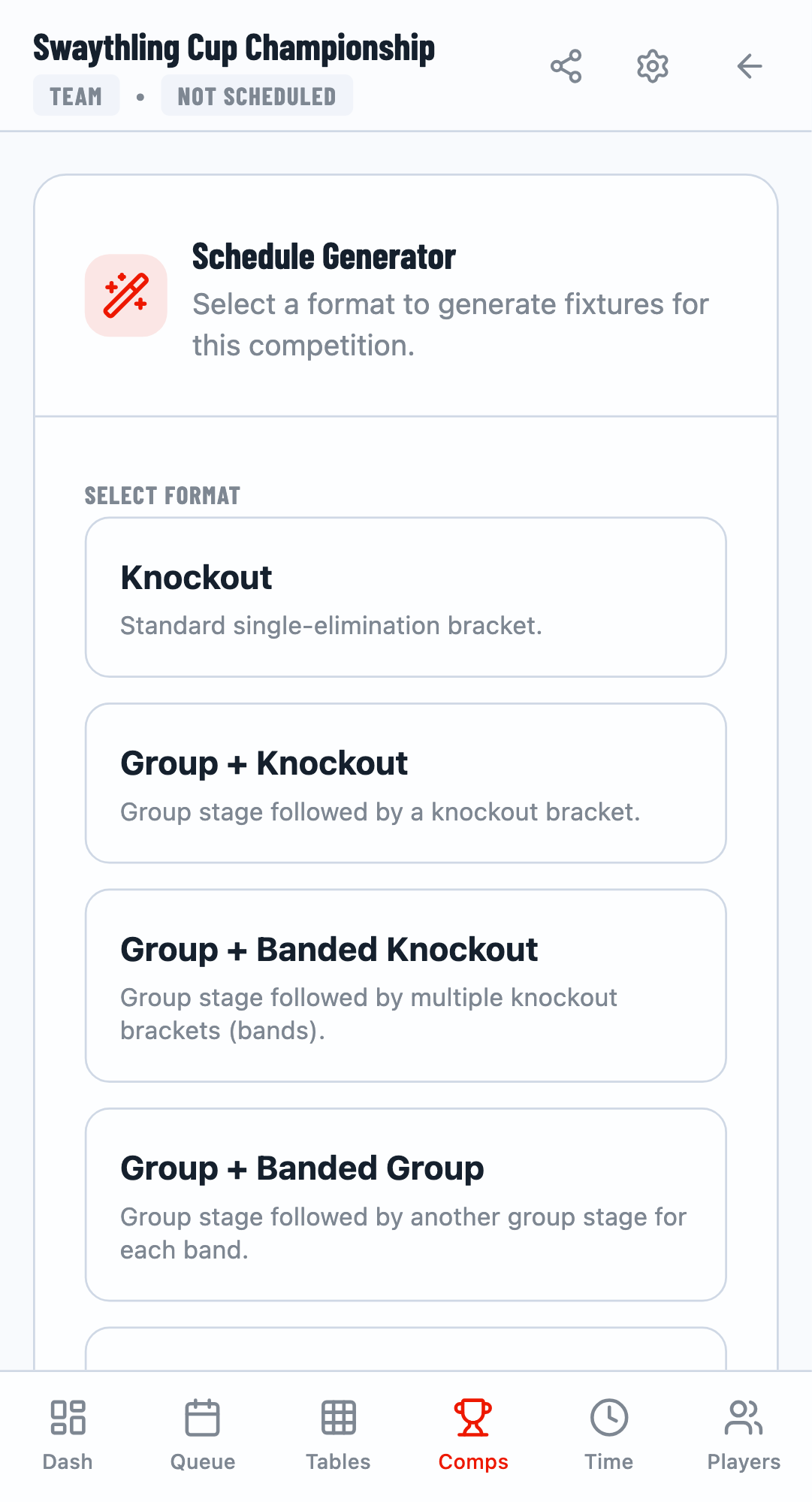
Use the schedule generator to create the match structure. Select the format type and click Generate.
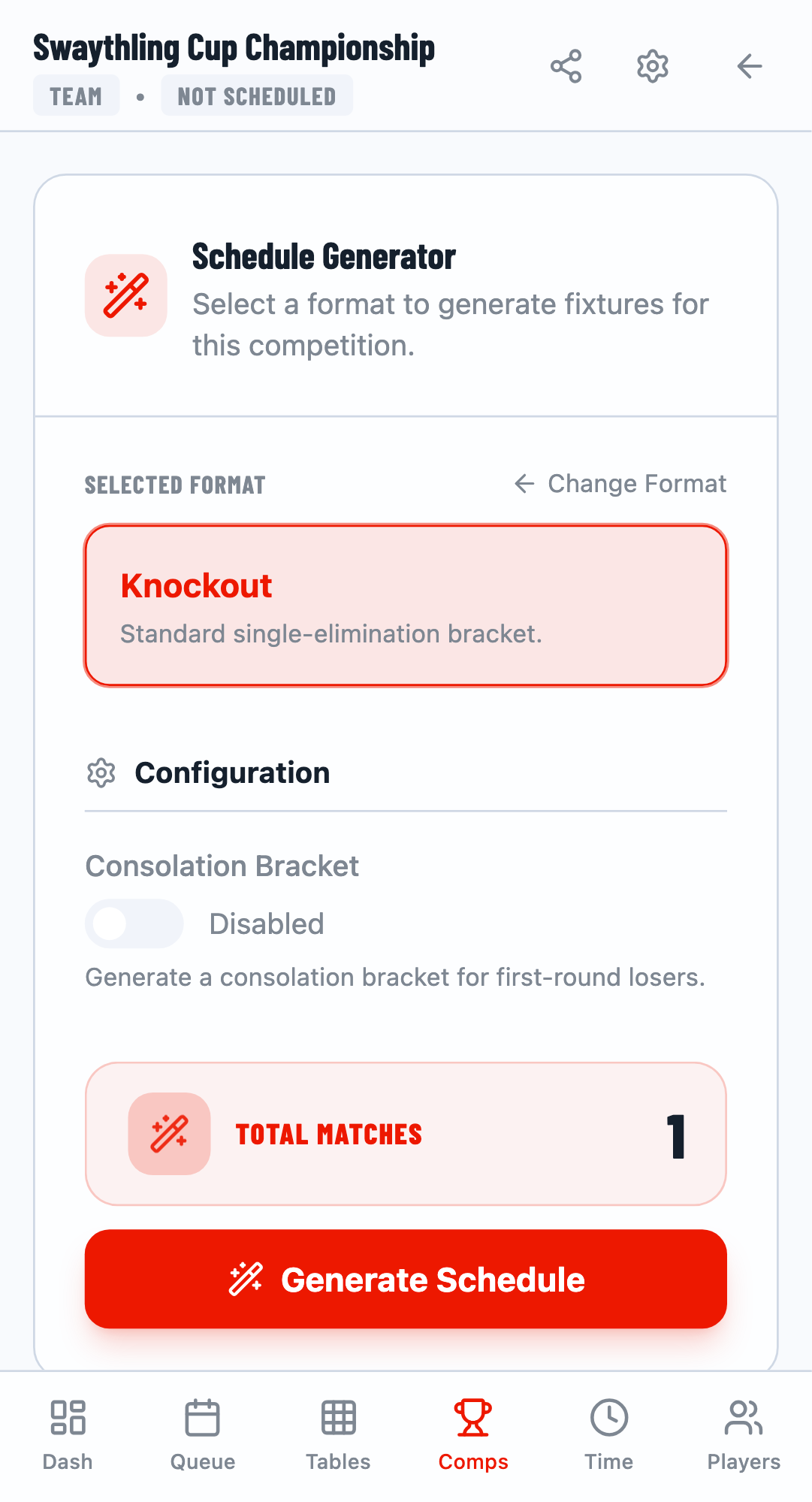
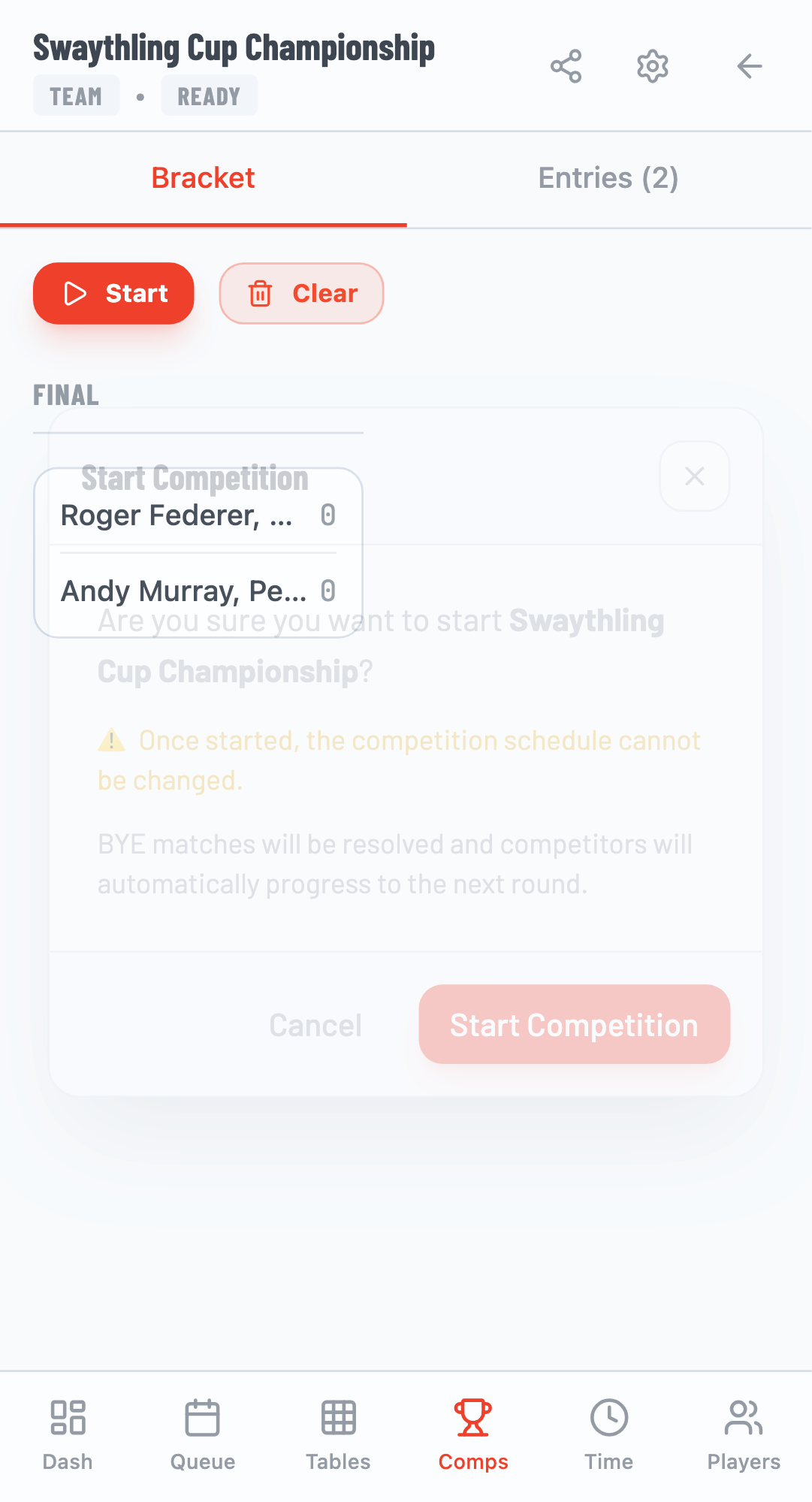
Step 5: Start the Competition
Start the competition to make matches available for play. You may see a confirmation dialog.
Step 6: View Matches
Navigate to the Matches tab to see all generated matches for the competition.
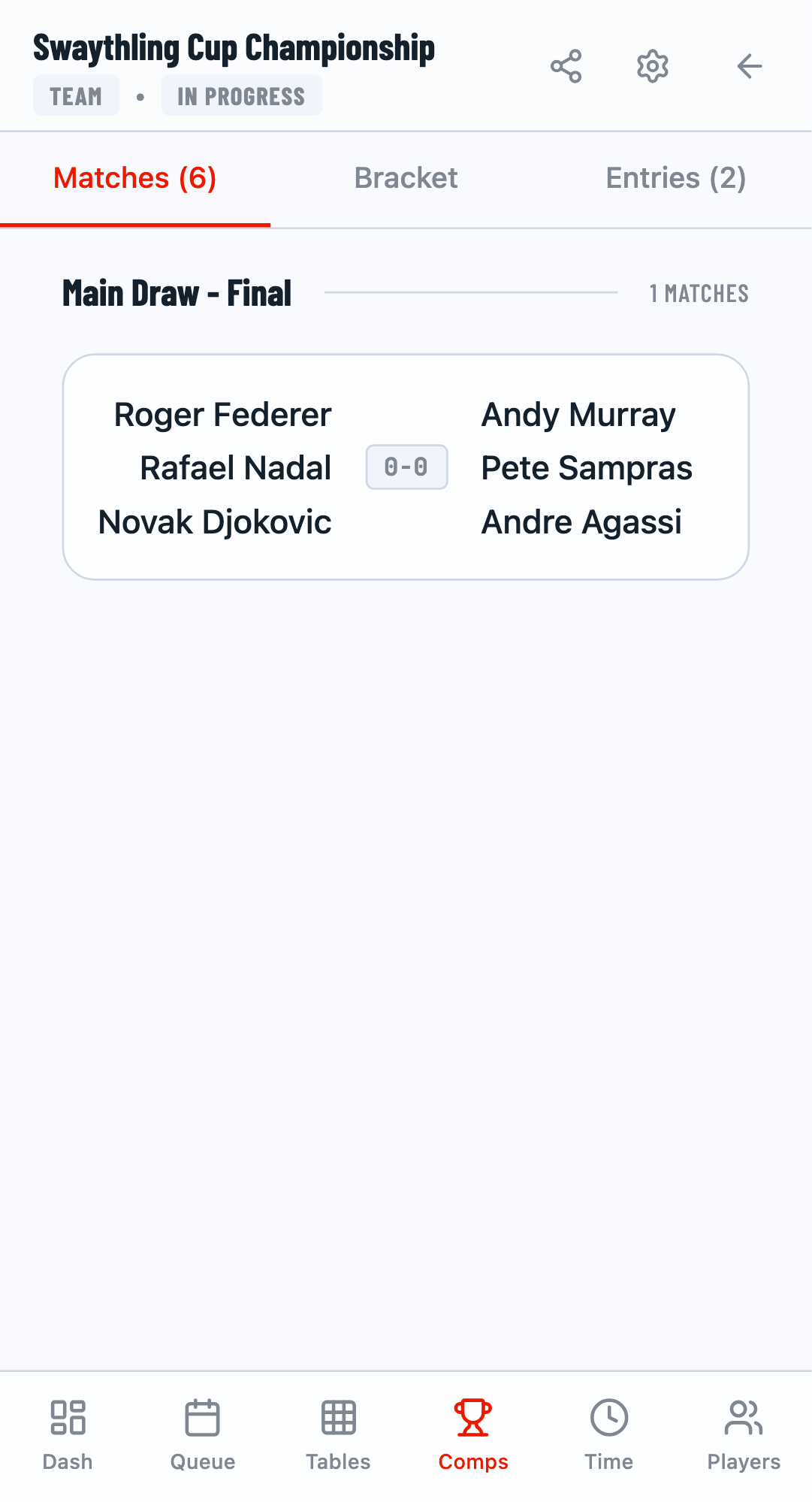
Click on a match to open the team match control panel, which shows all sub-matches for the team duel.
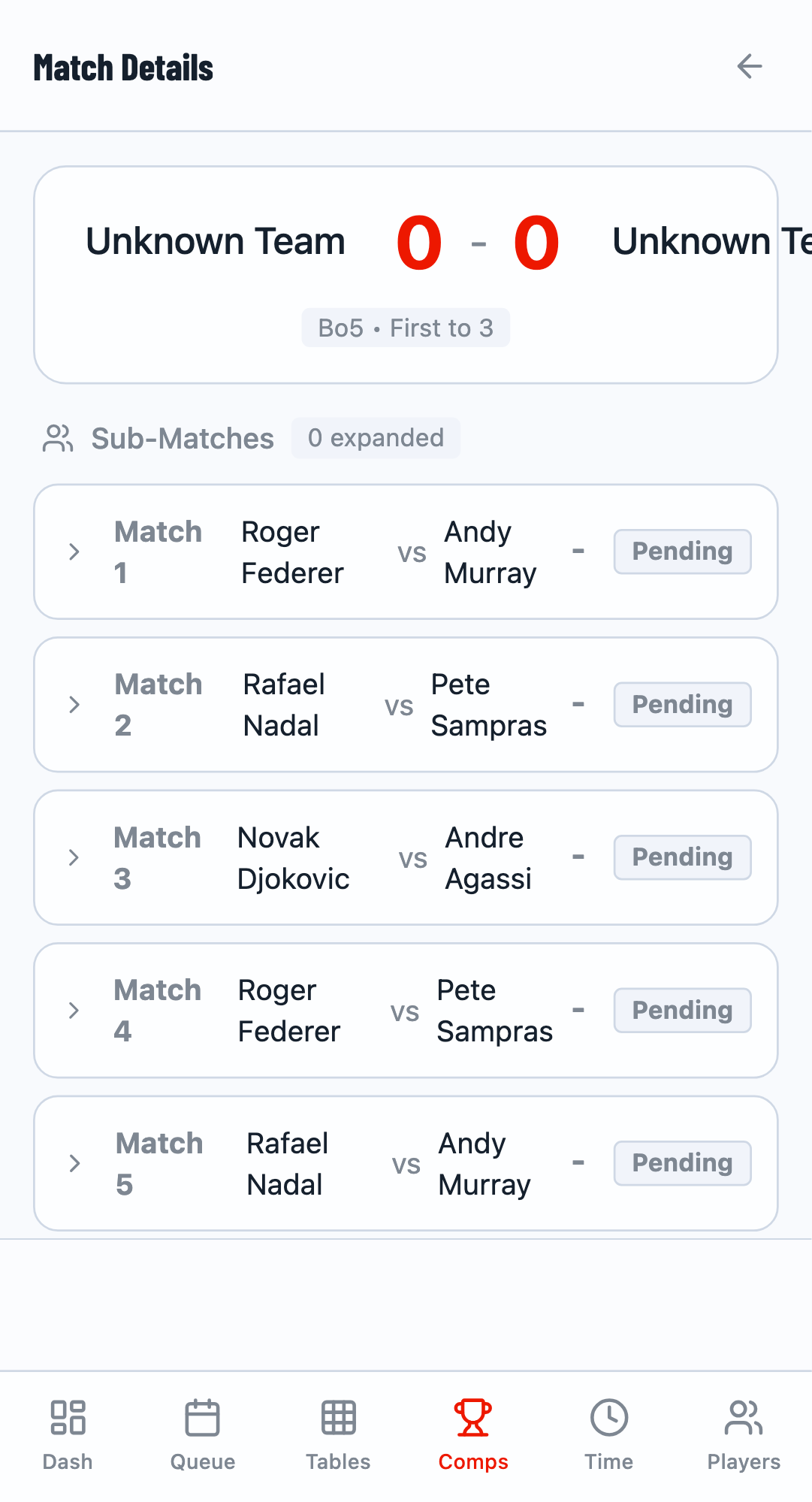
Step 7: Score Sub-Matches
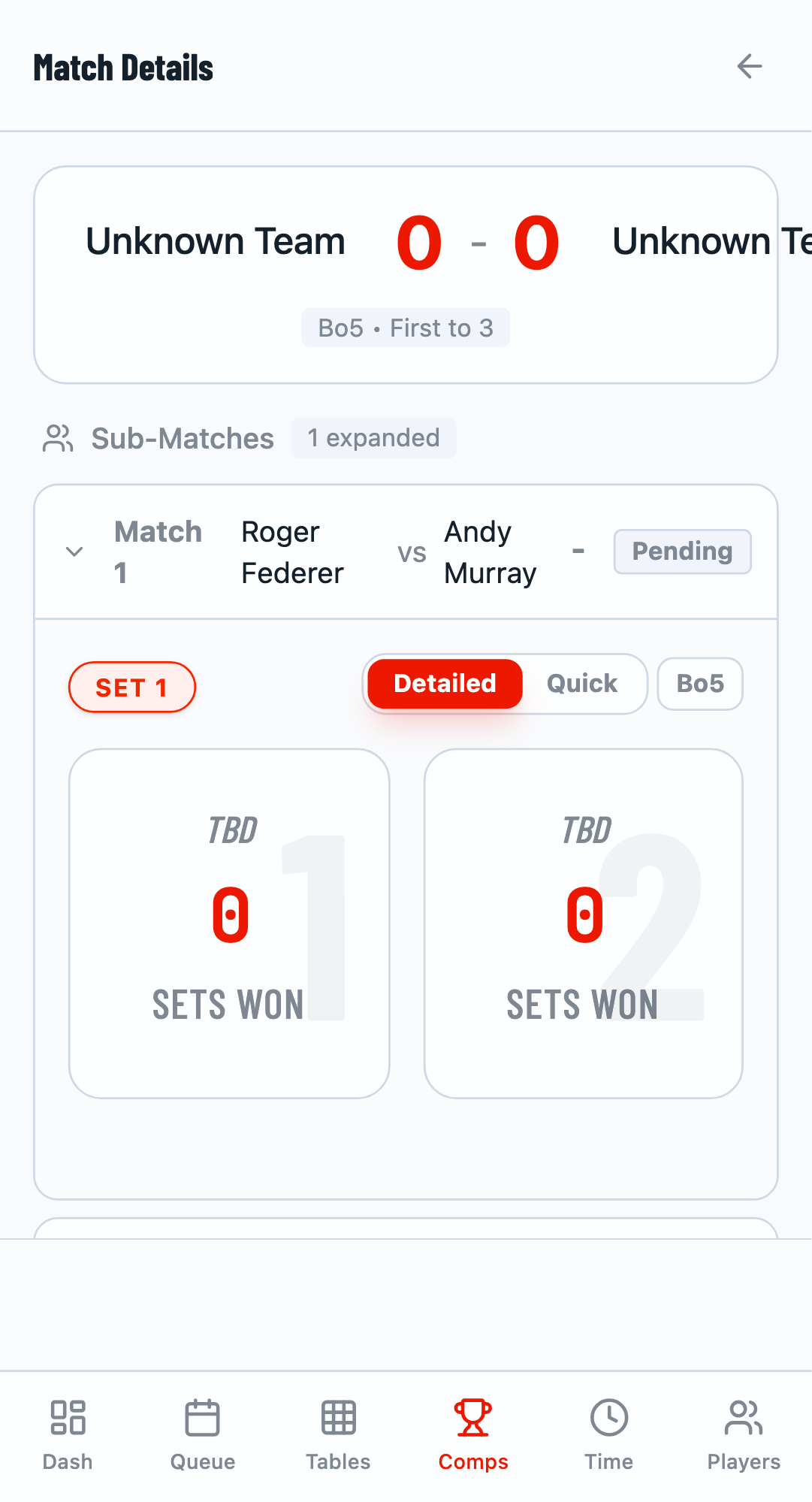
Each team match consists of multiple sub-matches. Click on a sub-match header to expand it and see the match details.
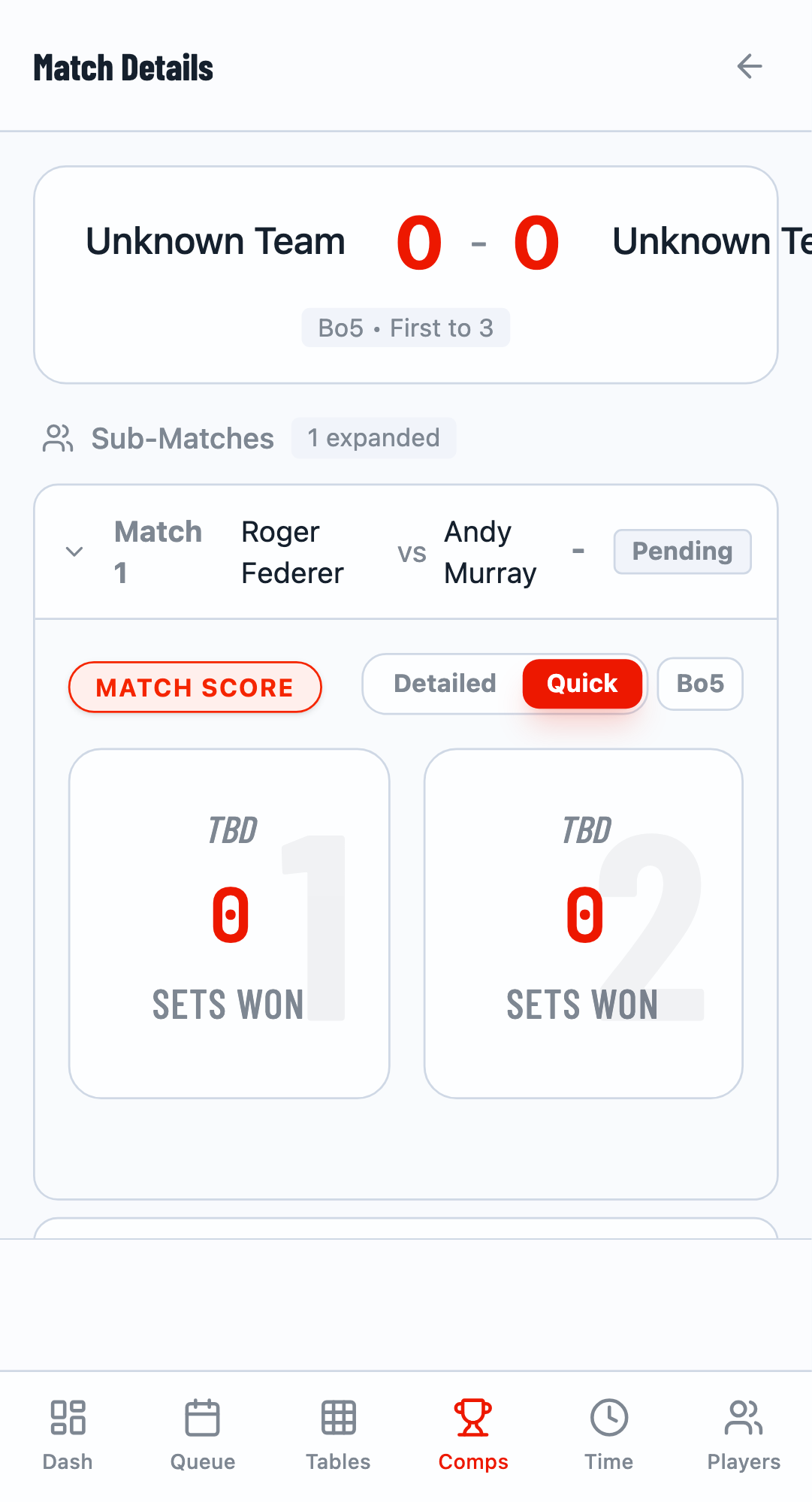
Use the scoring panel to record the result. Switch to Quick mode for faster scoring with preset score buttons like 3-0, 3-1, or 3-2.
Select the winner and the score, then click Submit Result to record the sub-match result.
After scoring multiple sub-matches, the team match panel shows the running score. For Swaythling Cup, the first team to win 3 sub-matches wins the team match.
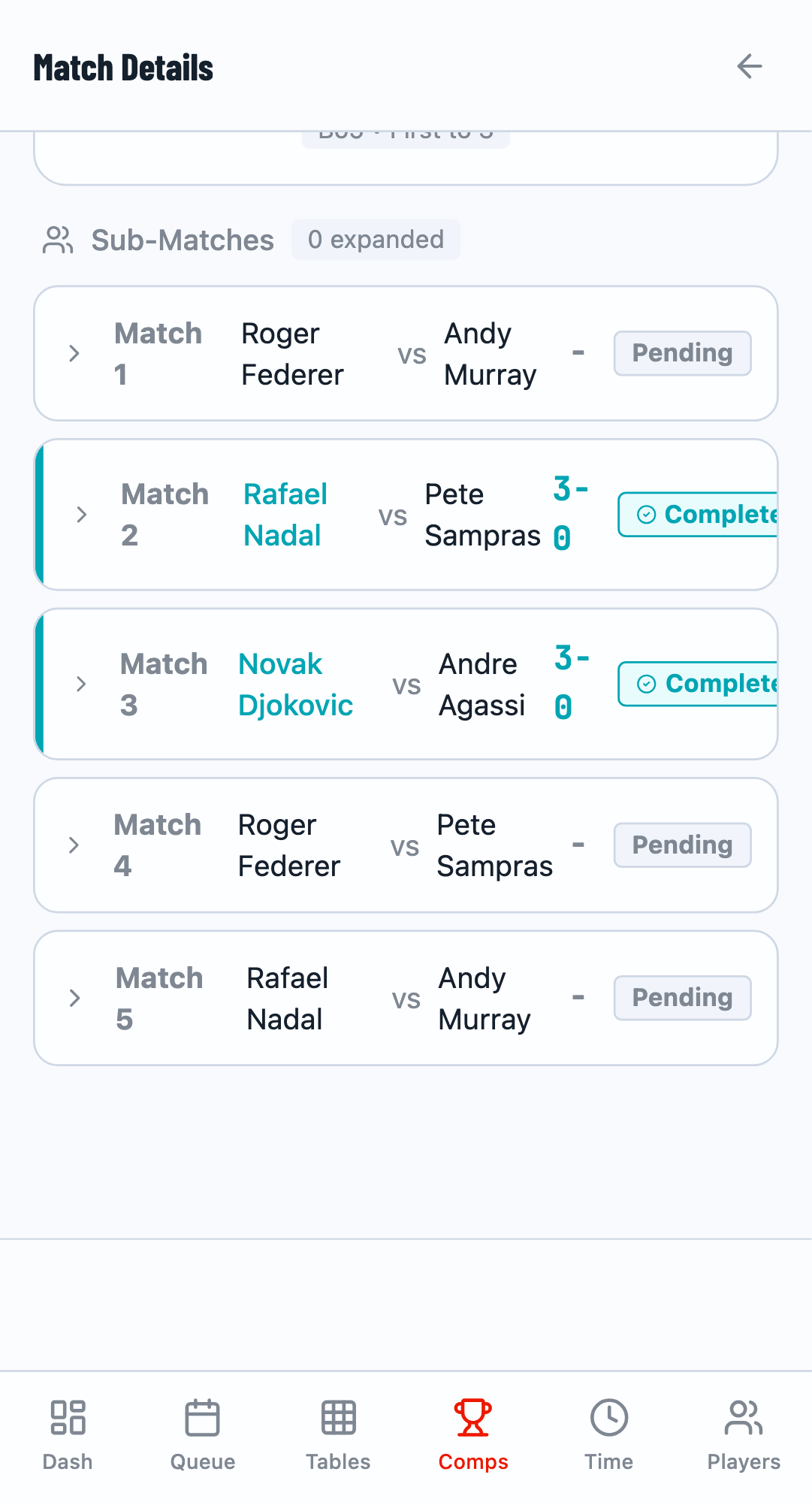
Step 8: Complete the Competition
After all matches are completed, return to the competitions tab to see the final status. The competition will be marked as Completed and you can view the final results.
Pro Tips
- Position assignments determine which players face each other in sub-matches
- You can edit team entries before starting the competition
- Use Quick mode for faster scoring when you don't need detailed game-by-game scores
- Sub-match results can be corrected if a mistake was made
Important Notes
- Team competitions require the exact number of players per team as defined by the format
- Once a competition is started, you cannot add or remove team entries
- Each sub-match must be completed individually before the team match can be finished