Tips & Customization
Customize TourneyPilot with themes and discover helpful tips for tournament management.
TourneyPilot offers several customization options to personalize your experience. This guide covers theme selection and helpful tips for efficient tournament management.
Theme Customization
The theme picker lets you customize the look and feel of TourneyPilot. Click the theme button in the navigation bar to access theme options.
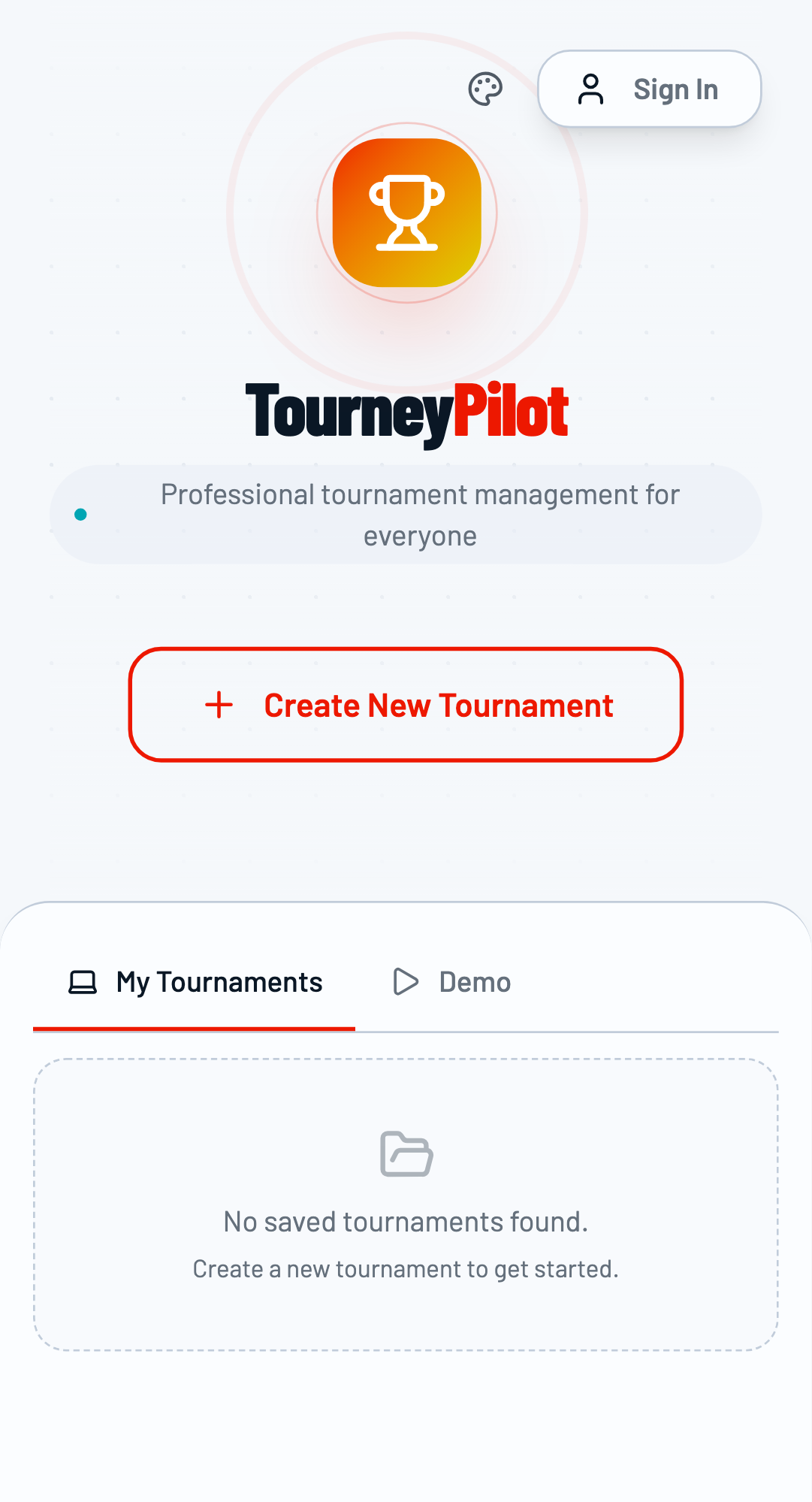
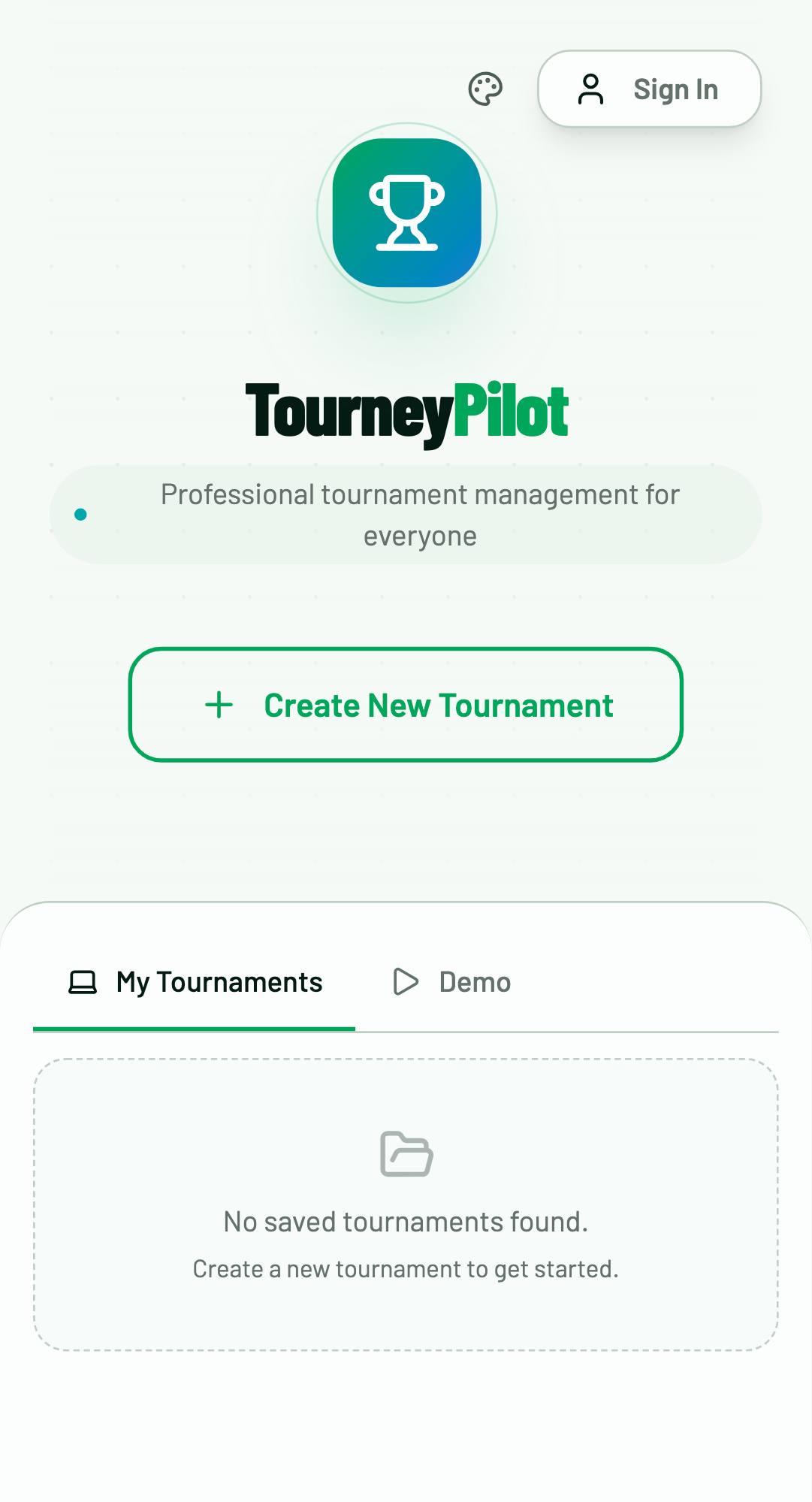
The home page in default light mode.
Finding the Theme Picker
Look for the theme picker button in the navigation bar, typically next to the Sign In button.
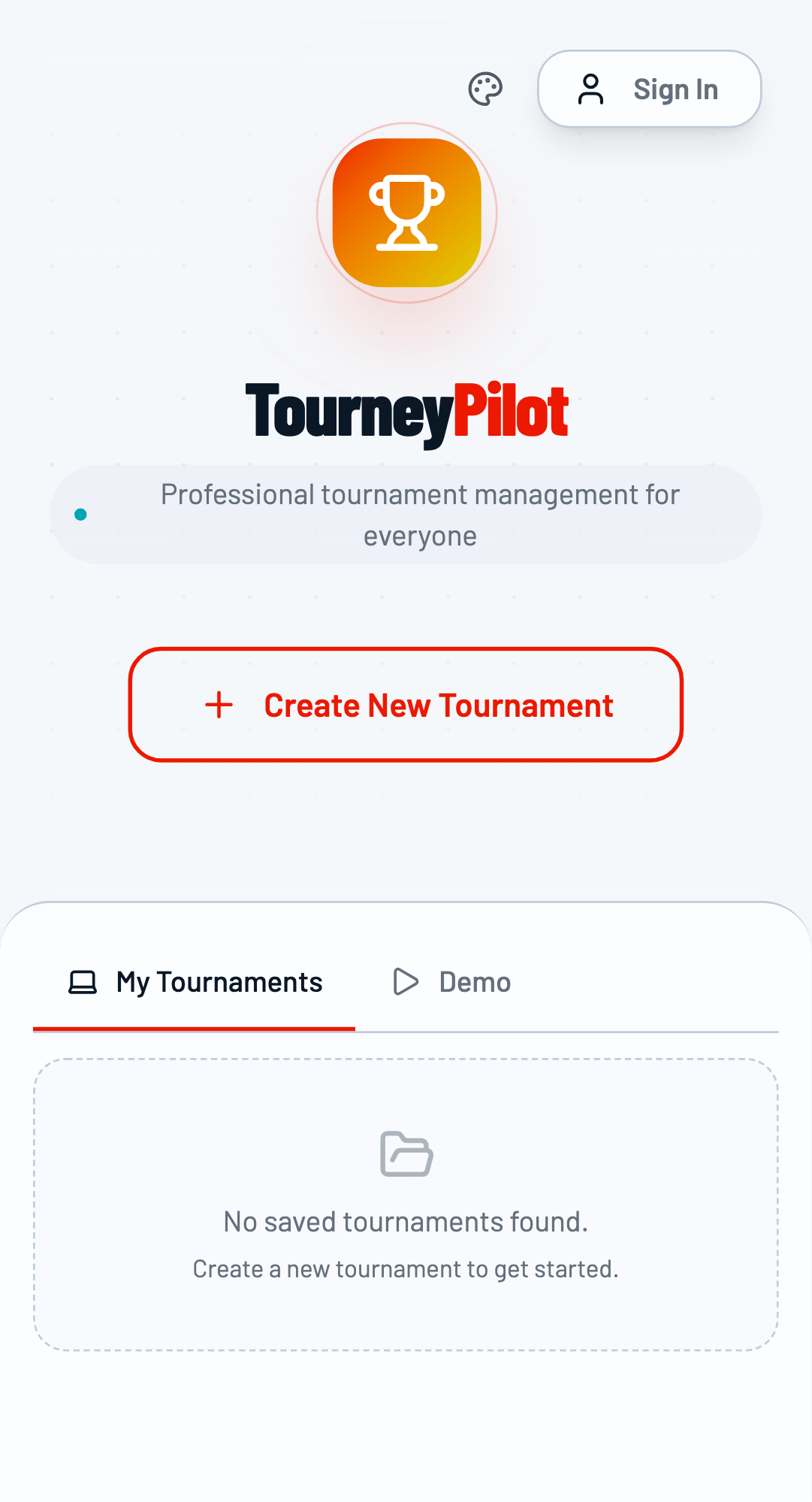
UI Modes: Light & Dark
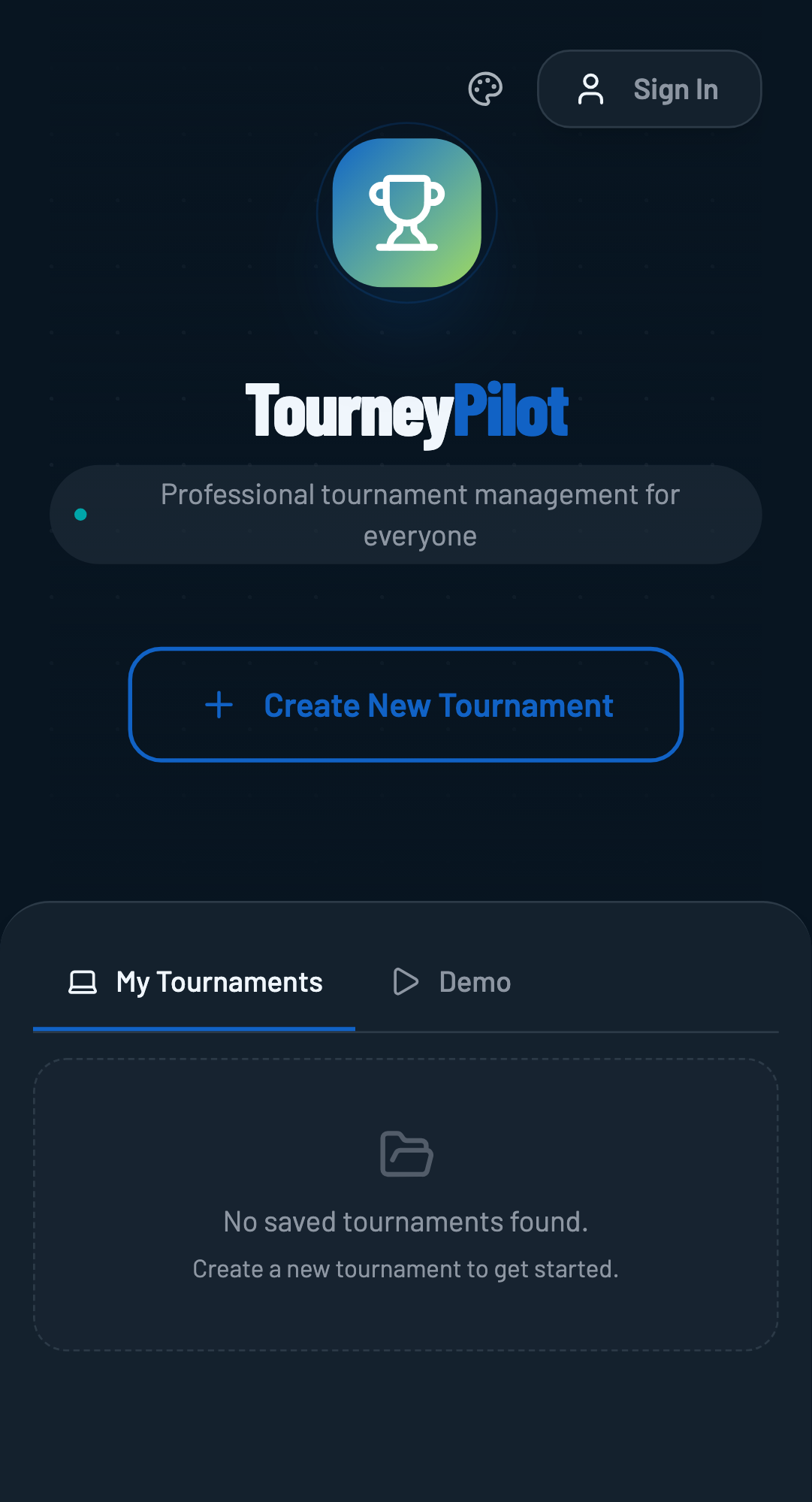
TourneyPilot supports both light and dark modes. Click the theme picker and select your preferred mode.
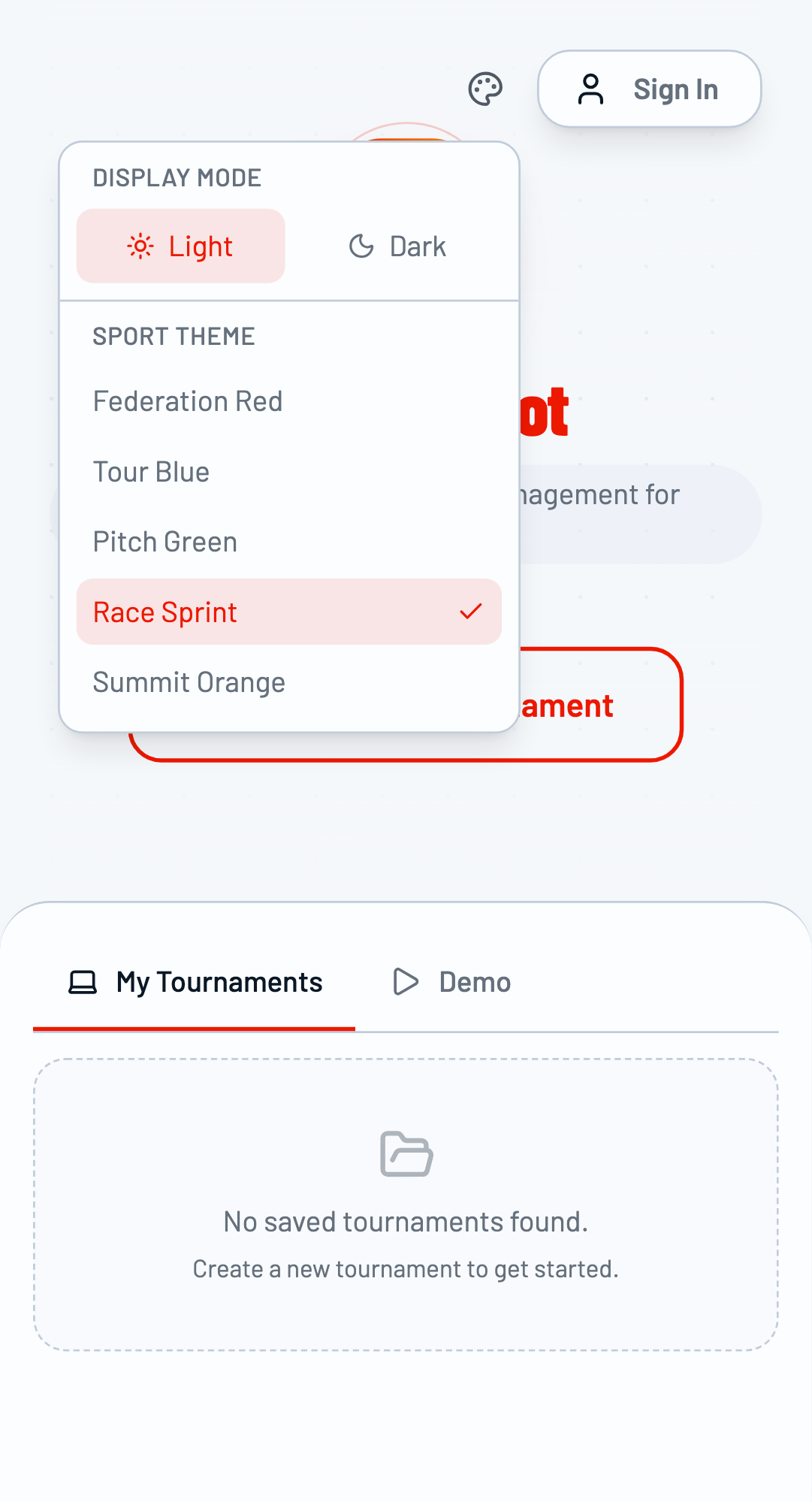
Dark Mode
Dark mode is easier on the eyes in low-light environments and can help conserve battery on mobile devices.
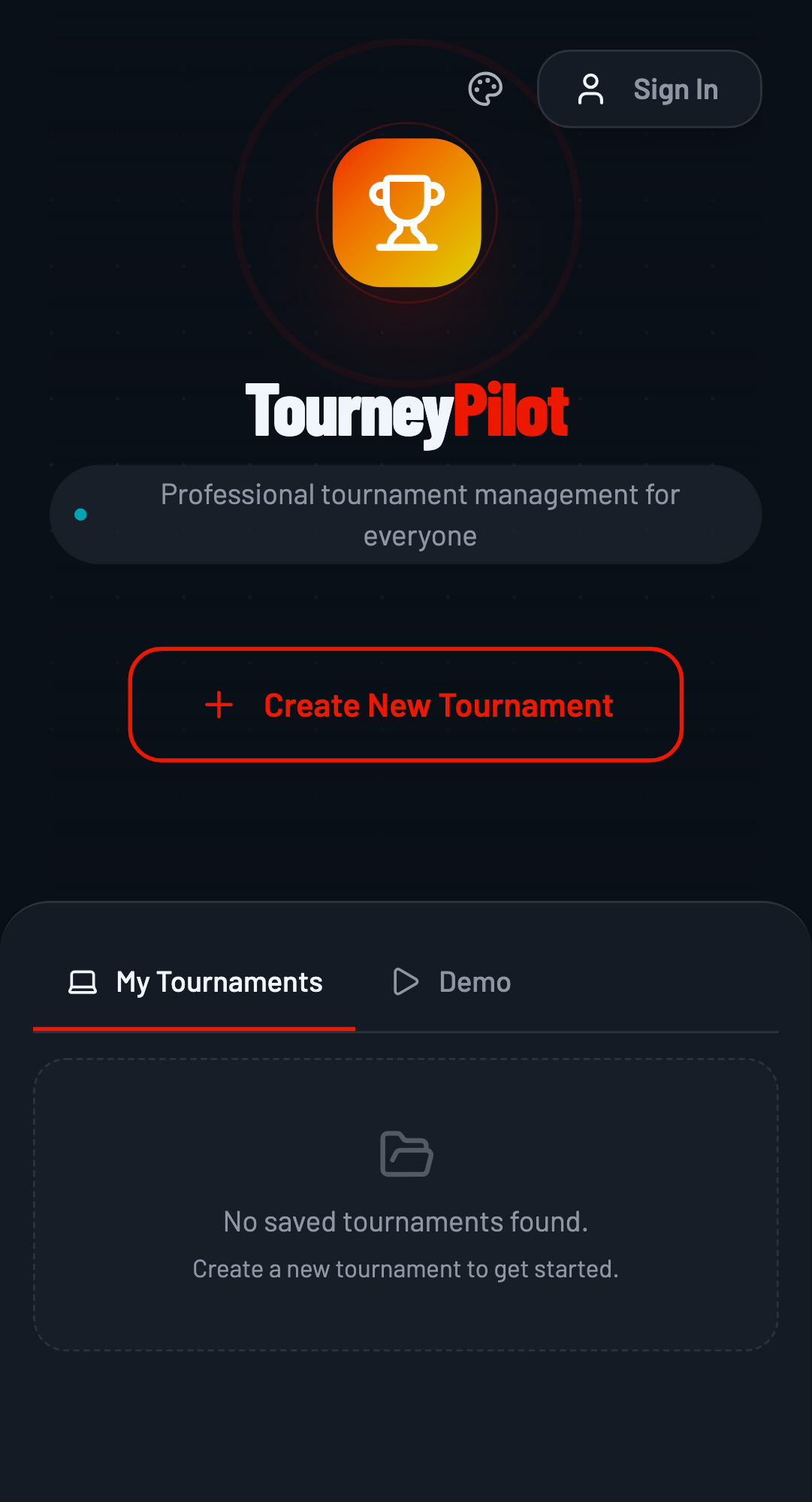
Sport Themes
Choose from several sport-themed color palettes to match your tournament's sport or your personal preference.
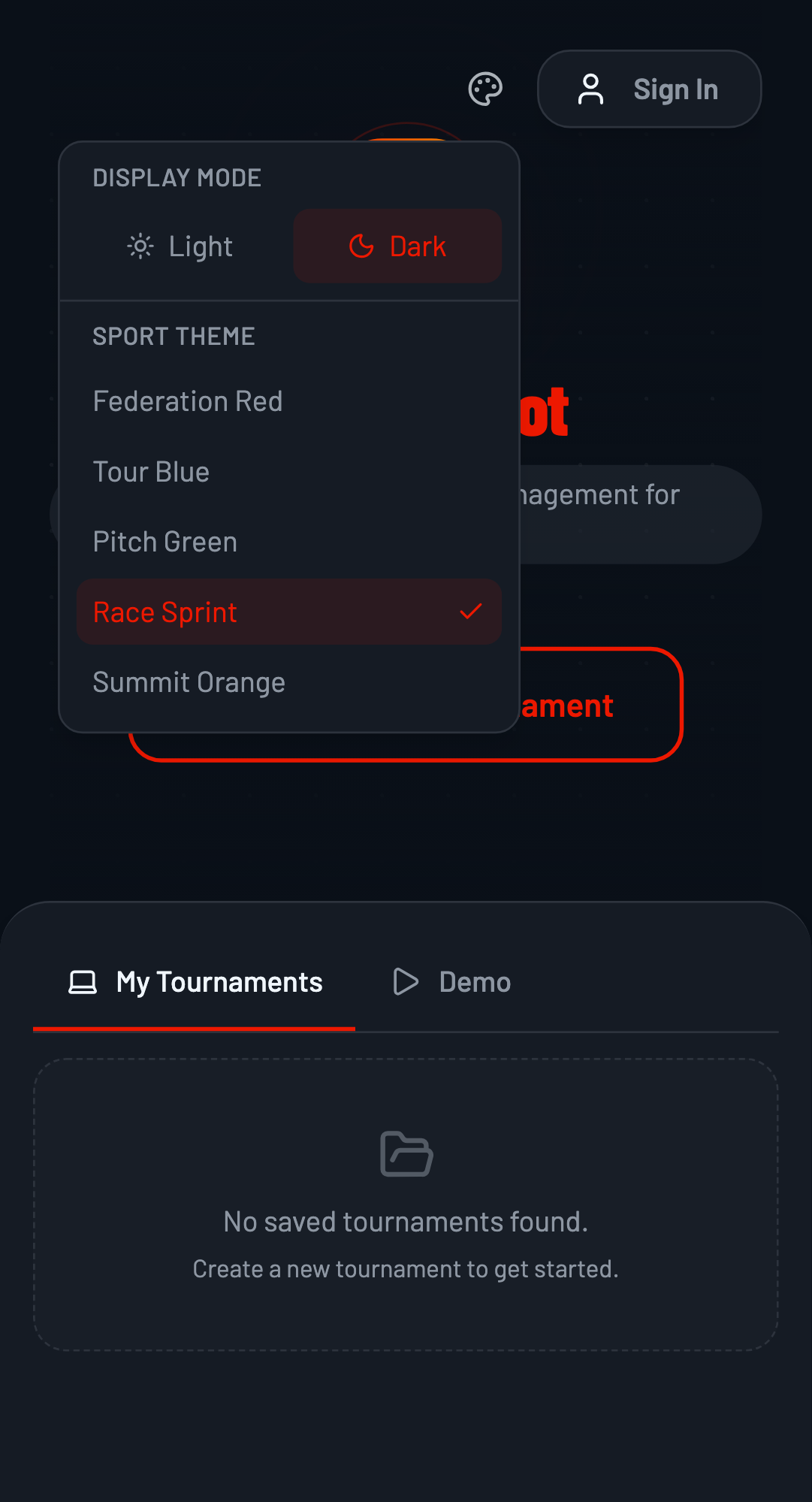
Available Themes
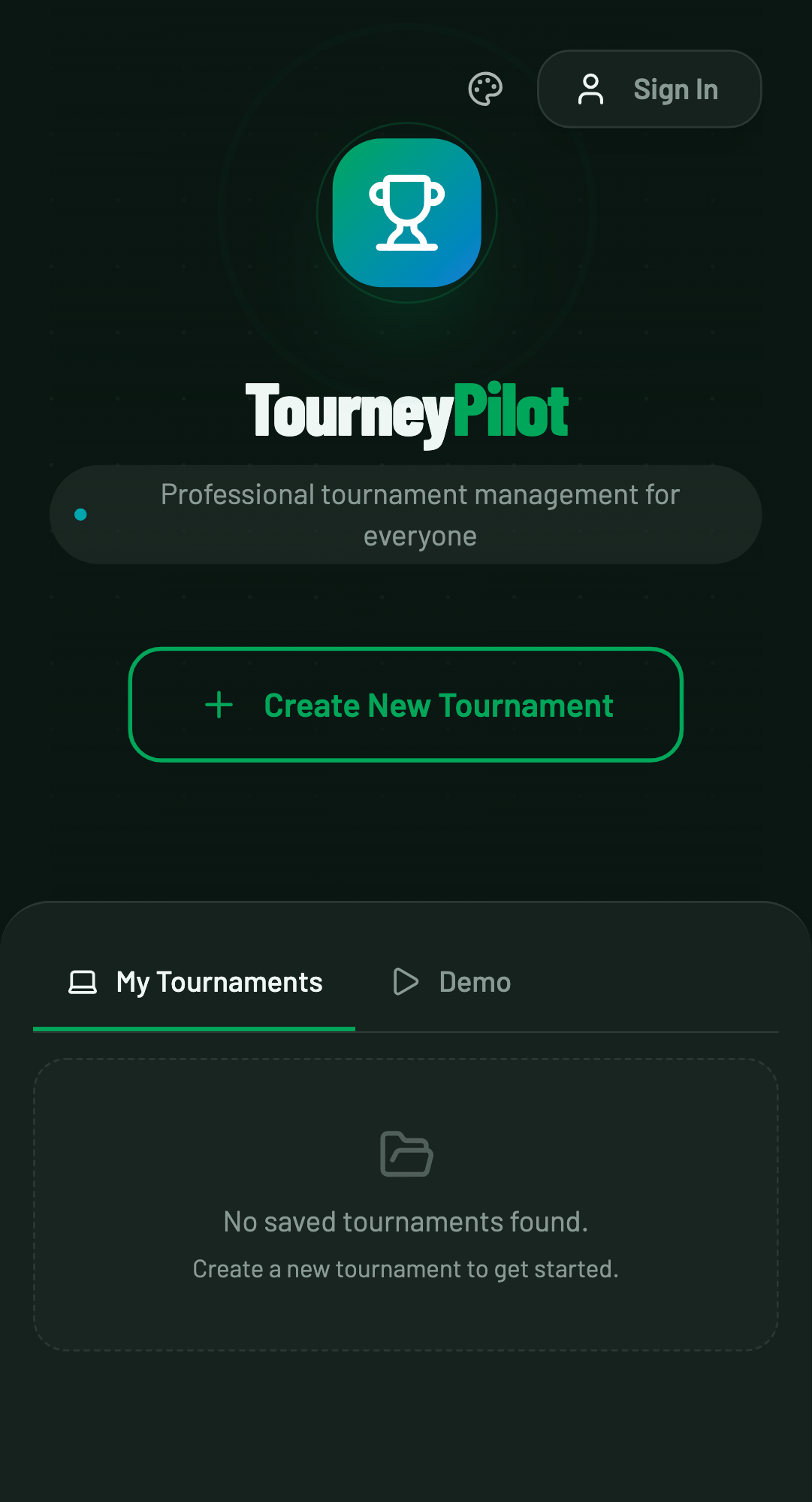
Theme Persistence
Your theme preferences are saved automatically. When you return to TourneyPilot, your selected theme will be restored.
Tournament Management Tips
⚡ Use Auto-Scheduling
Let the system automatically schedule your matches based on table availability and player rest times. Fine-tune manually as needed.
📱 Use PIN Codes for Scorers
Give court-side scorers PIN codes for their tables. They can score matches without full app access, reducing confusion.
🏆 Seed Your Players
Set player ranks/seedings to ensure top players don't meet in early rounds. This creates more exciting finals.
📋 Batch Operations
Use batch operations to manage multiple competitions at once. Perfect for large tournaments with many categories.
🔄 Go Online Early
Enable online mode before the tournament starts so viewers can access the bracket and follow along.
📊 Block Tables
Block tables that are unavailable (e.g., for lunch breaks or maintenance) to prevent matches from being assigned there.
Keyboard Shortcuts
TourneyPilot works well with keyboard navigation. Some useful shortcuts:
- Tab - Navigate between elements
- Enter/Space - Activate buttons and links
- Escape - Close modals and overlays
Mobile-First Design
TourneyPilot is designed for mobile use first. All features work on phones and tablets, making it easy to manage tournaments from anywhere court-side.
Related Guides
- Getting Started - Basic tournament setup
- Scheduling & Queue - Match scheduling tips
- Multi-Mode Workflow - Remote scoring setup